5
Network Scanner Operations
5-36 ineo+ 650/550/451
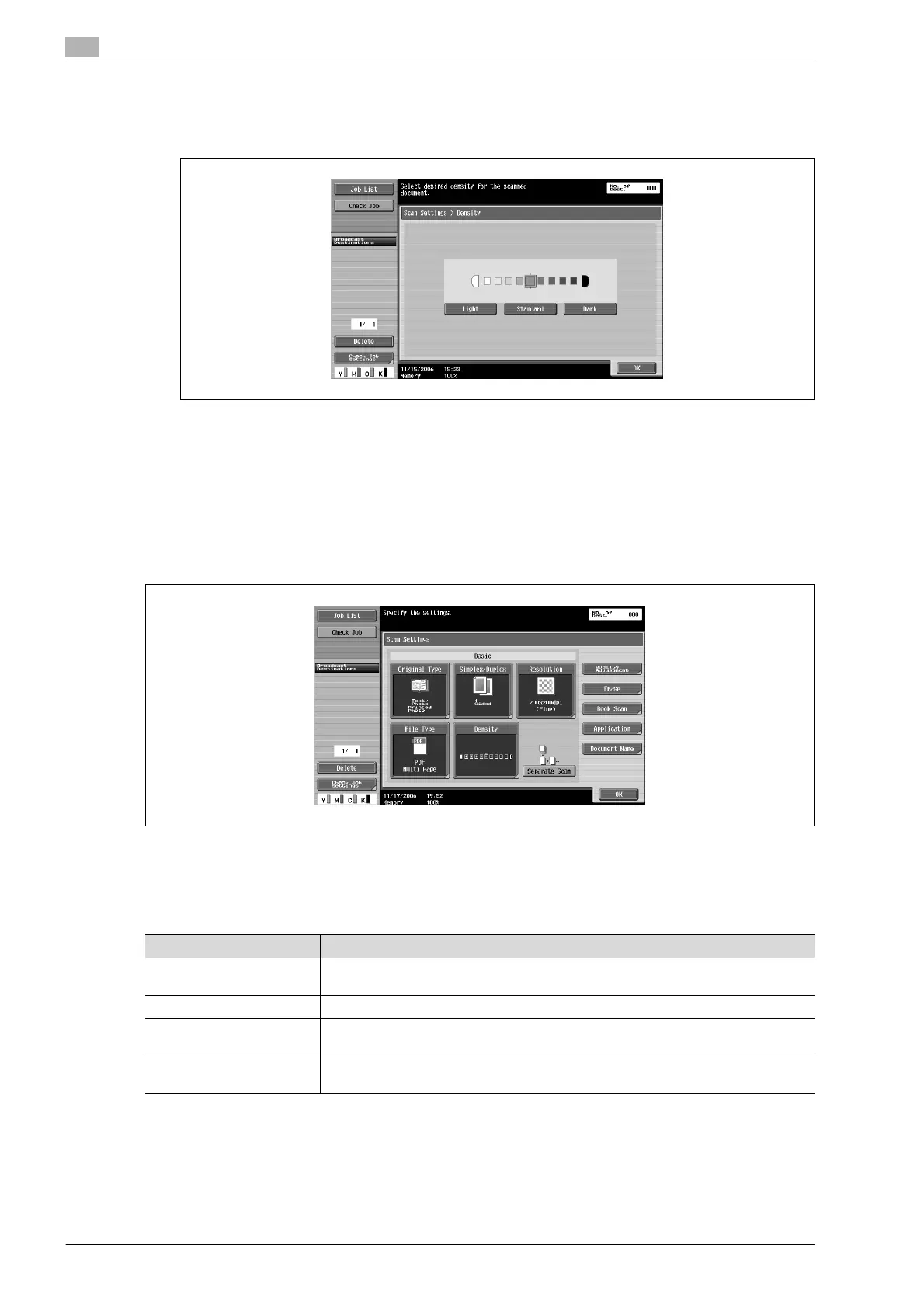
3 Select the density.
– To adjust the density, touch [Light] or [Dark].
– To select the default setting, touch [Standard].
4 Touch [OK], and then touch [OK] in the next screen that appears.
Separate scan
The scan operation can be divided into several sessions for various types of documents, for example, when
all pages of a document cannot be loaded into the ADF, when placing the document on the original glass, or
when single-sided documents are combined with double-sided documents.
Touch [Separate Scan] in the Fax/Scan mode screen. The setting is selected when the button appears
selected.
Color (Quality adjustment)
Select whether the document will be scanned in color or black and white.
The following four settings are available.
Some Color settings may not be available, depending on the selected File Type setting. The possible
combinations of the Color and File Type settings are shown below.
!
Detail
For details on specifying the File Type setting, refer to "File type" on page 5-33.
Setting Description
Auto Color Select this setting to automatically detect the color of the document and scan it with
the corresponding setting.
Full Color Select this setting to scan in full color.
Grayscale Select this setting for documents with many halftones, such as in black-and-white
photos.
Black Select this setting for documents with distinct black and white areas, such as in line
drawings.









 To Next Page