ineo+ 650/550/451 2-9
Copy Operations
2
Scanning during warm-up
1 Press the [Power] (auxiliary power) key.
– For details on turning on the machine, refer to "Turning off the machine" on page 2-10.
The indicator on the [Start] key lights up in orange.
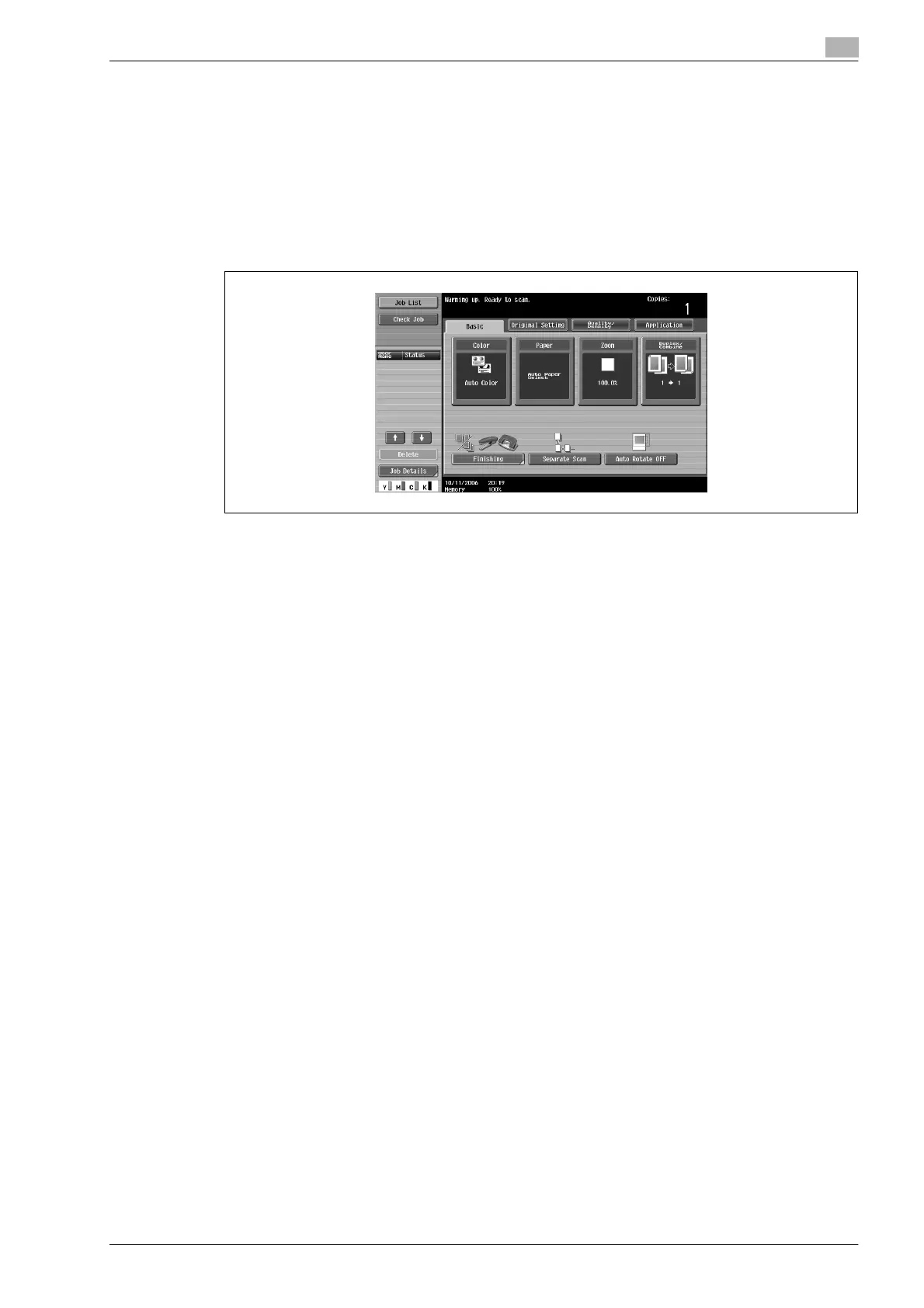
After the warm-up message is displayed, the Basic screen appears. The indicator on the [Start] key
lights up in blue.
2 Check that the message "Warming up. Ready to scan." appears on the touch panel.
3 Position the document to be copied.
– For details on positioning the document, refer to "Feeding the document" on page 2-26.
4 Specify any other desired copy settings.
5 Using the keypad, specify the desired number of copies.
6 Press the [Start] key.
The document is scanned, and the job is added to the list of queued jobs.
7 Check that the document has finished being scanned, and then position the next document.
8 Specify new copy settings and the desired number of copies, and then press the [Start] key.
– If the "Copy Operating Screen" parameter in the Utility mode was set to "Yes", touch [Next Copy
Job] to display the Basic screen.
– After the machine has finished warming up, the jobs will automatically be printed in the order that
they were queued.
?
How can the job being printed be stopped?
% Press the [Stop] key.
!
Detail
While the machine is warming up to begin printing after it is turned on using the [Power] (auxiliary power)
key, copy settings can be specified and a document can be scanned to reserve a copy job. After the
machine has finished warming up, the copies are automatically printed.
The print order can be changed or jobs can be deleted from the Detail screen of a job from the Current
Jobs list in the Job List screen.









 To Next Page