ineo+ 650/550/451 2-37
Copy Operations
2
2.12 Specifying a zoom setting
The zoom ratio can be set in order to make a copy on paper with a size different than the document or to
enlarge or reduce the size of the copy image.
The following procedures describe how to specify the Zoom setting.
Automatically selecting the zoom ratio ("Auto" zoom setting)
The most appropriate zoom ratio is automatically selected based on the size of the loaded document and the
specified paper size.
0 If the "Auto" Zoom setting is selected and an enlargement is to be copied on paper larger than the
document, load the document with the same orientation as the paper.
0 The "Auto" Zoom setting and the "Auto" Paper setting cannot both be selected at the same time. If the
"Auto" Paper setting was selected, the Paper screen appears. In the Paper screen, specify the desired
Paper setting.
0 As the factory default, "Full Size" is selected.
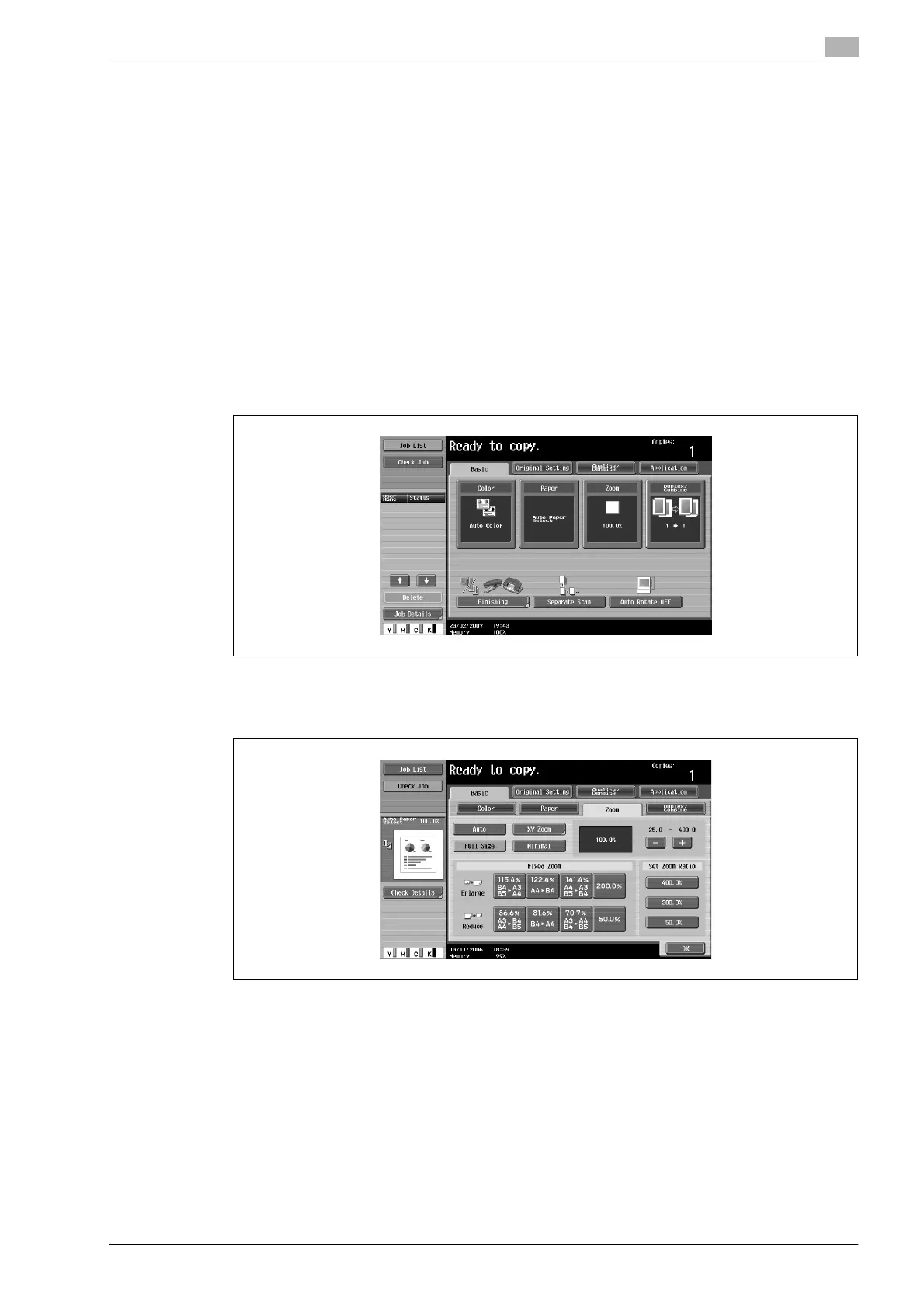
1 In the Basic screen, touch [Zoom].
The Zoom screen appears.
2 Touch [Auto].
3 Touch [OK].
The Basic screen appears again.









 To Next Page