ineo+ 650/550/451 5-69
Network Scanner Operations
5
5 Touch [Name], and then type in the registration name, using the keyboard that appears.
– For details on typing in text, refer to "Entering text" on page 9-3.
6 Touch [OK].
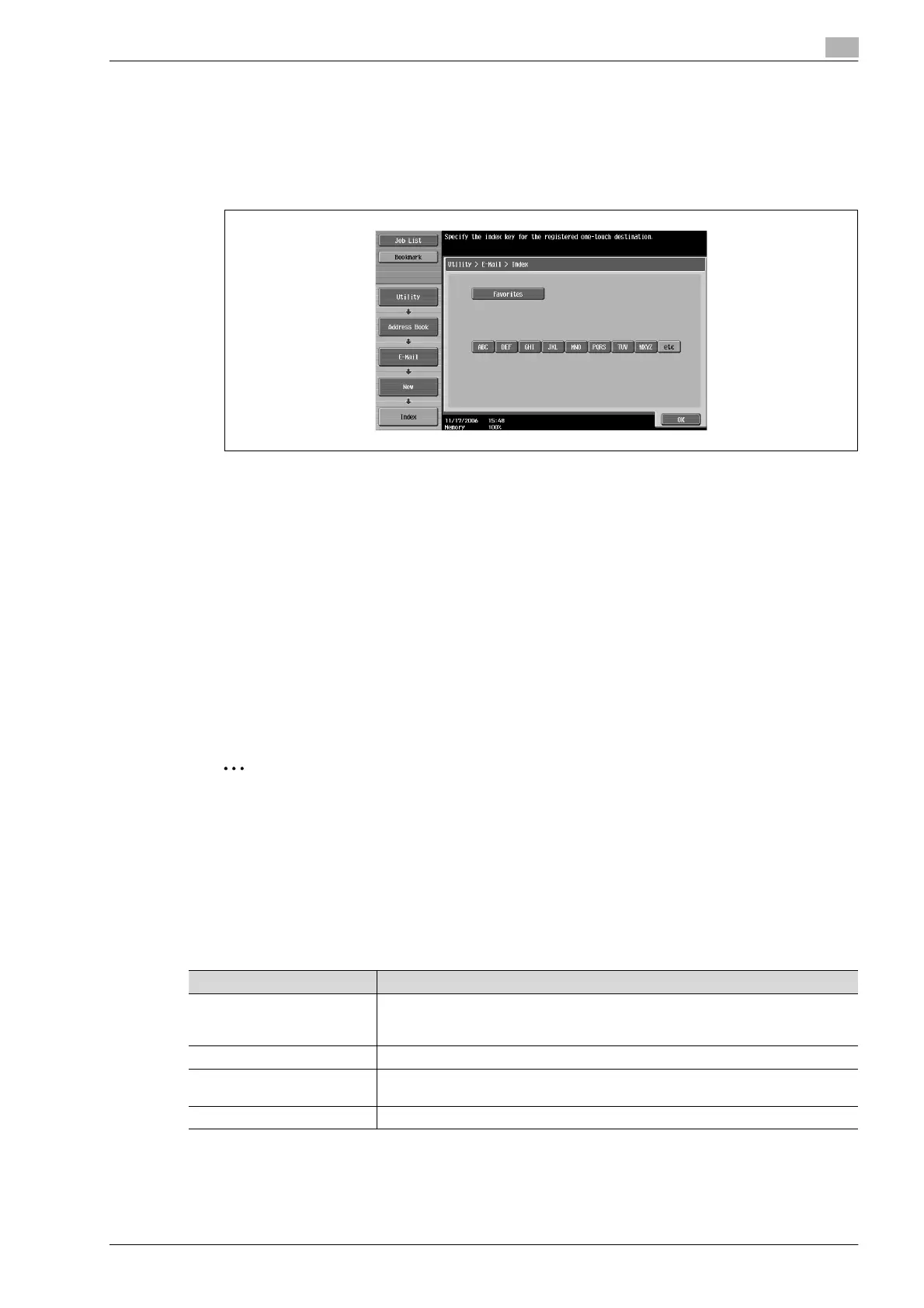
7 Touch [Index], and then select the index characters.
8 Touch [OK].
9 Touch [E-Mail Address], and then type in the e-mail address, using the keyboard that appears.
10 Touch [OK], and then touch [OK] in the next screen that appears.
The e-mail destination is registered.
!
Detail
To check a registered destination, select it, and then touch [Check Job Set.].
To change the settings for a registered destination, select it, and then touch [Edit]. The registration
number cannot be changed in the Edit screen.
To delete a registered destination, select it, and then touch [Delete].
2
Note
The registration cannot be completed if no settings are specified for "Name" and "E-Mail Address".
To cancel the registration, touch [Cancel].
To finish specifying settings in the Utility mode, press the [Utility/Counter] key. Otherwise, exit the Utility
mode by touching [Close] in each screen until the screen for the Copy, Fax/Scan or Box mode appears.
User box
Settings can be specified for the following for the user box destination to be registered.
!
Detail
In order to register a user box as a destination, the user box must be registered first.
Parameter Description
No. Type in the registration number (between 1 and 2000) for the address book destina-
tion. When the screen appears, the displayed number is the lowest available
number.
Name Type in a name of 24 characters or less for the registered destination.
Index Select the index characters. For frequently used destinations, touch [Favorites] so
that the destination can be found more easily.
User Box Select one user box where data is to be saved.









 To Next Page