2
Copy Operations
2-6 ineo+ 650/550/451
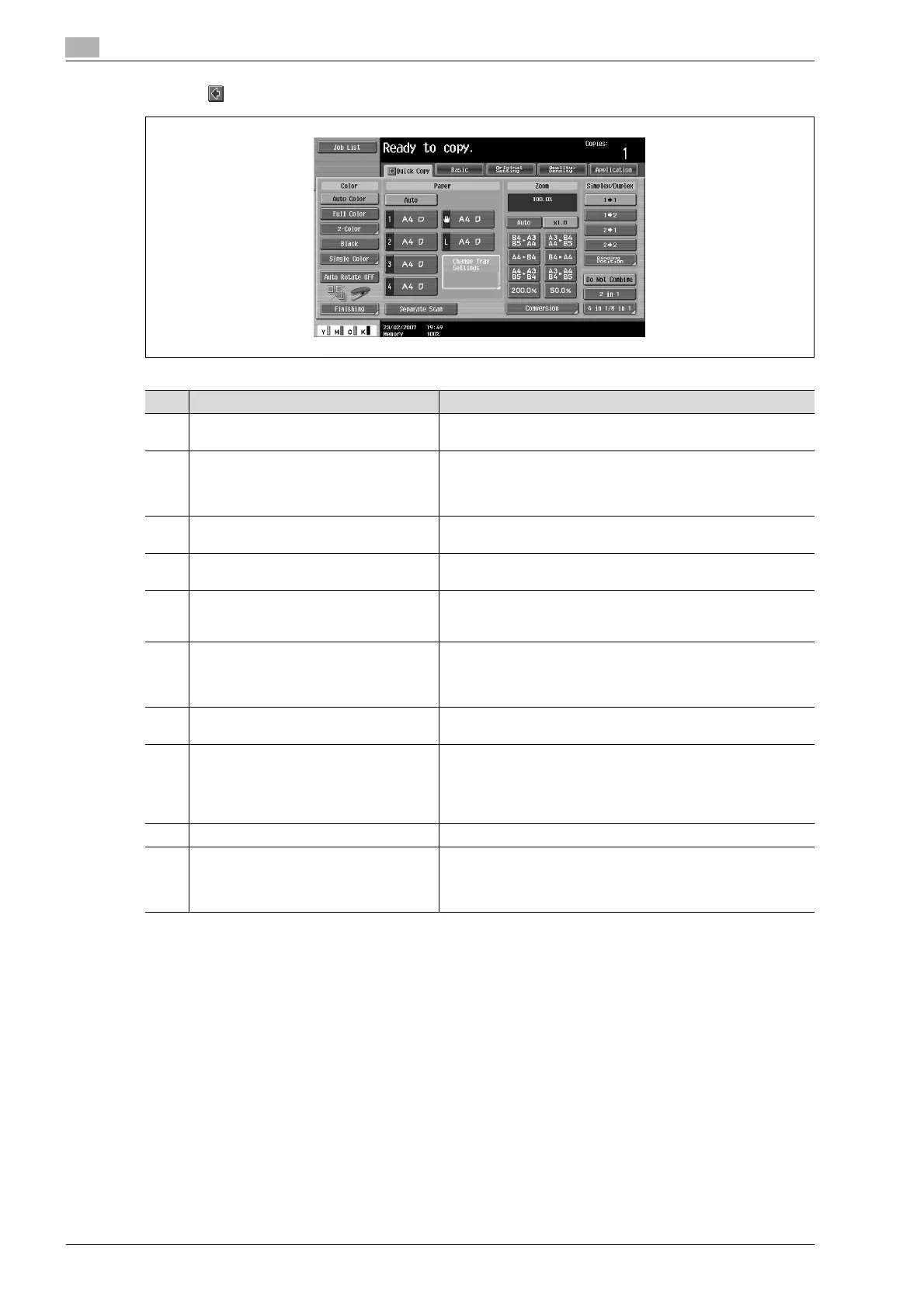
Touching displays the Color settings, [Finishing] and [Auto Rotate OFF] in the left panel.
!
Detail
The basic settings screen (Basic screen or Quick Copy screen) that appears can be set with the "Copier
Settings" parameter in the Custom Display Settings screen (displayed from the User Setting screen).
The arrangement of the buttons and screens differ with the Basic screen and Quick Copy screen;
however, the functions that can be set are the same. As a default, "Basic" is selected. This manual
contains descriptions of procedures using the Basic screen that appears when "Basic" is selected.
The Quick Copy screen displays all of the settings from the Basic screen so that many settings can
easily be specified.
No. Item Name Description
1 Message display area The status of the machine and details on operations are dis-
played.
2 Functions/settings display area Tabs and buttons for displaying screens containing various func-
tions are displayed.
Touch a tab or button to display the corresponding screen for
specifying the settings.
3 Icon display area Icons indicating the status of jobs and the machine are dis-
played.
4 [Auto Rotate OFF] button Touch to copy with the image not rotated to fit the orientation of
the loaded paper.
5 [Separate Scan] button Touch to scan the document in separate batches.
A document scanned in different batches can be treated as a sin-
gle copy job.
6 [Finishing] button Touch to specify settings for sorting, collating, grouping, offset-
ting, stapling, hole punching or outputting to a specific tray.
The settings that can be specified differ depending on the finish-
er that is installed.
7 Toner supply indicators These indicators show the amount of toner remaining for cyan
(C), magenta (M), yellow (Y), and black (K).
8 Left panel When the [Job List] button is pressed, a screen showing the jobs
currently being performed or waiting to be performed is dis-
played.
When the [Check Job] button is pressed, a screen showing the
result of the specified settings is displayed.
9 [Check Job] button The result of the specified settings is displayed.
10 [Job List] button Jobs currently being performed or waiting to be performed are
displayed.
Various commands for checking and managing jobs are availa-
ble.









 To Next Page