6
Web Connection Operations
6-36 ineo+ 650/550/451
If "FTP" was selected
Compose (Page) Select whether or not to print the page number.
If "ON" is selected, specify settings for the following.
• Page Number (Range: -99999 to 99999)
• Chapter (Range: -100 to 100)
• Page Number Type
•Print Position
• Fine-Tune (for making fine adjustments to the print position)
•Color
•Size
Compose (Header/Footer) Select whether or not to print the header/footer.
If "ON" is selected, specify the registration number of the header/footer. To
check the registered header/foot, click the [Confirm Registed Contents] but-
ton.
Compose (Stamp) Select whether or not to print the stamp.
If "ON" is selected, specify settings for the following.
• Preset Stamp or Registered Stamp
•Print Position
• Fine-Tune (for making fine adjustments to the print position)
•Color
• Pages
•Size
To check a registered stamp, click the [Confirm Registed Contents] button. A
registered stamp must first be registered from the control panel.
Stamp Combine Method Select "Image" or "Text".
[Return to Defaults] button Click this button to reset the settings in the Application Setting page to their
defaults.
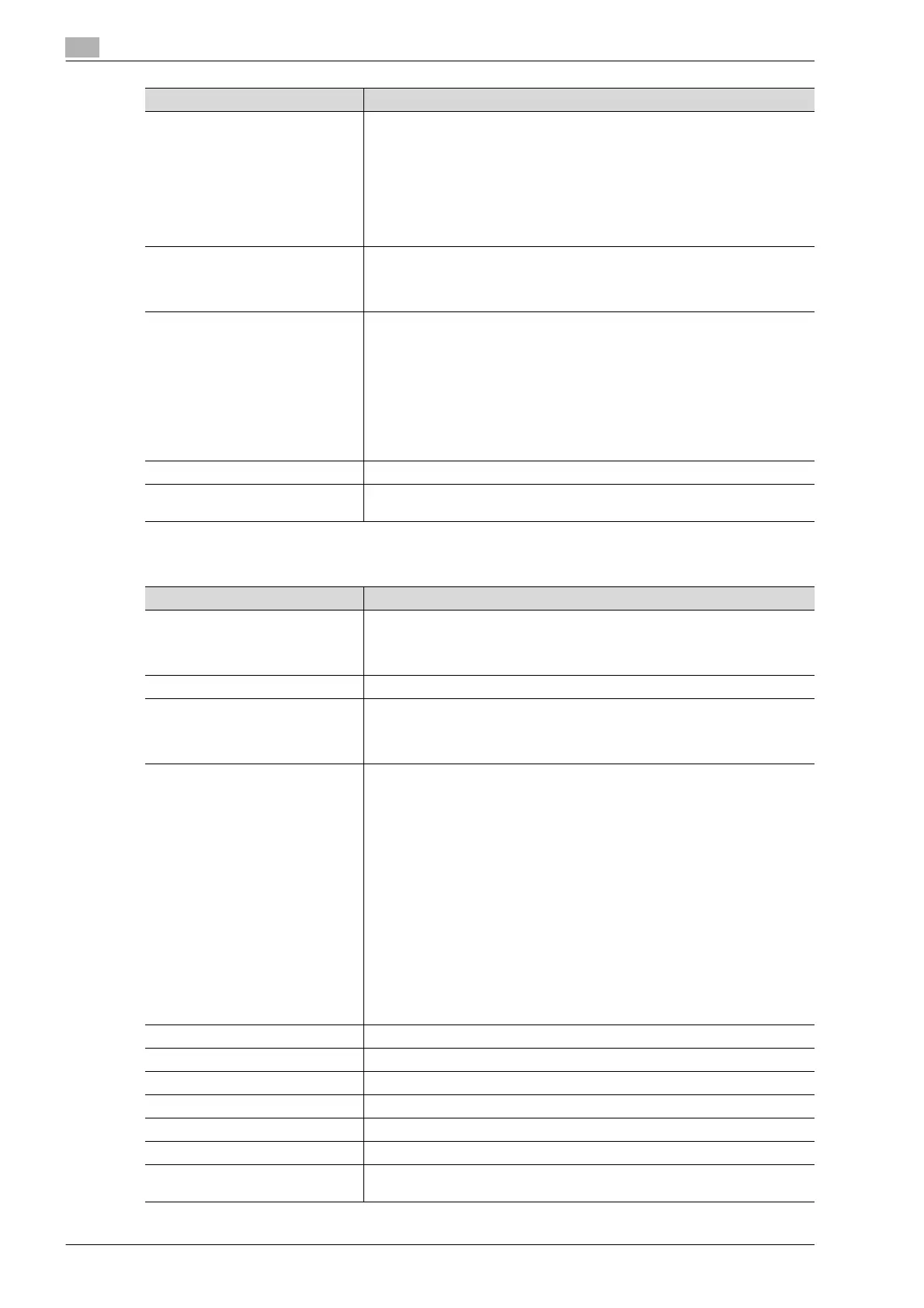
Item Description
Item Description
No. Specify the registration number.
Select "Use opening number" or "Direct Input". If "Direct Input" is selected,
type in the number. If "0" is specified, the user box is automatically registered
with the next available number.
Name Type in the name of the program (up to 24 characters).
Limiting Access to Destinations Select the display level for the destination.
If "Search from Reference Allowed Group" is selected, click the [Search from
List] button, and then select an access permission group from the list. If "Set
direct Reference Allowed Level" is selected, select a level.
Destination Information Specify the destination.
Select "Select from Address Book" or "Direct Input". To select a destination
from the address book, click the [Search from List] button, and then select
from the list of address book destinations. An address book destination can
also be searched for using its number or index characters. To check the trans-
mission destinations, click the [Check Destination] button. If "Direct Input" is
selected, specify settings for the following.
• Host Address
• File Path
•User ID
•Password
• anonymous
• PASV Mode
•Proxy
•Port No.
To type in the host address and host name, check the "Please check to enter
host name." check box. If the machine is set to use IPv6, an IPv6 address can
also be specified.
Resolution Select the resolution.
File Type Select the file format.
File Name Type in the file name (up to 30 characters).
Page Setting Select how the data is to be saved.
Simplex/Duplex Select "1-Sided", "2-Sided" or "Cover Sheet + 2-Sided".
Original Type Select the document quality, such as text or photo.
Color Select the color mode. The file formats that can be saved may be limited ac-
cording to the Color setting.









 To Next Page