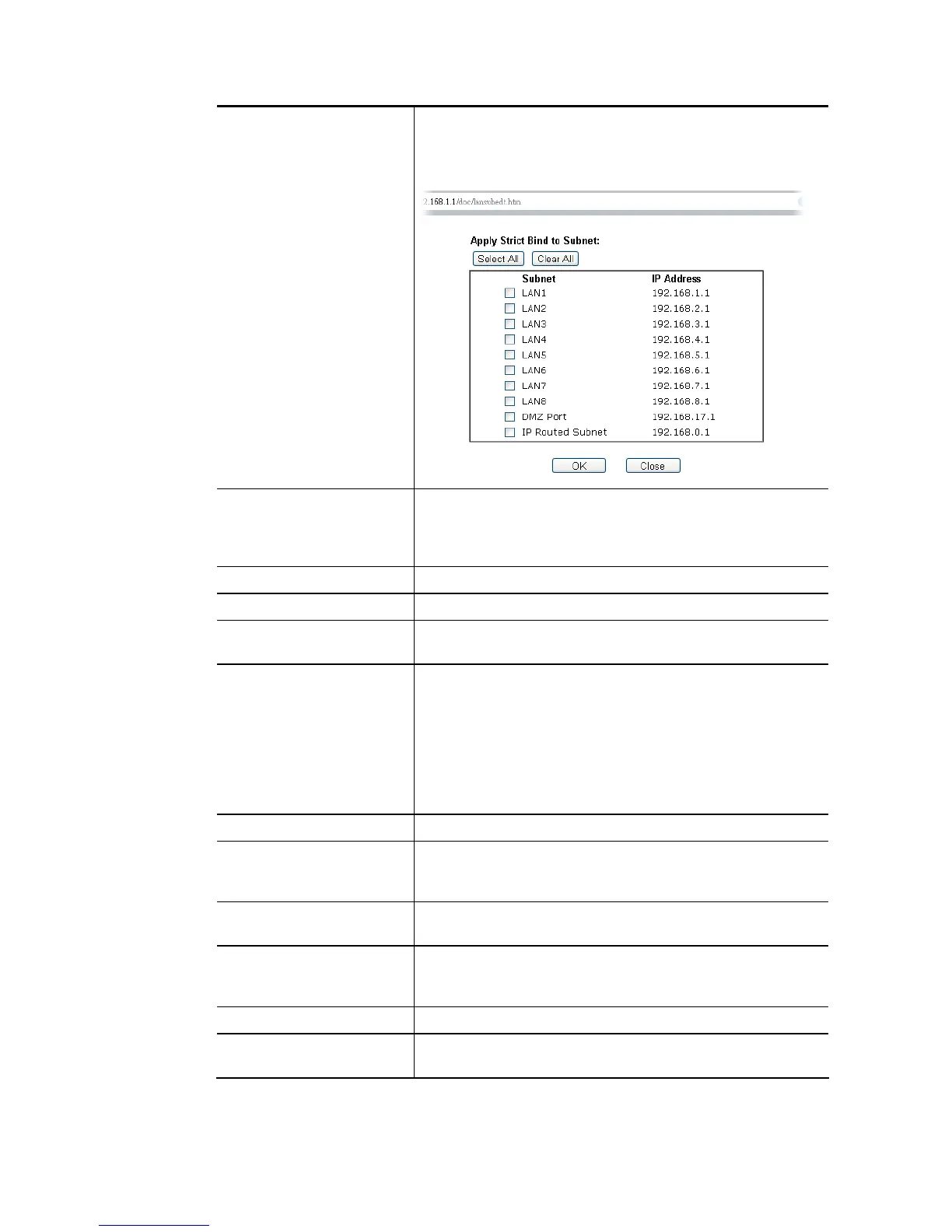
Strict Bind Check the box to block the connection of the IP/MAC which is
not listed in IP Bind List.
Apply Strict Bind to Subnet – Choose the subnet(s) for
applying the rules of Bind IP to MAC.
ARP Table This table is the LAN ARP table of this router. The
information for IP and MAC will be displayed in this field.
Each pair of IP and MAC address listed in ARP table can be
selected and added to IP Bind List by clicking Add below.
Select All Click this link to select all the items in the ARP table.
Sort Reorder the table based on the IP address.
Refresh Refresh the ARP table listed below to obtain the newest ARP
table information.
Add or Update
IP Address – Type the IP address that will be used for the
specified MAC address.
Mac Address – Type the MAC address that is used to bind
with the assigned IP address.
Comment – Type a brief description for the entry.
Show Comment – Check this box to display the comment on
IP Bind List box.
IP Bind List It displays a list for the IP bind to MAC information.
Add It allows you to add the one you choose from the ARP table or
the IP/MAC address typed in Add and Edit to the table of IP
Bind List.
Update It allows you to edit and modify the selected IP address and
MAC address that you create before.
Delete You can remove any item listed in IP Bind List. Simply click
and select the one, and click Delete. The selected item will
be removed from the IP Bind List.
Backup Store the configuration for Bind IP to MAC as a file.
Restore Restore the previously stored configuration file and apply to
such page.







 To Next Page