you want to ping through or choose Unspecified to be
determined by the router automatically.
Ping to Use the drop down list to choose the destination that you
want to ping.
IP Address Type the IP address of the Host/IP that you want to ping.
Ping IPv6 Address Type the IPv6 address that you want to ping.
Run Click this button to start the ping work. The result will be
displayed on the screen.
Clear Click this link to remove the result on the window.
I
I
X
X
-
-
1
1
-
-
9
9
D
D
a
a
t
t
a
a
F
F
l
l
o
o
w
w
M
M
o
o
n
n
i
i
t
t
o
o
r
r
This page displays the running procedure for the IP address monitored and refreshes the data
in an interval of several seconds. The IP address listed here is configured in Bandwidth
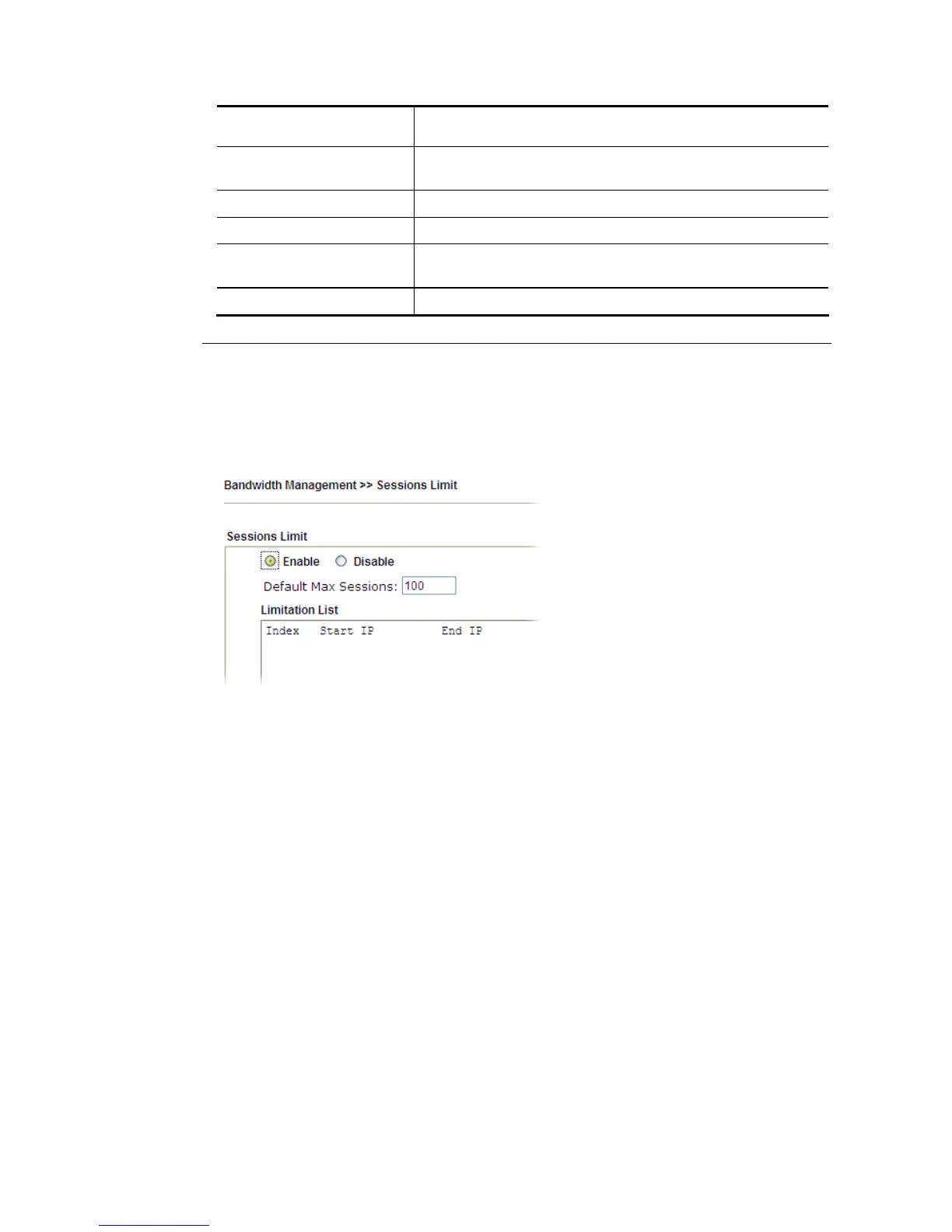
Management. You have to enable IP bandwidth limit and IP session limit before invoking Data
Flow Monitor. If not, a notification dialog box will appear to remind you enabling it.
Click Diagnostics and click Data Flow Monitor to open the web page. You can click IP Address,
TX rate, RX rate or Session link for arranging the data display.







 To Next Page