V
V
I
I
I
I
-
-
7
7
C
C
e
e
n
n
t
t
r
r
a
a
l
l
M
M
a
a
n
n
a
a
g
g
e
e
m
m
e
e
n
n
t
t
(
(
S
S
w
w
i
i
t
t
c
c
h
h
)
)
Vigor router can manage lots of VigorSwitch devices connected to it. Through profile and
group settings, the administrator can execute firmware/configuration backup, restore for
VigorSwitch device, reboot the device or return to factory default settings of VigorSwitch at
one time.
V
V
I
I
I
I
-
-
7
7
-
-
1
1
S
S
t
t
a
a
t
t
u
u
s
s
V
V
I
I
I
I
-
-
7
7
-
-
1
1
-
-
1
1
S
S
w
w
i
i
t
t
c
c
h
h
S
S
t
t
a
a
t
t
u
u
s
s
Such page displays information, including Group, Switch name, IP address, model, System Up
Time, Port in Use, Clients, and Firmware Version of VigorSwitch connected to Vigor2860
series.
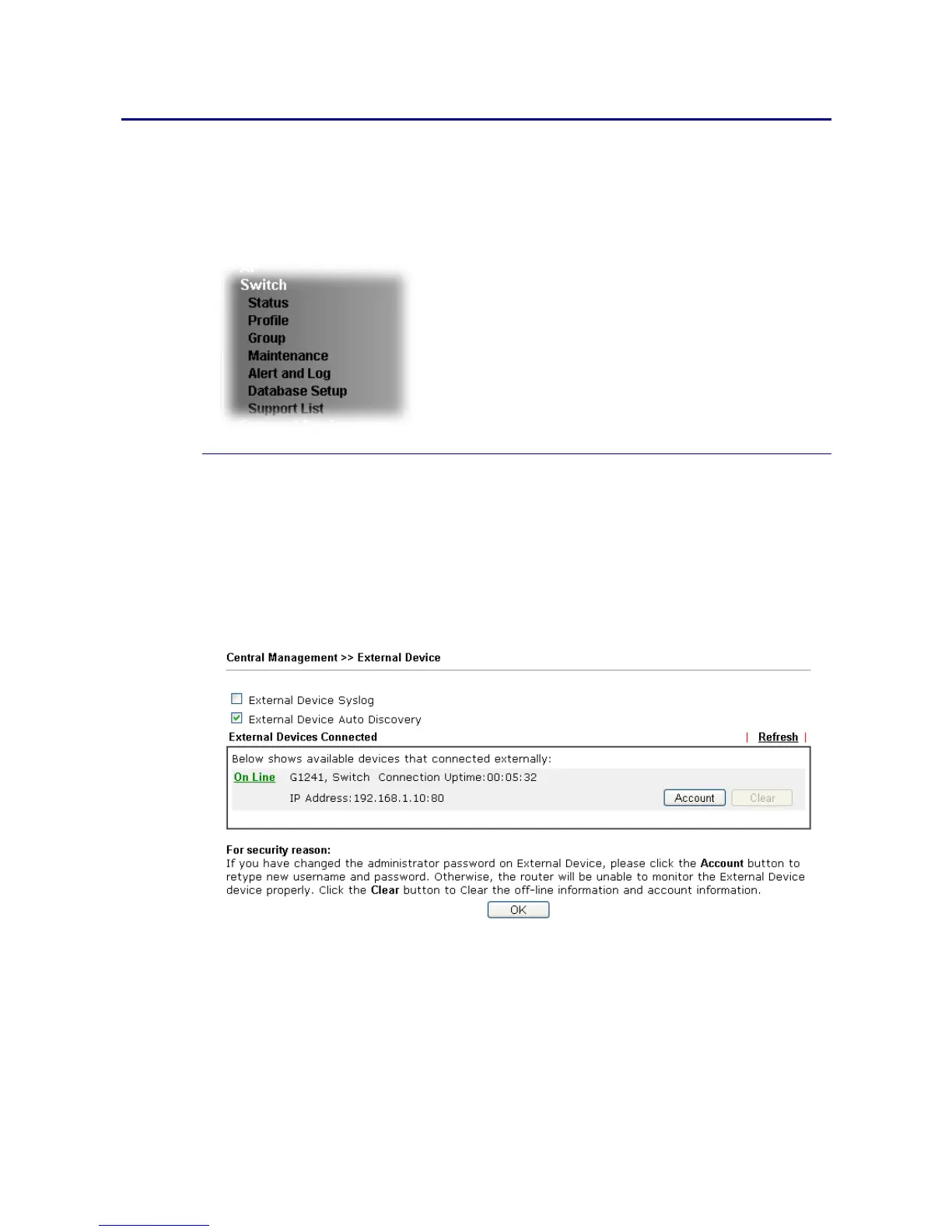
Before checking the switch status, go to Central Management>>External Device to enable
External Device Auto Discovery. Wait for the system to display available device(s).
Later, open Central Management>>Switch>>Status. Available VigorSwitch to be managed by
such router will be listed under the New Switch List.
One VigorSwitch device is managed by Vigor2860:







 To Next Page