A
A
p
p
p
p
l
l
i
i
c
c
a
a
t
t
i
i
o
o
n
n
N
N
o
o
t
t
e
e
s
s
A
A
-
-
1
1
H
H
o
o
w
w
t
t
o
o
C
C
u
u
s
s
t
t
o
o
m
m
i
i
z
z
e
e
a
a
S
S
e
e
c
c
u
u
r
r
e
e
R
R
o
o
u
u
t
t
e
e
b
b
e
e
t
t
w
w
e
e
e
e
n
n
V
V
P
P
N
N
R
R
o
o
u
u
t
t
e
e
r
r
a
a
n
n
d
d
R
R
e
e
m
m
o
o
t
t
e
e
R
R
o
o
u
u
t
t
e
e
r
r
b
b
y
y
U
U
s
s
i
i
n
n
g
g
R
R
o
o
u
u
t
t
e
e
P
P
o
o
l
l
i
i
c
c
y
y
Info
The web user interface will be revised later.
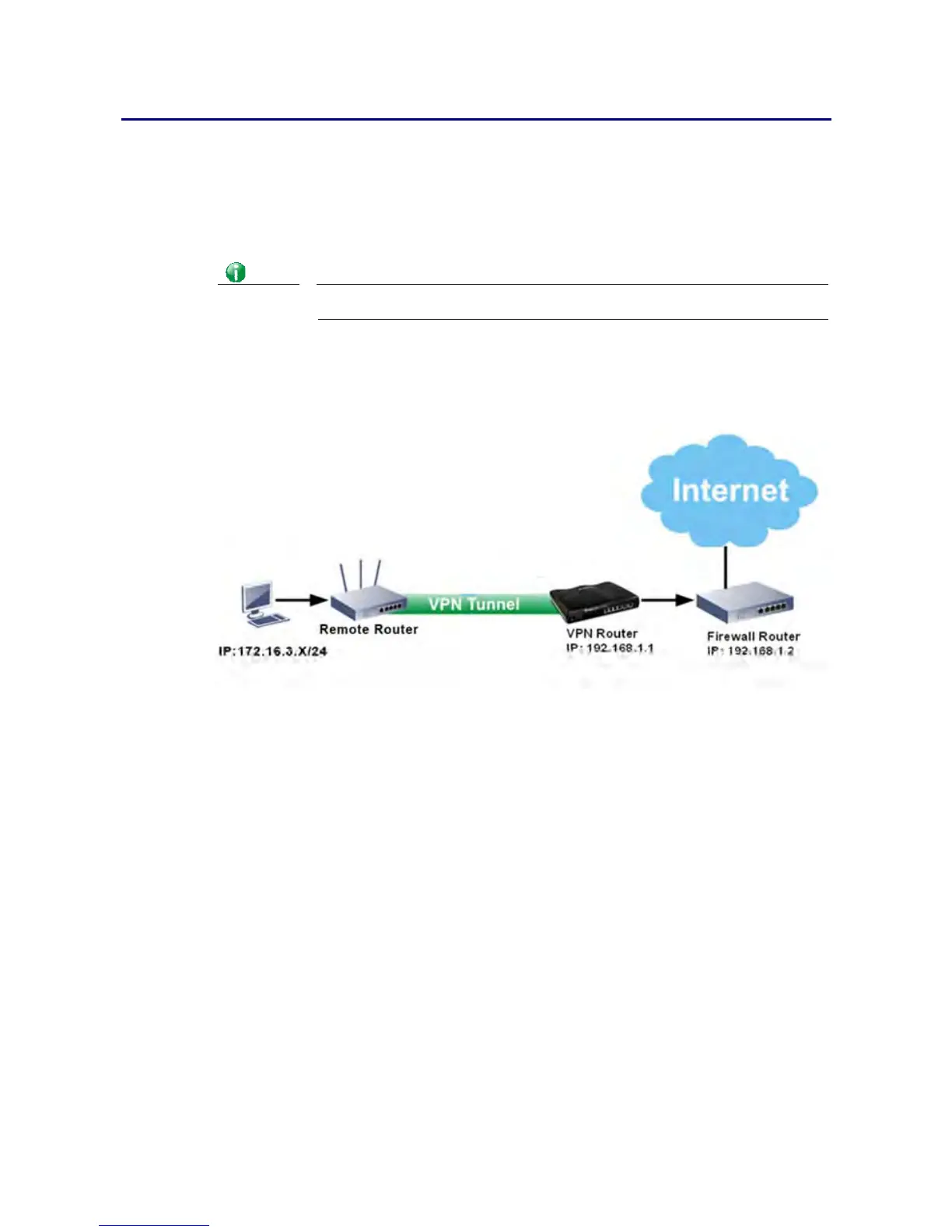
Example 1:
In the following figure, a LAN to LAN VPN tunnel is built between DrayTek VPN router (e.g.,
Vigor2860 series) and the remote router. Firewall Router can receive all of the traffic coming
from remote PC which wants to access into Internet; and send back the packets to Remote
Router through VPN Router.
1. Establish a VPN tunnel between VPN Router and the Remote Router.
2. Change to default route for the router located in Remote Router.
3. Access into the web user interface of the router in VPN Router. Then, open
Load-Balance / Route Policy>>General Setup and click Advance Mode.







 To Next Page