A
A
-
-
3
3
C
C
V
V
M
M
A
A
p
p
p
p
l
l
i
i
c
c
a
a
t
t
i
i
o
o
n
n
-
-
H
H
o
o
w
w
t
t
o
o
u
u
p
p
g
g
r
r
a
a
d
d
e
e
C
C
P
P
E
E
f
f
i
i
r
r
m
m
w
w
a
a
r
r
e
e
t
t
h
h
r
r
o
o
u
u
g
g
h
h
V
V
i
i
g
g
o
o
r
r
2
2
8
8
6
6
0
0
s
s
e
e
r
r
i
i
e
e
s
s
?
?
Download the newest firmware from your Draytek website to USB Storage Disk for the device
(e.g., Vigor2850) managed by Vigor2860 series.
Vigor2850, as an example, is chosen for Vigor2860 to perform the CPE firmware upgrade
remotely in this case.
1. Plug in USB storage disk onto Vigor2860 series via USB interface. Make sure the USB disk
has been installed correctly, otherwise, the firmware upgrade will not be successful.
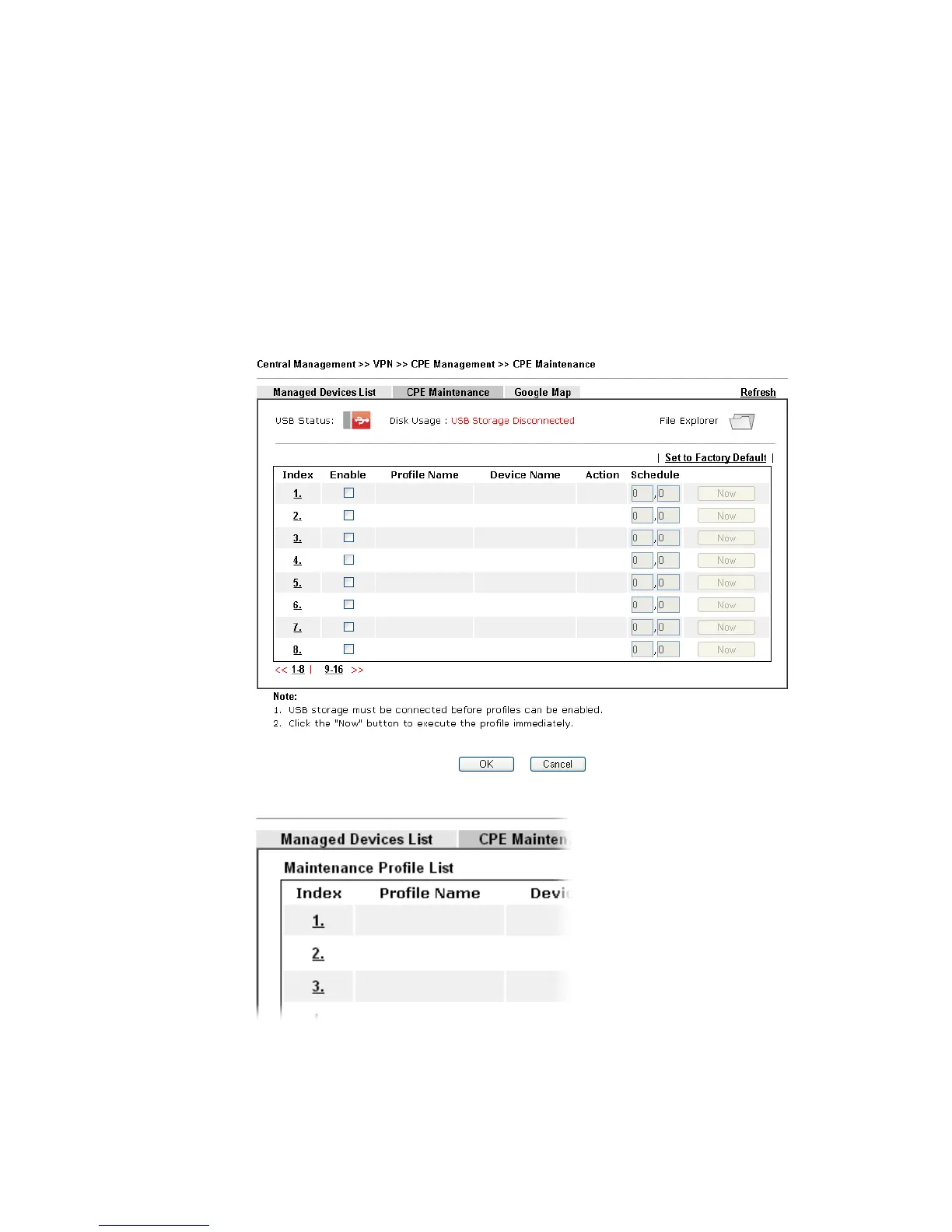
2. Access into web user interface of Vigor2860 series. Open Central VPN
Management>>CPE Management and click the CPE Maintenance tab.
3. Click any index number link, e.g., Index 1.







 To Next Page