I
I
X
X
-
-
1
1
-
-
1
1
0
0
T
T
r
r
a
a
f
f
f
f
i
i
c
c
G
G
r
r
a
a
p
p
h
h
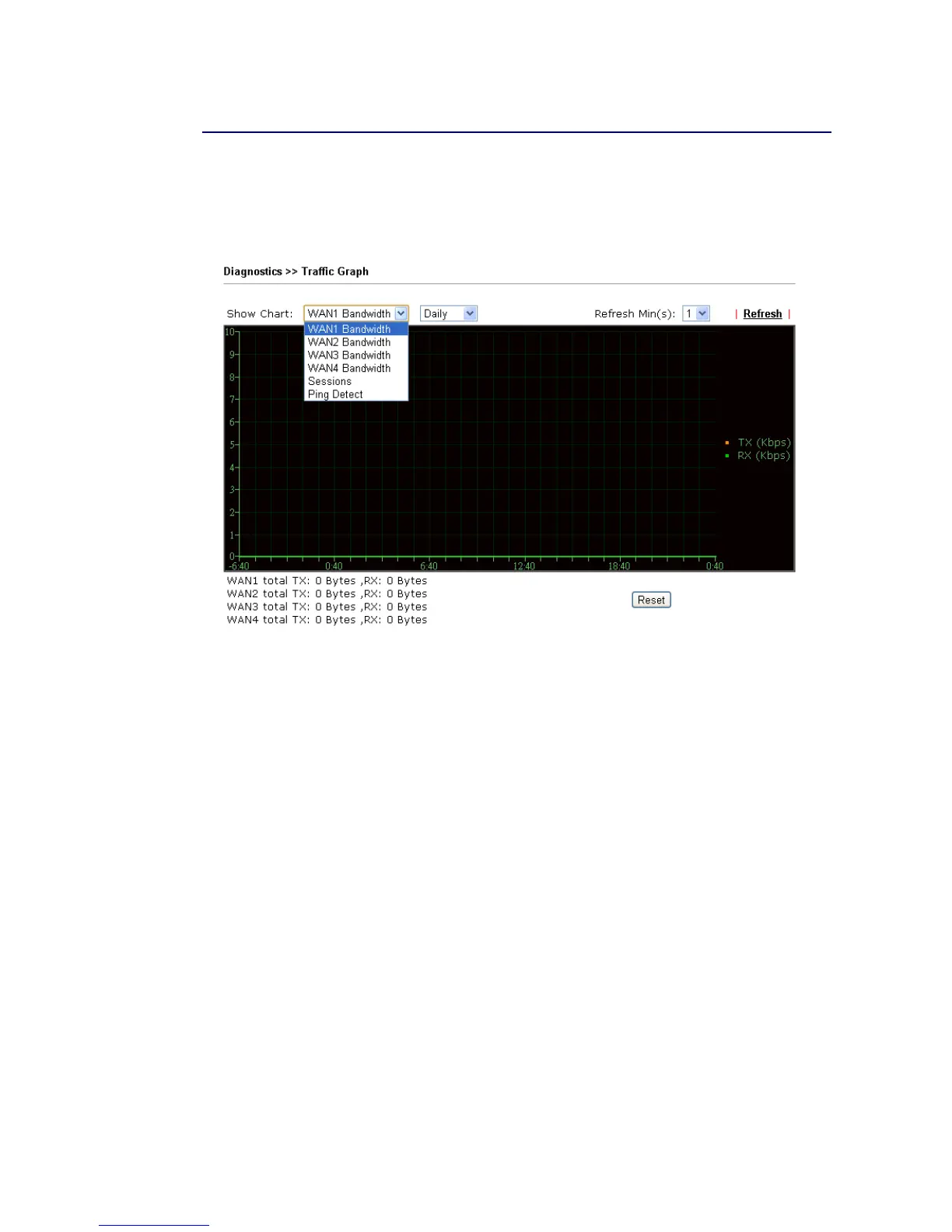
Click Diagnostics and click Traffic Graph to open the web page. Choose
WAN1/WAN2/WAN3/WAN4 Bandwidth, Sessions, Ping Detect, daily or weekly for viewing
different traffic graph. Click Reset to zero the accumulated RX/TX (received and transmitted)
data of WAN. Click Refresh to renew the graph at any time.
The horizontal axis represents time. Yet the vertical axis has different meanings. For
WAN1/WAN2/WAN3/LTE/WAN4 Bandwidth chart, the numbers displayed on vertical axis
represent the numbers of the transmitted and received packets in the past.
For Sessions chart, the numbers displayed on vertical axis represent the numbers of the NAT
sessions during the past.








 To Next Page