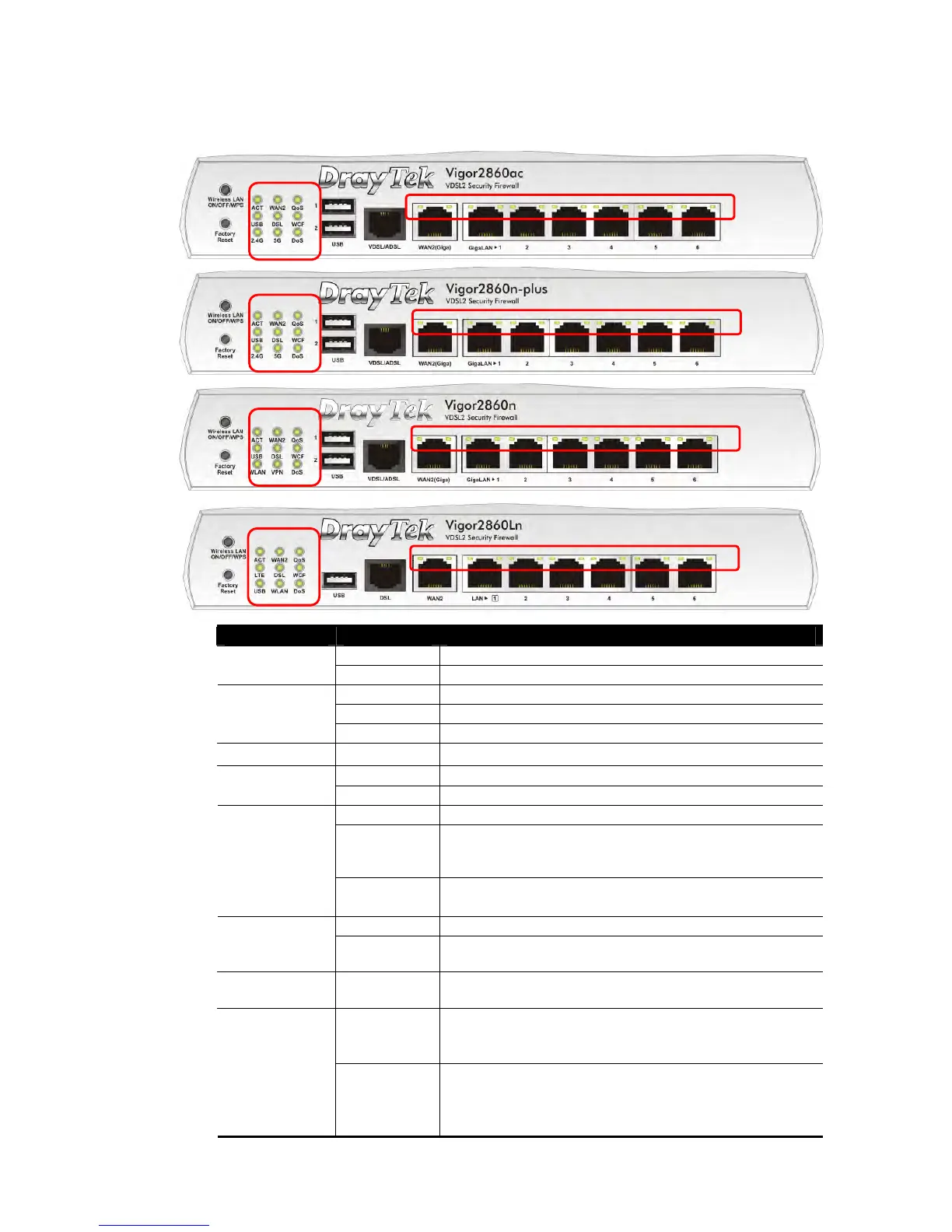
Vigor2860 Series User’s Guide
5
I
I
-
-
1
1
-
-
1
1
-
-
2
2
F
F
o
o
r
r
V
V
i
i
g
g
o
o
r
r
2
2
8
8
6
6
0
0
a
a
c
c
/
/
V
V
i
i
g
g
o
o
r
r
2
2
8
8
6
6
0
0
n
n
-
-
p
p
l
l
u
u
s
s
/
/
V
V
i
i
g
g
o
o
r
r
2
2
8
8
6
6
0
0
n
n
/
/
V
V
i
i
g
g
o
o
r
r
2
2
8
8
6
6
0
0
L
L
n
n
LED Status Explanation
Blinking The router is powered on and running normally. ACT (Activity)
Off The router is powered off.
On Internet connection is ready.
Off Internet connection is not ready.
WAN2
Blinking The data is transmitting.
QoS
On The QoS function is active.
On USB device is connected and ready for use. USB
Blinking The data is transmitting.
On LTE device is connected and ready for use.
Off LTE device is not detected, or has serious problem
(e.g., no SIM card, SIM pin error, SIM deactivated, and
etc.).
LTE
Blinking Slowly: LTE device is in dialing up.
Quickly: The data is transmitting.
On The router is ready to access Internet through DSL link.
DSL
Blinking Slowly: The DSL connection is ready.
Quickly: The connection is training.
WCF On The Web Content Filter is active. (It is enabled from
Firewall >> General Setup).
On
2.4G/5G: Wireless access point with bandwidth of
2.4GHz/5GHz is ready.
WLAN: Wireless access point is ready.
2.4G/5G/WLAN
Blinking
It will blink slowly while wireless traffic goes through.
ACT and WLAN LEDs blink quickly and simultaneously
when WPS is working, and will return to normal
condition after two minutes. (You need to setup WPS







 To Next Page