Info
Reboot the CPE device and re-log into Vigor2860 series. CPE which has
registered to Vigor2860 series will be captured and displayed on the page of
Central VPN Management>>CPE Management.
C
C
h
h
e
e
c
c
k
k
C
C
P
P
E
E
M
M
a
a
i
i
n
n
t
t
e
e
n
n
a
a
n
n
c
c
e
e
P
P
a
a
g
g
e
e
1. Return to the web user interface of Vigor2860 series.
2. Open Central VPN Management>>VPN Management. Now there is one CPE displayed on
the field of Unmanaged Devices List.
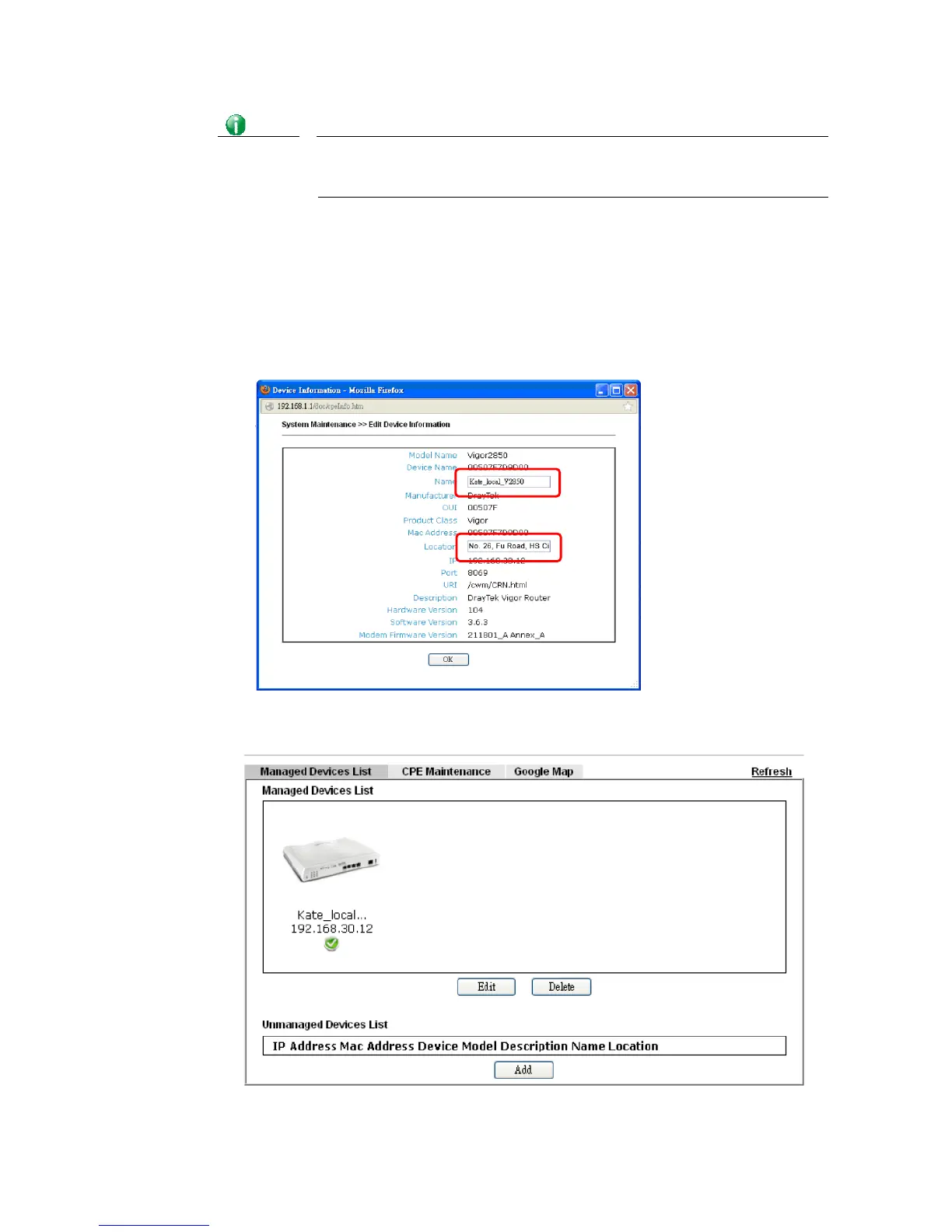
3. Choose the one (Vigor2850) from Unmanaged Devices List and click Add. The following
dialog will be popped up. Type the name and the location of the router respectively.
Click OK to save the configuration.
4. The selected CPE will be moved and displayed on Managed Devices List which means it is
controlled / managed by Vigor2860 series from now on.







 To Next Page