3. Click Show in overview in the Details toolbar or alternatively, drag and
drop the desired field into the Overview (grab the blue icon adjacent to the desired field).
A new column is created in the Overview and populated with the relevant data.
To resize a column:
1. Position the mouse pointer at the vertical line border at the left or right of the desired
column.
2. When the mouse pointer changes to a resize indicator, left-click and drag to the desired
size.
The column is resized.
To hide a column:
1. Right click on the desired column header.
2. Select Hide Column or alternatively, right-click on any column header.
3. Select Columns.
4. Deselect the desired column from the list.
The column is hidden.
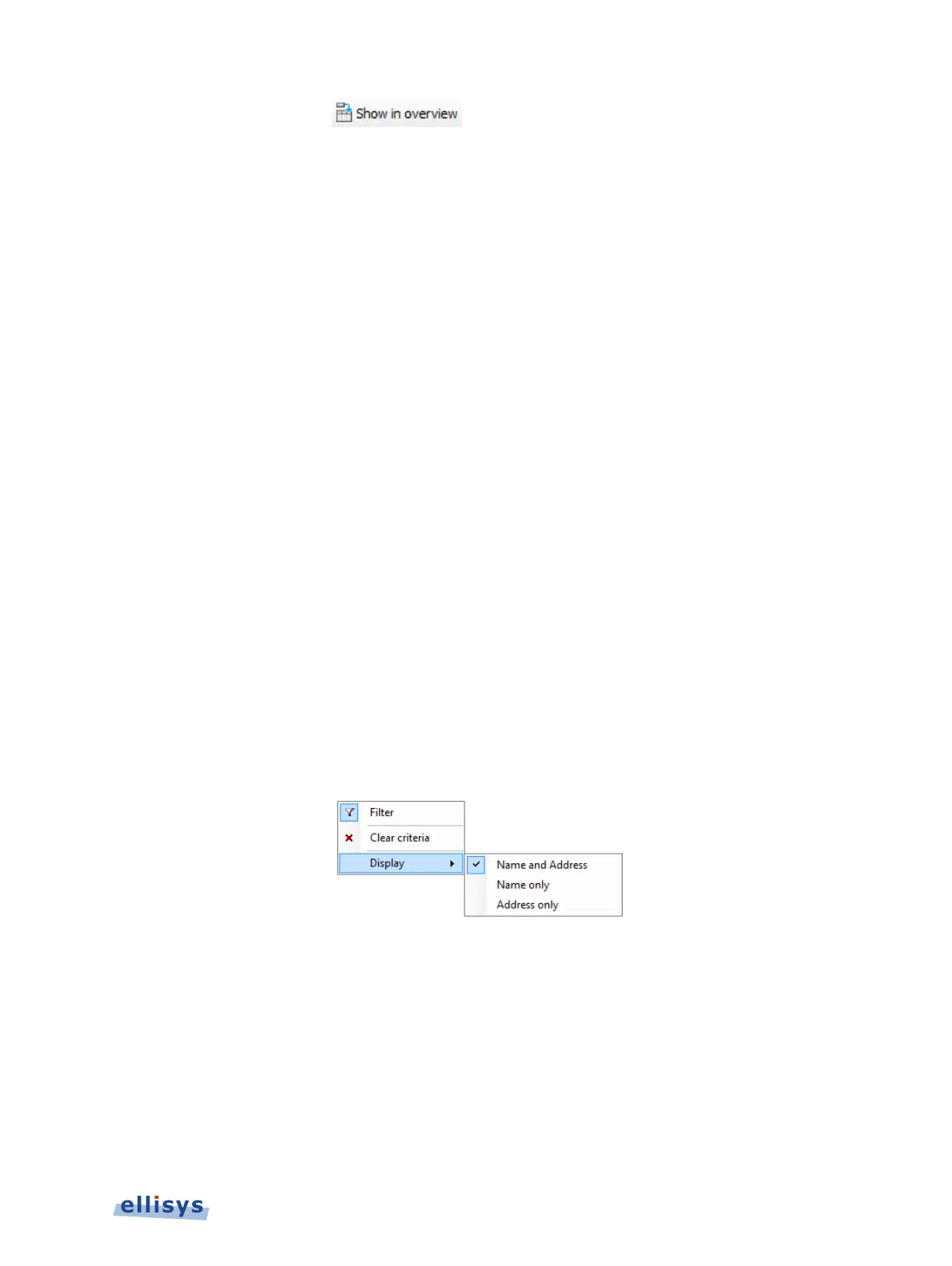
To control information displayed in the Overview’s Communication column:
1. Select the drop-down arrow located in the Communication column.
2. Select Display.
Options are presented for showing Name and Address, Name Only, and Address Only:
3. Select the desired option to configure the information displayed in the Communication
column.
To hide a column:
1. Right click on the desired column header.
2. Select Hide Column or alternatively, select Columns and deselect the desired column from
the list.
The column is hidden.
Overview Windows | 79 of 201



 To Next Page