Analyzer User Guide
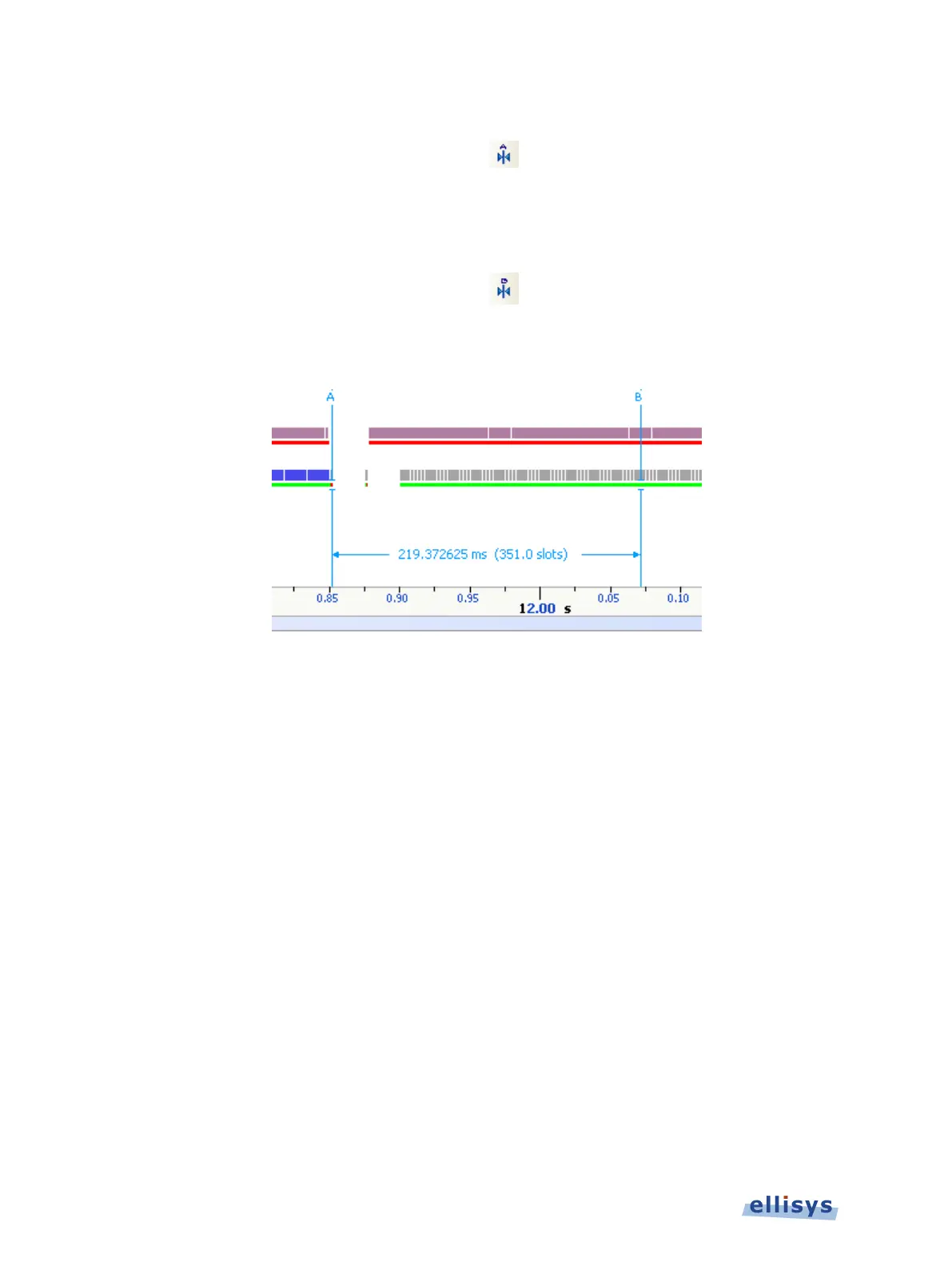
1. Select the first desired location in the Instant Timing pane.
2. Right click and select Place cursor A here.
The A cursor is placed at the location selected.
3. Select the second desired location in the Instant Timing pane.
4. Right click and select Place cursor B here.
The B cursor is placed at the location selected, and timing information is provided, including
number of slots:
9.6 Time Scale Set and Reset
The time scale at the bottom of the Instant Timing pane will (by default) be synchronized to the
Overview Time columns. The user can set and reset this time scale to force a zero timestamp
at a selected location (set), or to revert to the original timescale value (reset).
Changing (setting or resetting) the time scale in the Instant Timing pane will force time
indications in all other Overviews and panes throughout the application to follow.
To force a zero timestamp at a selected location:
1. Right click on the desired location or event in the Instant Timing pane.
2. Select Set Time Reference here.
The time scale forces a zero timestamp at the selected location, with time incrementing positive
to the right of the selected location, and decrementing to the left.
To reset the time scale to the default value:
1. Right click anywhere in the Instant Timing pane.
2. Select Reset Time reference.
120 of 201 | Instant Timing Pane



 To Next Page