Chapter 4 Part Option
38
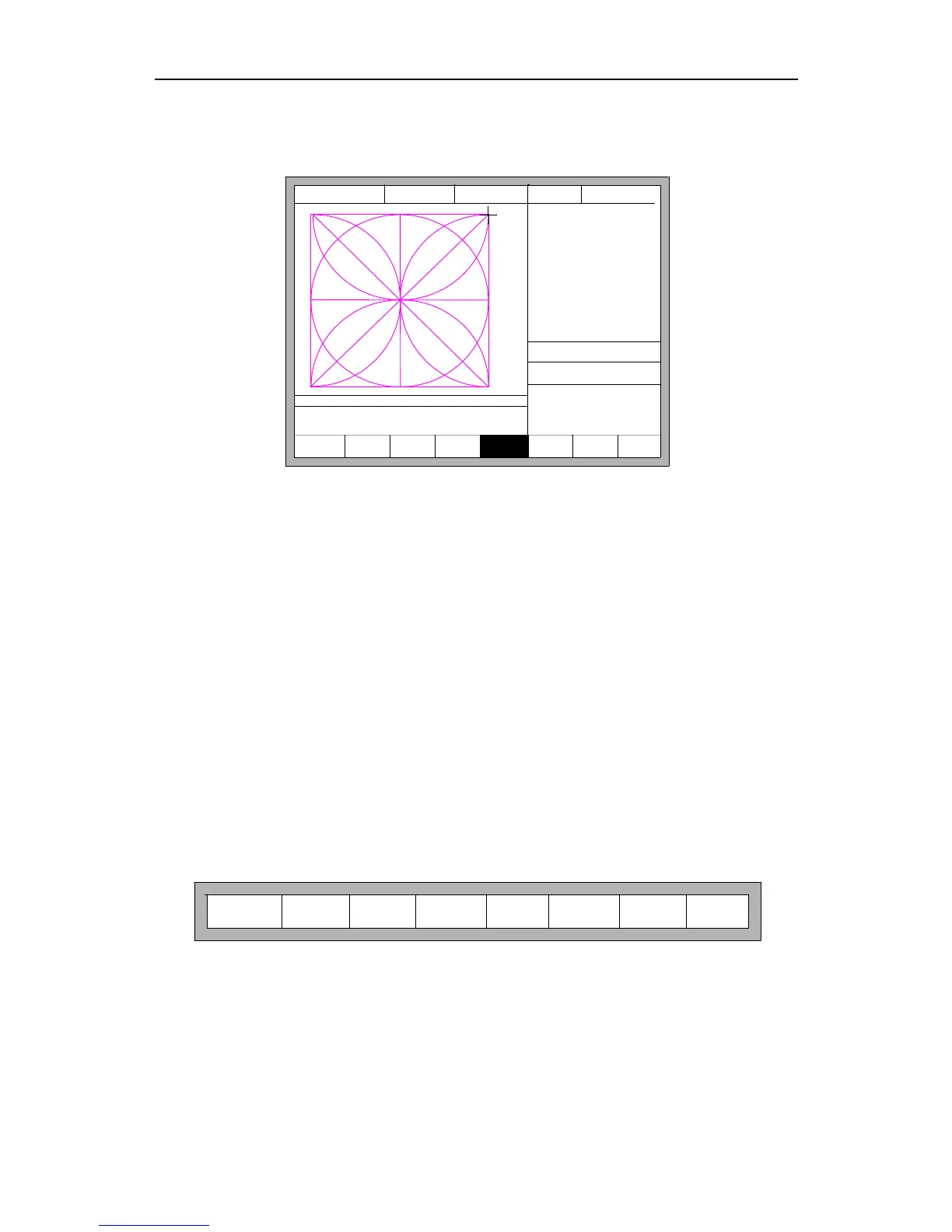
Here, you can directly enter the row number or press 【ENTER】 to enter the
interface and press 【←】or【→】 to select row.
F5
SelLinePierce
F6 EditFile F7 Revert
FLSK F2200T
Version 3.3.71.1
Speed:
00000
File:
SHAPE_43.TXT
Status:
Stop
Current Line/Hole:
00000/00000
+X:500.00 -X:0.00 +Y:500.00 -Y:0.00
Operate Mode:
PartOption
X:+000000.0
Y:+000000.0
F8 OK
【X】 Xmirror
【Y】 Ymirror
F1
StartPoint
F2 Angle F3 Array F4 Scale
CutSpeed 【X】1000.00 Kerf【N】1.20
ManualSpeed【Y】3000.00 Angle 0.00
Manual 【F】 keepMov
StepDis【G】 5.00 Flame Cu 【M】
Fig 4.17 Select row
After selecting row, press【F8】 to confirm.
4.6.2 Select Number
The operation is similar to the choosing row operation.
4.6.3 Operation after Select Row/Number
After selecting row or number, press 【F8】 continuously to exit to the main interface.
Press SPACE to enter the cutting interface, there are two kind of operation:
1.Move from current position to the new position and then cutting
Press 【F1】 in the cutting interface, the system will directly run to the position of the
selected row or number without cutting, then pause and wait for the next operation.
F8 ZoomInF1 Back F2 Demo
F4
Speeddown
F5
Speedup
F6
Preheatdown
F7
Preheatup
F3 GoBack
Fig 4.18 Function key of cutting interface
Press 【START】 in the cutting interface, the system will prompt:



 To Next Page