Chapter 6 File Operation
46
change the file name, press 【Esc】, change the file name and then save.
6.3 Search File
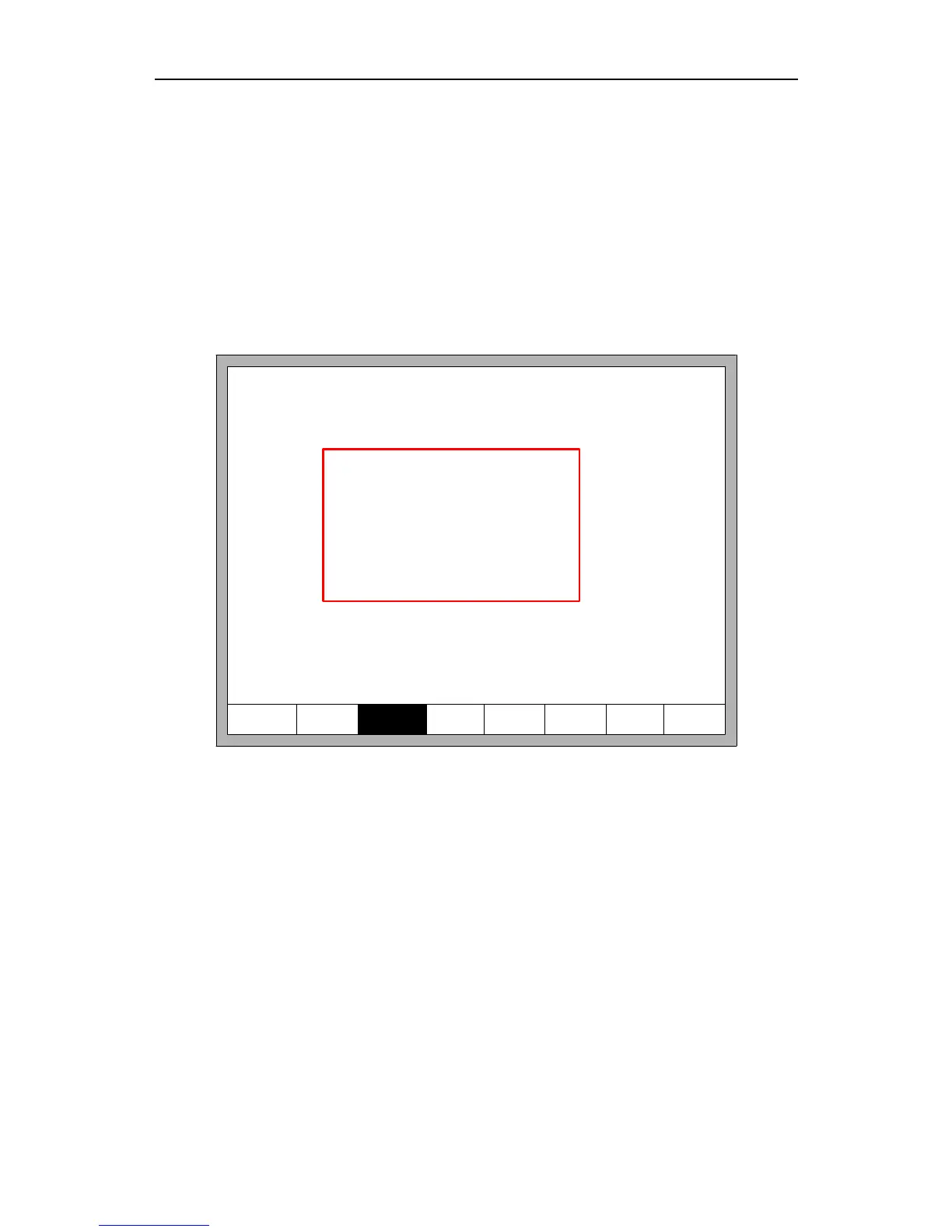
In the file manage interface, press key【F3】to search a file. You can input all or part
of the file name, then press 【Enter】, and the system will list all the files that include the
input word or file name.
F1 DiskFile F2 UDisk F3 Search
F4
EditFile
F5 DelFile
F7
Preview
F8 OK
1: SHAPELIB/SHAPE_18.TXT
2: SHAPELIB/SHAPE_00.TXT
3: SHAPELIB/SHAPE_01.TXT
4: SHAPELIB/SHAPE_43.TXT
5: SHAPELIB/SHAPE_.TXT
6: SHAPELIB/UsedPart.abs
7: SHAPELIB/UsedNoKf.abs
Input searched string
_
Work folder:/flash
0-/flash 1-DIR1 2-DIR2 3-DIR3 4-DIR4
5-DIR5 6-DIR6 7-DIR7 8-DIR8 9-DIR9
Fig 6.5 search file
6.4 Edit Code
In the local machine code interface, move the cursor to the file that you want to edit,
then press 【F4】to enter the edit interface.
When enter the characters, some keys are reuse keys. Press these keys directly, enter
the characters under the button. If first press 【Shift】 key, release the 【Shift】 key and
then press Shift Multiplexing button, then enter characters on the button. Or press both
【Shift】 and reuse keys, then enter characters on the button.
When editing the code, press 【F2】 can insert a new line after the current line, and



 To Next Page