FARO
®
Laser Scanner Manual
98
Chapter 7: Controller Software
Open user interface
in the web browser
• When the notebook is connected to the scanner, open your web browser.
• In the address field of the web browser enter the WLAN IP address of the
scanner (for example, http://172.17.16.23 or https://172.17.16.23 for a
secure connection) to access the controller software.
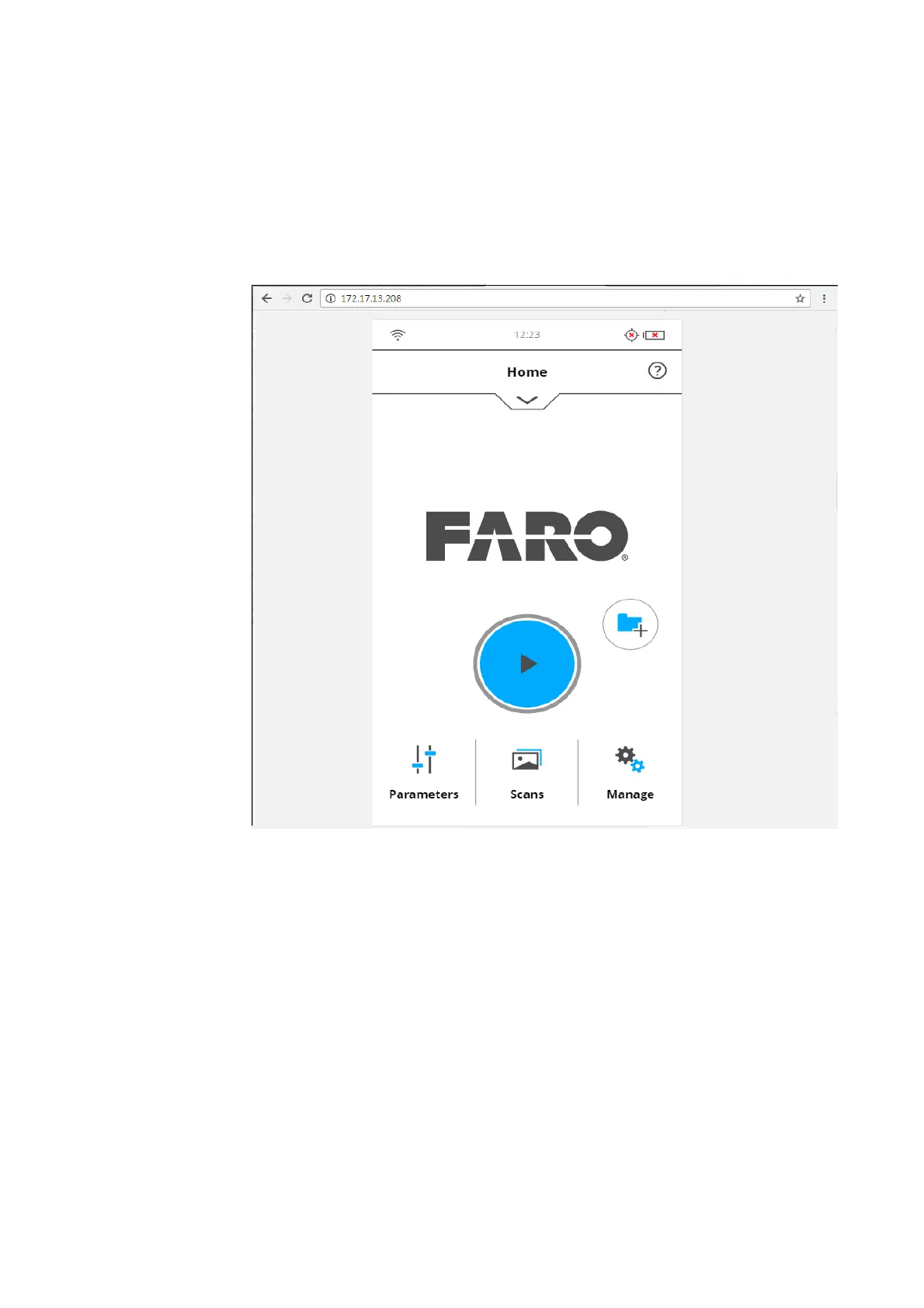
• The Home screen of the controller software appears in your web browser
and you can control the scanner as usual.
Figure 7-72: Controller software in web browser of a remote device
Remotely accessing
the scans on the SD
card
If you would like to access the scan files that are stored on the scanner‘s
removable SD card from a connected remote device, enable remote access in
the scanner‘s controller software.
1. Tap
Home > Manage > General Settings.
2. Open a file explorer on your remote device (for example, Windows
Explorer) and enter the following address into its address bar:
\\WLAN_IP_ADDRESS_OF_SCANNER\Scans (for example,
\\172.17.16.23\Scans). You should have access to the scans now.
3. You can download the scans to your remote device by simple file
operations. Note that copying the files from the scanner through WLAN can
take a while, depending on connection speed and signal strength.



 To Next Page