FARO
®
Laser Scanner Manual
75
Chapter 7: Controller Software
7.4.2 Scan Profiles
Selecting scan profiles to use their parameters for the next scan has already
been described in See
Setting the Scanning Parameters on page 38.. This
chapter will describe how to add new and how to edit existing scan profiles.
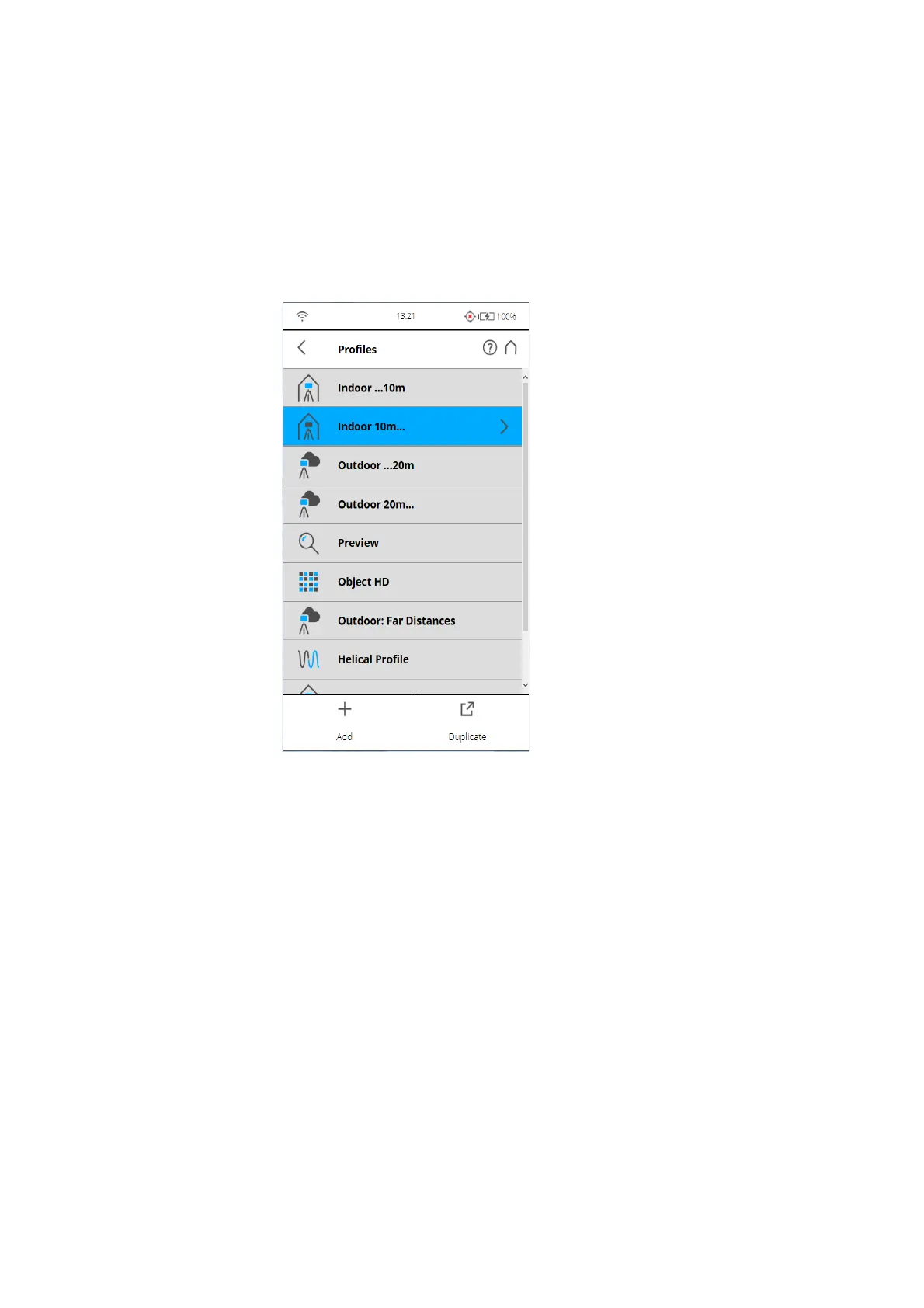
The Profiles page displays a context sensitive toolbar at the bottom in order to
add, duplicate, delete, or modify profiles
Figure 7-53: Profiles
As previously mentioned, the FARO Laser Scanner comes with factory
predefined scan profiles (see
Factory Settings on page 108 for an overview of
the available factory predefined scan profiles). These scan profiles are read-
only and cannot be changed or deleted. But you can of course add and
manage your own custom scan profiles.
This view shows all scan profiles that are available on the scanner.
To add a new profile, tap the Add button. You can also add new profiles by
duplicating existing profiles. To do this, select the profile that you want to
duplicate and tap the Duplicate button. Tap again on the profile. A new
screen appears to enter the profile name and to adjust its scan parameters.
To delete a custom scan profile, select it and tap the Delete button. You
cannot delete factory predefined profiles.



 To Next Page