FlyThisSim TouchTrainer® Set-up Guide
Copyright FlyThisSim LLC 2013 Page 19
TouchTrainer® Throttle Lever
If your TouchTrainer® does not come with a single or twin linear throttle, skip this section.
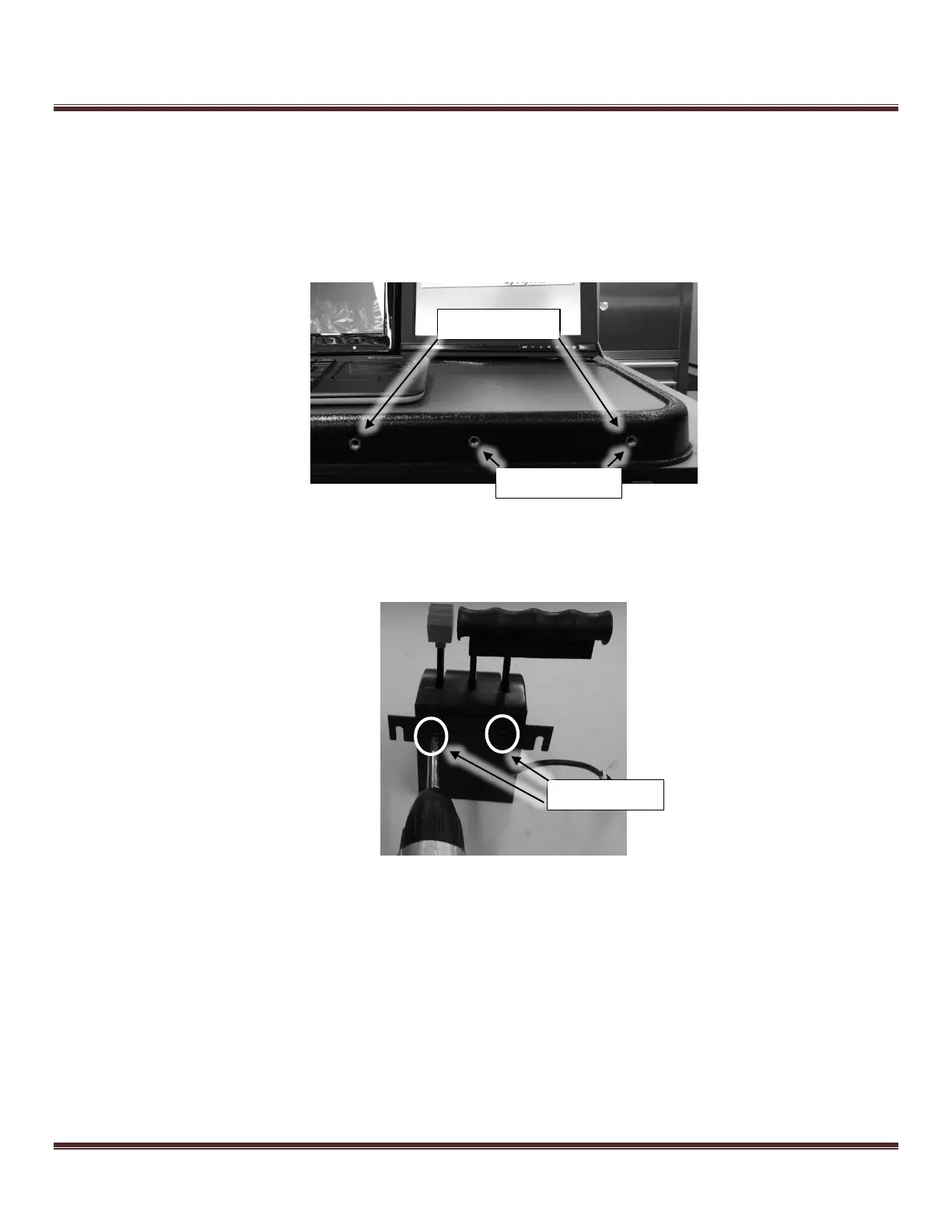
1) The base has nut insert holes located on the right side and on the front face of the base. For the single throttle,
insert the included thumbscrews into the rightmost and middle nut inserts, and for the twin throttle, insert the
thumbscrews into the rightmost and leftmost nut inserts (see Figure 19). Do not screw these in completely,
leaving a small gap between the head of the screw and the base.
Figure 19: Nut Inserts for Linear Throttles
2) If the bracket is already attached to your single lever, skip to step 4. To attach the bracket to your single throttle,
take the bracket included with your throttle and using 2 Vesa Pan Head screws, screw the bracket onto the back of
the throttle.
3) If the bracket is already attached to your twin throttle lever, skip to step 4. To attach the twin throttle bracket,
place the two throttles side by side, with the throttle whose cable is labeled “Single B” on the right when looking
from the back, see Figure 20. Using 4 Vesa Pan Head screws, screw the bracket onto the back of the two throttles.
You may need to change the handles to match the layout of your aircraft (the default layout is seen in Figure 20,
left to right T T P P M M).


 To Next Page