Page 32 Copyright FlyThisSim LLC 2013
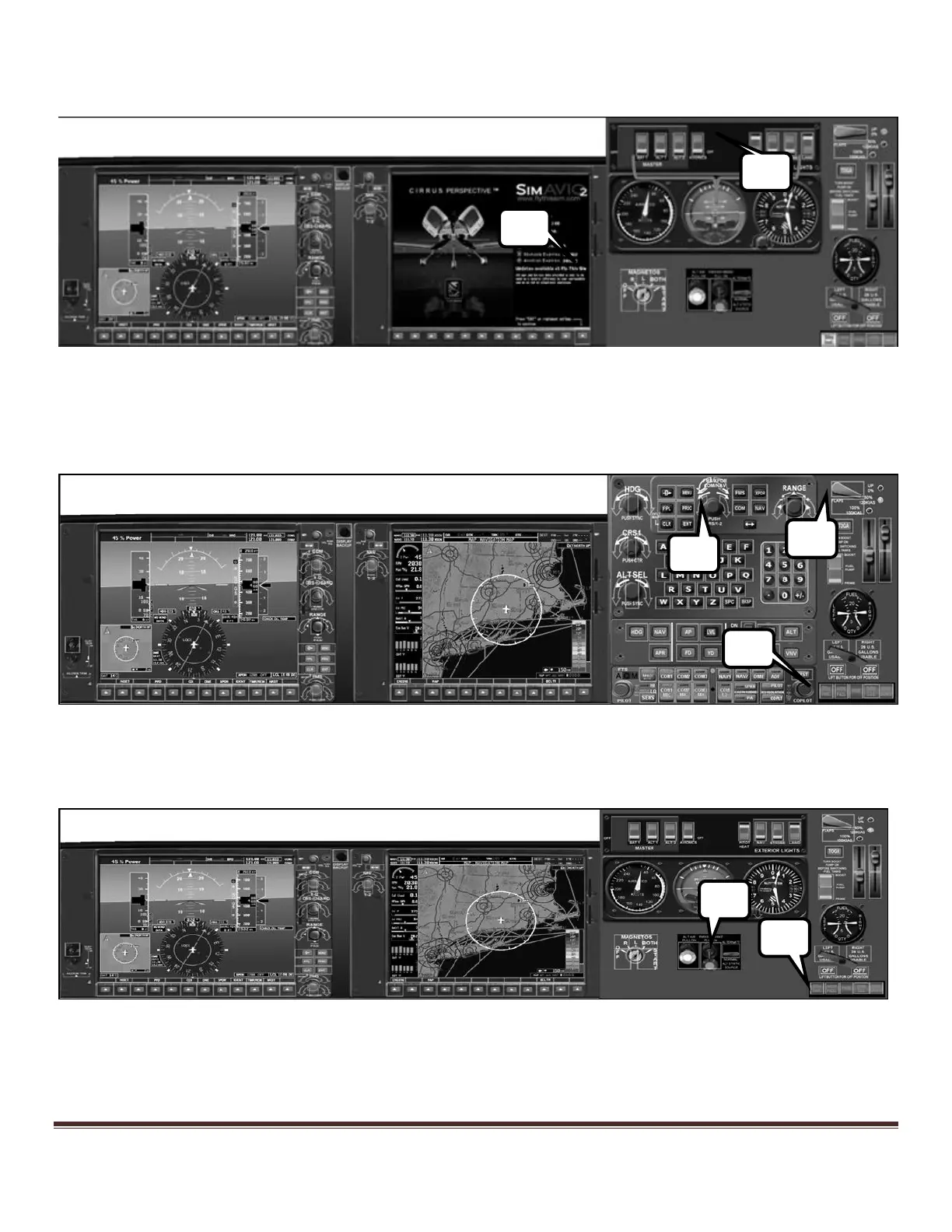
6) Turn on BAT2, ALT1, ALT2 and Avionics NAV and STROBE.
7) Confirm splash screen on the MFD by pressing the lower right soft-key.
Figure 44: Cirrus Perspective Panel with avionics activated
8) Press the Stby. Inst. button again to toggle the auxiliary monitor view to display the FMS keypad.
9) Set flaps to 50%.
10) Enter a flight plan if needed (see the Perspective manual for further information).
Figure 45: Cirrus Perspective Panel with Flight Plan display.
11) Press the Stby. Inst. button again to toggle the auxiliary monitor view back to the standby instrument view.
12) Release the parking brake and open throttle to full forward. Rotate at 80 kts.
Figure 46: Cirrus Perspective Panel ready for takeoff


 To Next Page