Page 46 Copyright FlyThisSim LLC 2013
Selecting an Aircraft
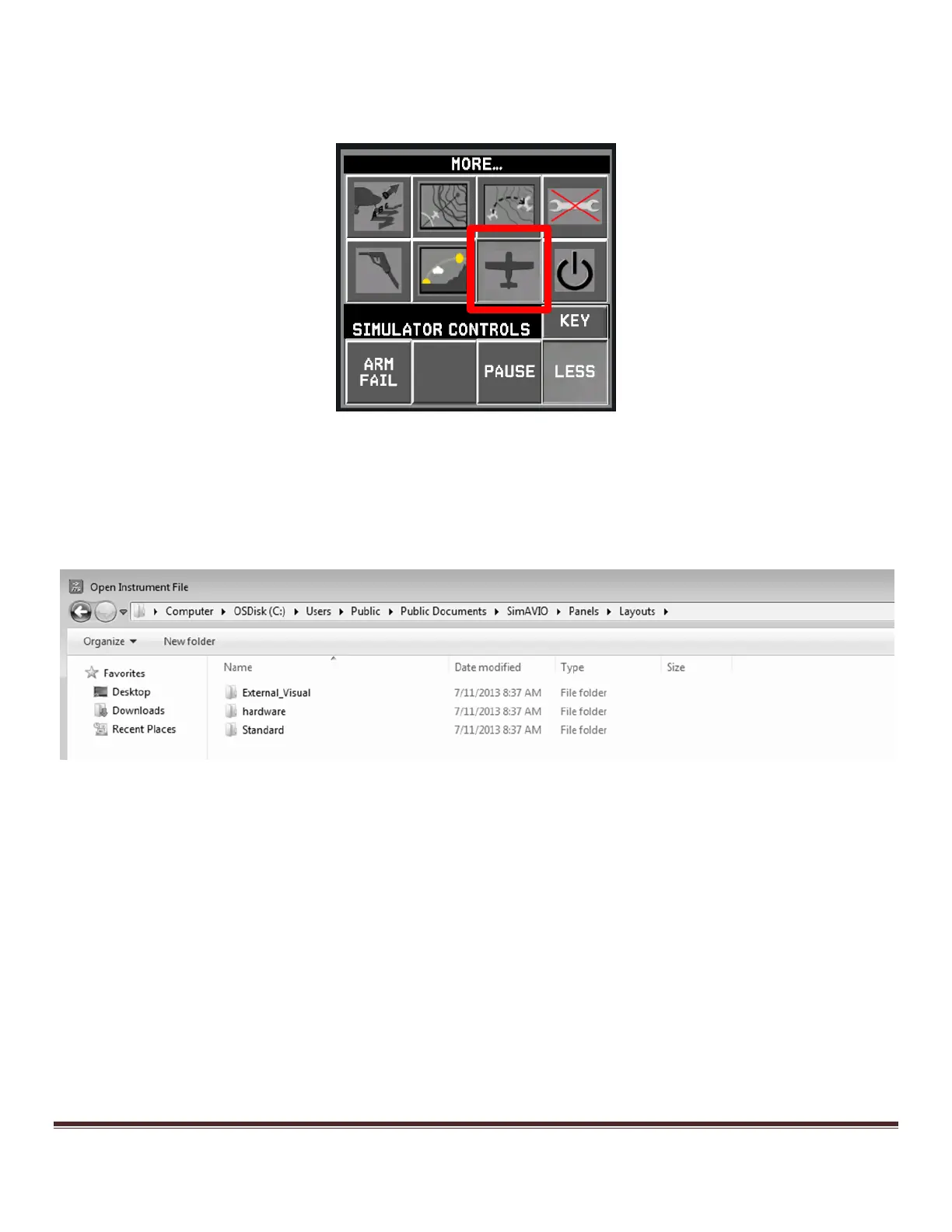
To select a new aircraft, press the LOAD AIRCRAFT button from the SimAVIO command buttons on the AUX monitor
(Figure 65).
Figure 65: SimAVIO command buttons
A pop-up window will appear allowing you to select the aircraft and panel configuration of your choice. If an aircraft
panel is not displayed, then select File/Open Layout from the SimAVIO window. Which folder you select your aircraft
layout from depends on the type of system you have. SimAVIO should automatically open the folder of layouts that
pertains to your TouchTrainer configuration.
Figure 66: Aircraft Selection Folders
If you have a regular TouchTrainer® with a standard plane and no extras (such as the three-channel visual) select your
aircraft from the Standard folder. If you have a VISX system with the extra three-channel visual, select your aircraft from
the External_Visual folder. If you have a custom hardware or special aircraft, select your aircraft from the hardware
folder.


 To Next Page