FlyThisSim TouchTrainer® Set-up Guide
Copyright FlyThisSim LLC 2013 Page 61
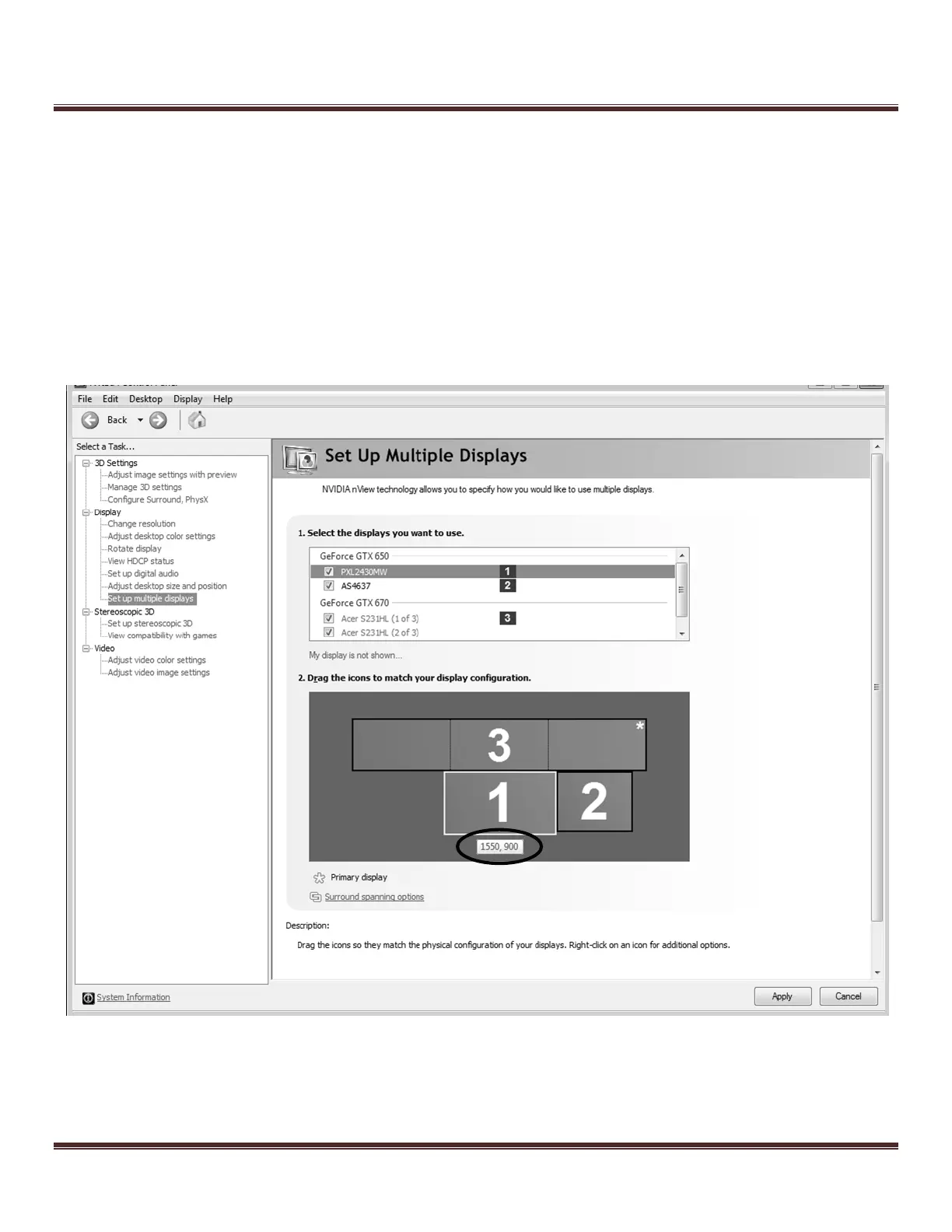
k. Finally, go to “Set up multiple displays” in the NVIDIA control panel, and configure the position of
the 1 & 2 (Main and Aux) monitors. The Main monitor should be at position (1550, 900) and the Aux
monitor should be at position (3470, 900).
l. If the Main monitor does not snap into its position when dragged with the mouse, move it so that it
snaps into alignment on the left side of the setup, and use the arrow keys to move it into its position.
The arrow keys move the currently selected monitor in increments of 50, so from the left edge it will
take the main monitor 31 taps to reach its position.
m. When the correct monitor positions are reached, click Apply. The screens will flash one last time, and
the VISX system will be fully reconfigured.
Figure 85: Setting Up Multiple Displays – Arranging the Main Touch Monitor


 To Next Page