Page 56 Copyright FlyThisSim LLC 2013
Chapter 5: Troubleshooting
Things don’t always go to plan. This section should solve the most common issues encountered by users. On the
desktop, there is a PDF with more detailed instructions. For more complicated problems, feel free to contact FlyThisSim
support.
1. The Yoke, Joystick, or Throttle indicator is RED during SimAVIO startup
a. Check all USB connections to make sure that the cables are connected firmly.
b. Check that all numbered USB cables are plugged into their appropriate ports.
c. Try reinstalling drivers. When hardware is plugged into a USB port, Windows 7 will automatically
download the necessary drivers. Verify that your computer is connected to the internet, then remove
and then reconnect the cables. This will prompt Windows 7 to check for and install available drivers
from the internet.
2. The VISX display is not working correctly
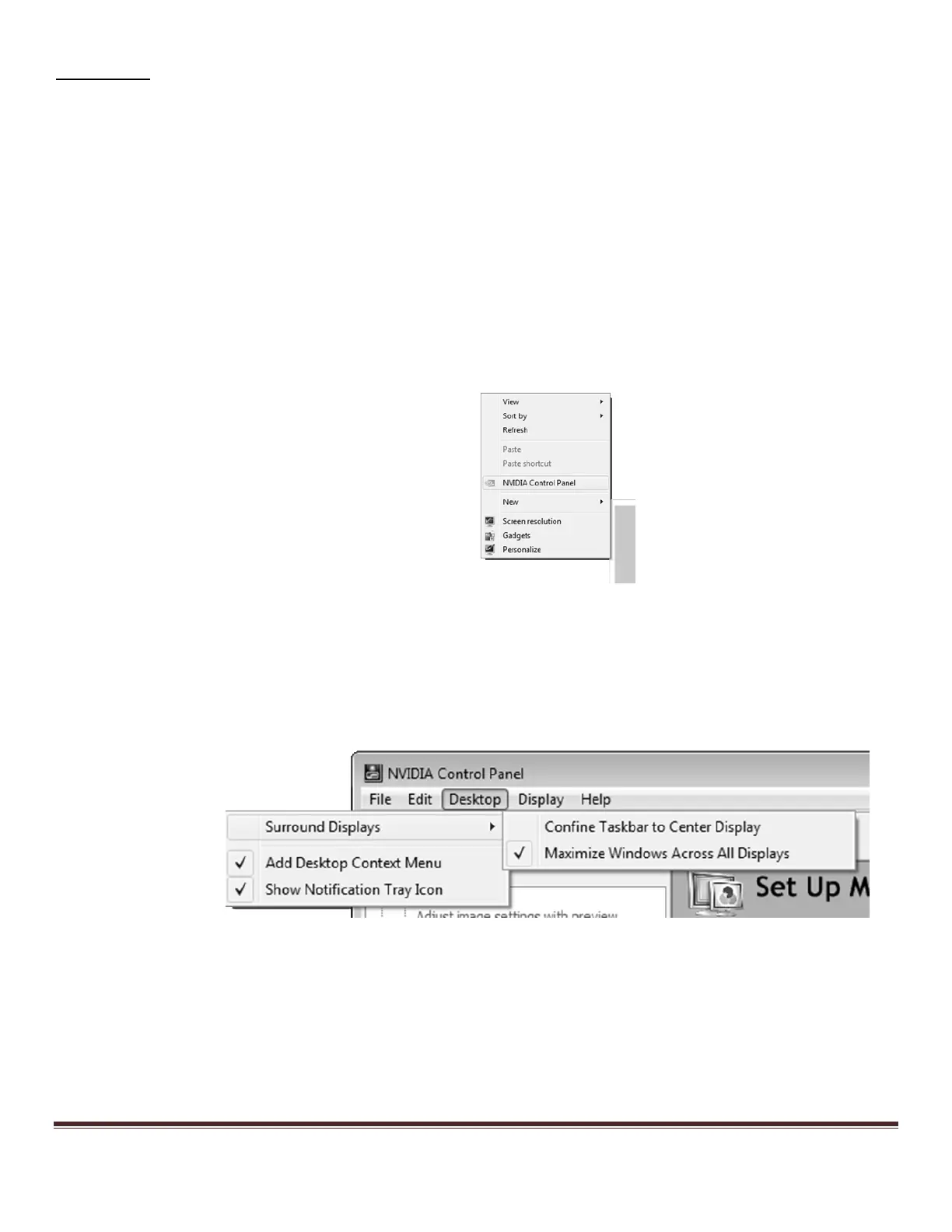
a. On the desktop, right click to bring up the options menu, and select NVIDIA Control Panel:
Figure 75: Options Menu
b. From the NVIDIA control panel menu bar, select “Desktop,” then from “Surround Displays,”
deselect the “Confine Taskbar to Center Display” option, and select the “Maximize Windows Across
All Displays” option.
Figure 76: Configuring the Surround Displays options


 To Next Page