FlyThisSim TouchTrainer® Set-up Guide
Copyright FlyThisSim LLC 2013 Page 51
NOTE: You can always restore your TouchTrainer®’s factory graphics settings if you cannot recover your desired
performance. To restore defaults, close the simulation and re-open SimAVIO. Then click on the Restore X-Plane
Defaults button.
Configuring Buttons and Switches
Your TouchTrainer® comes with some of the basic switches and buttons on your yoke and throttle quadrant pre-
configured, but you may want to assign some of the others. To do this:
1. Move your mouse to the top of the X-Plane window so that the menu bar appears. Click on Settings > Joystick
and Equipment, then click on the Buttons: Basic tab.
2. Press or manipulate the button or switch that you want to assign, then select the action that you would like to be
assigned to that button. For example, you might move one of the switches on your throttle quadrant, then click on
the circle next to the “Landing gear down” action to assign it.
Fetching and Installing Nav Data Updates
Your TouchTrainer® comes pre-installed with the latest navigation data, but it will soon become necessary to update your
database. FlyThisSim has provided a means for TouchTrainer® customers to download and install this data free of
charge.
1) On the desktop, double-click on the icon labeled “Nav Data Update”:
Figure 70: Nav Data icon on the desktop
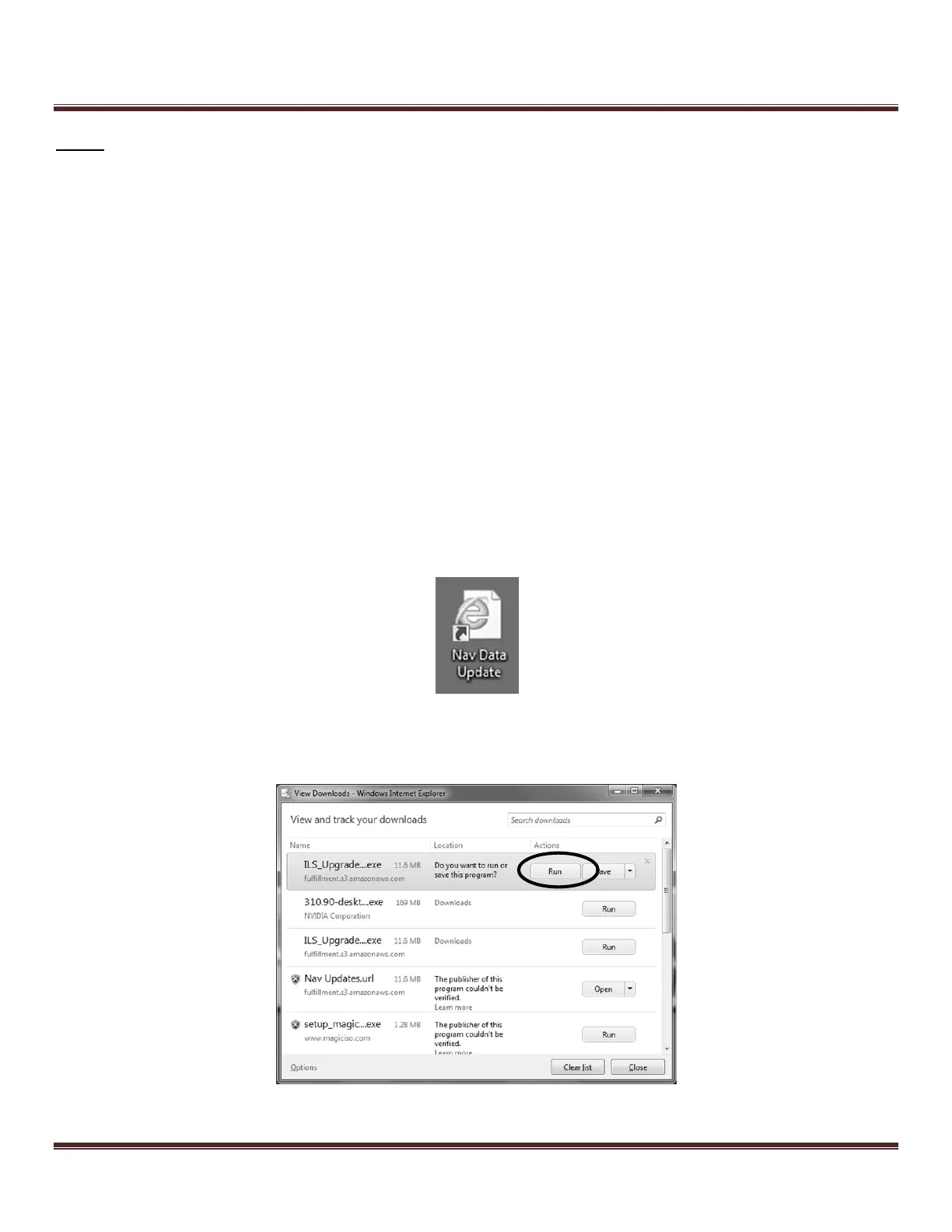
2) This will open up a Downloads window. Click “Run” next to the top entry, which will begin the installer.
Figure 71: Popup downloads window


 To Next Page