Page 52 Copyright FlyThisSim LLC 2013
3) The installer that starts will guide you through the final steps of installing your new navigation data.
Upgrading SimAVIO
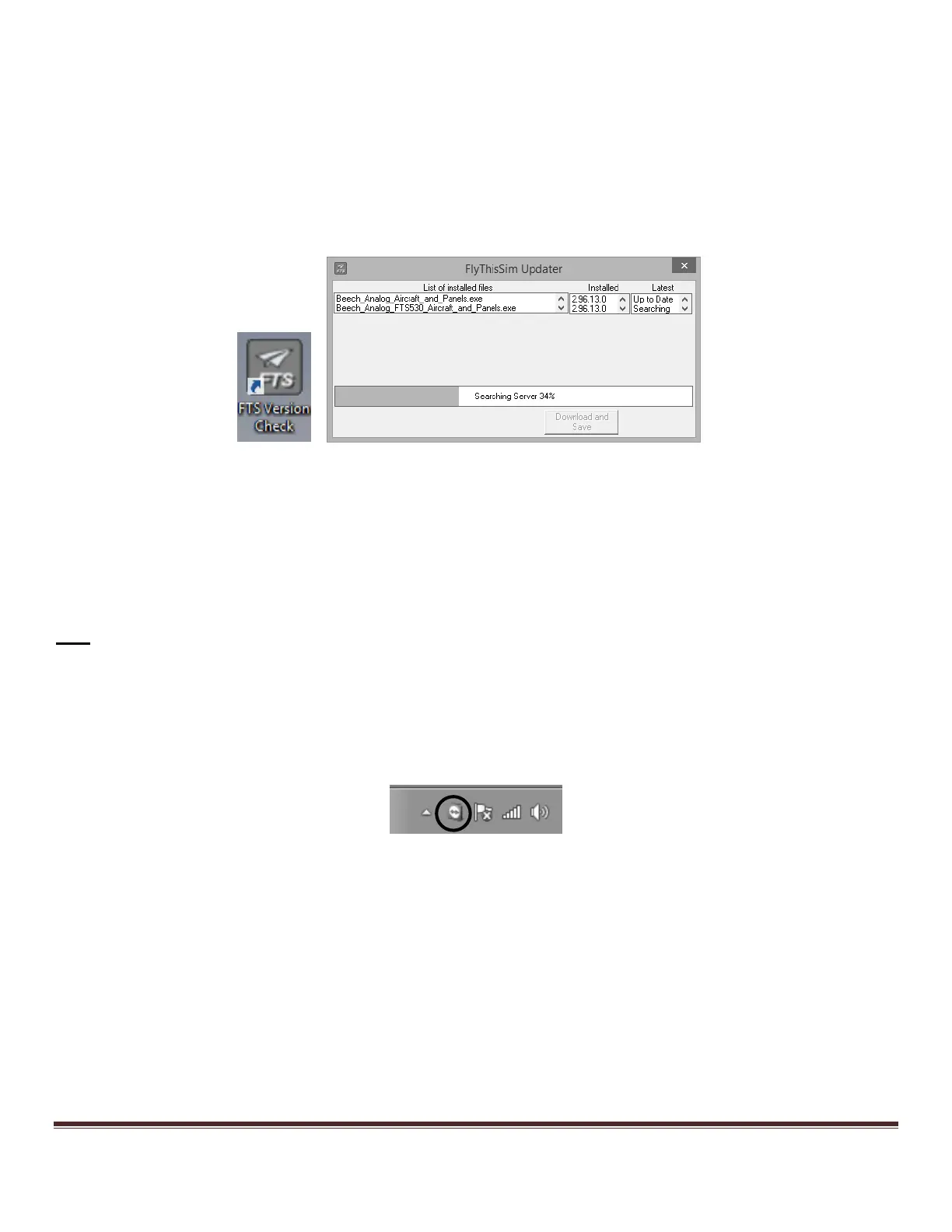
FTS is constantly improving the software, as we find bugs and enhance the functionality. The FTS Version Check utility
will check for the latest software installed on your system. Open the utility from the icon located on your
TouchTrainer® desktop. Click the “Download and Save” links to begin the upgrade process. After the download is
complete, locate the file and launch the exe installer. Close all software programs before you begin the installation
process. A wizard will walk you through the remainder of the process.
Figure 72: FTS Version Check Utility
Using TeamViewer
All TouchTrainer® systems come pre-installed with TeamViewer, an application that allows FlyThisSim to connect to
your TouchTrainer® via the internet for technical support and assistance. Before connecting to your computer,
FlyThisSim will need both the nine-digit TeamViewer ID linked to your machine, as well as your TeamViewer password.
It is recommended that you change your computer’s password for security reasons.
Note: FlyThisSim should NEVER connect to your computer without your authorization. However, you can uninstall
TeamViewer if you are concerned with remote access security. Please take note that TeamViewer will need to be re-
installed from the internet before FlyThisSim can provide remote access technical support.
To change your TeamViewer password:
1) Right-click on the blue TeamViewer icon in the system tray and select “Options” (Figure 73).
Figure 73: TeamViewer icon in the system tray
2) Click on the “Security” tab on the right side of the window that pops up. There, you will be able to type in a new
password.


 To Next Page