Page 58 Copyright FlyThisSim LLC 2013
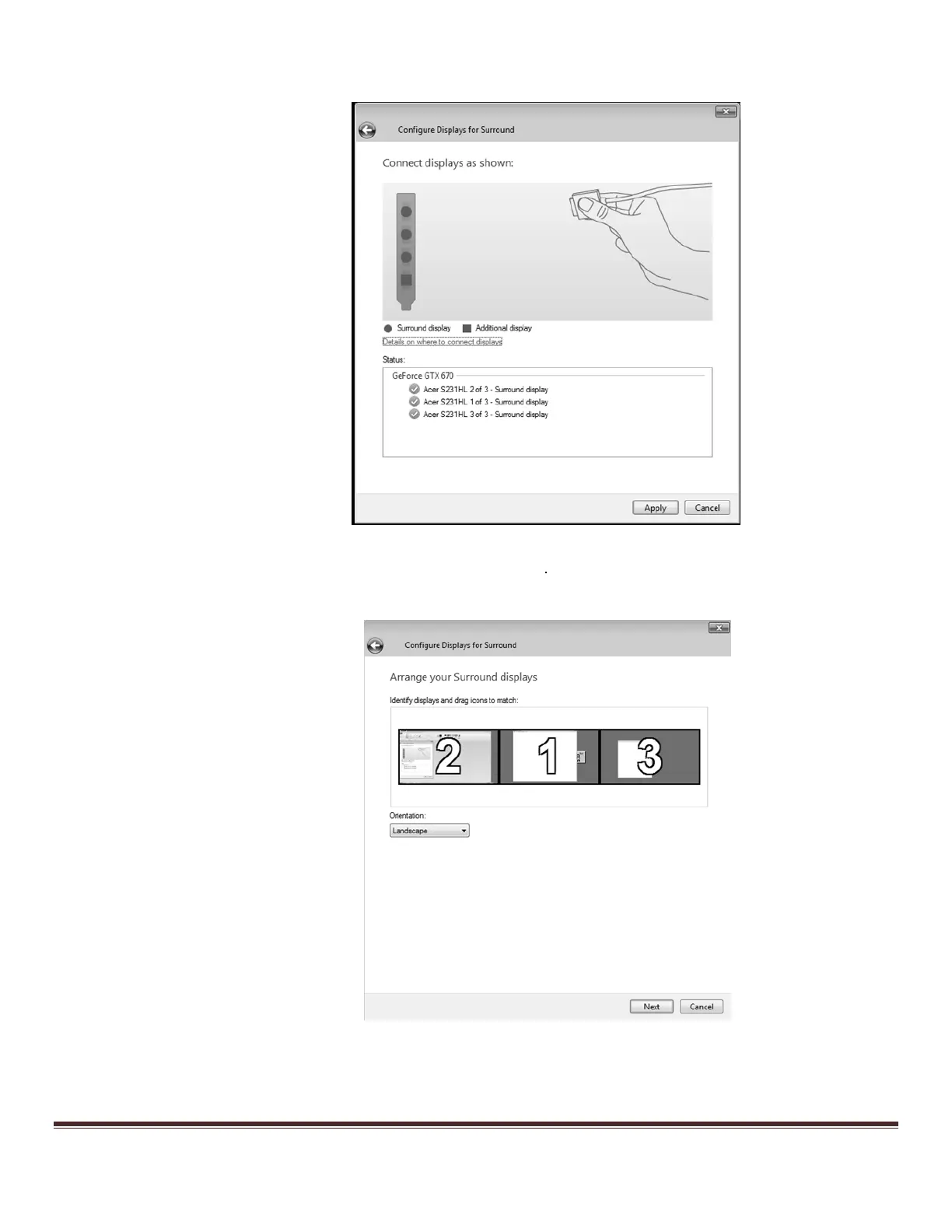
f. From the next menu, select “Connect displays as shown, and click Apply. The screens will
temporarily go dark.
Figure 80: Connect Displays as Shown
As
g. Now, apply the correct configurations as shown and click Next. Note that the numbering for your
monitors may be different—be sure to drag and drop the configurations to match your setup.
Figure 81: Apply Configurations


 To Next Page