FlyThisSim TouchTrainer® Set-up Guide
Copyright FlyThisSim LLC 2013 Page 27
Chapter 2: System Startup
You’re almost done! The last thing to do is to check that everything was installed properly. The TouchTrainer® system
makes this very easy for you and requires no guesswork. The following section will walk you through a basic startup
process so that you can verify your system works and get flying as soon as possible. Once you’ve had the chance to fly
for a while, you can review the complete documentation in Chapters 3 and 4.
1) Power on the computer. After Windows loads, the TouchTrainer® Supervisor program will auto-start.
2) Swipe through and read the system guidelines.
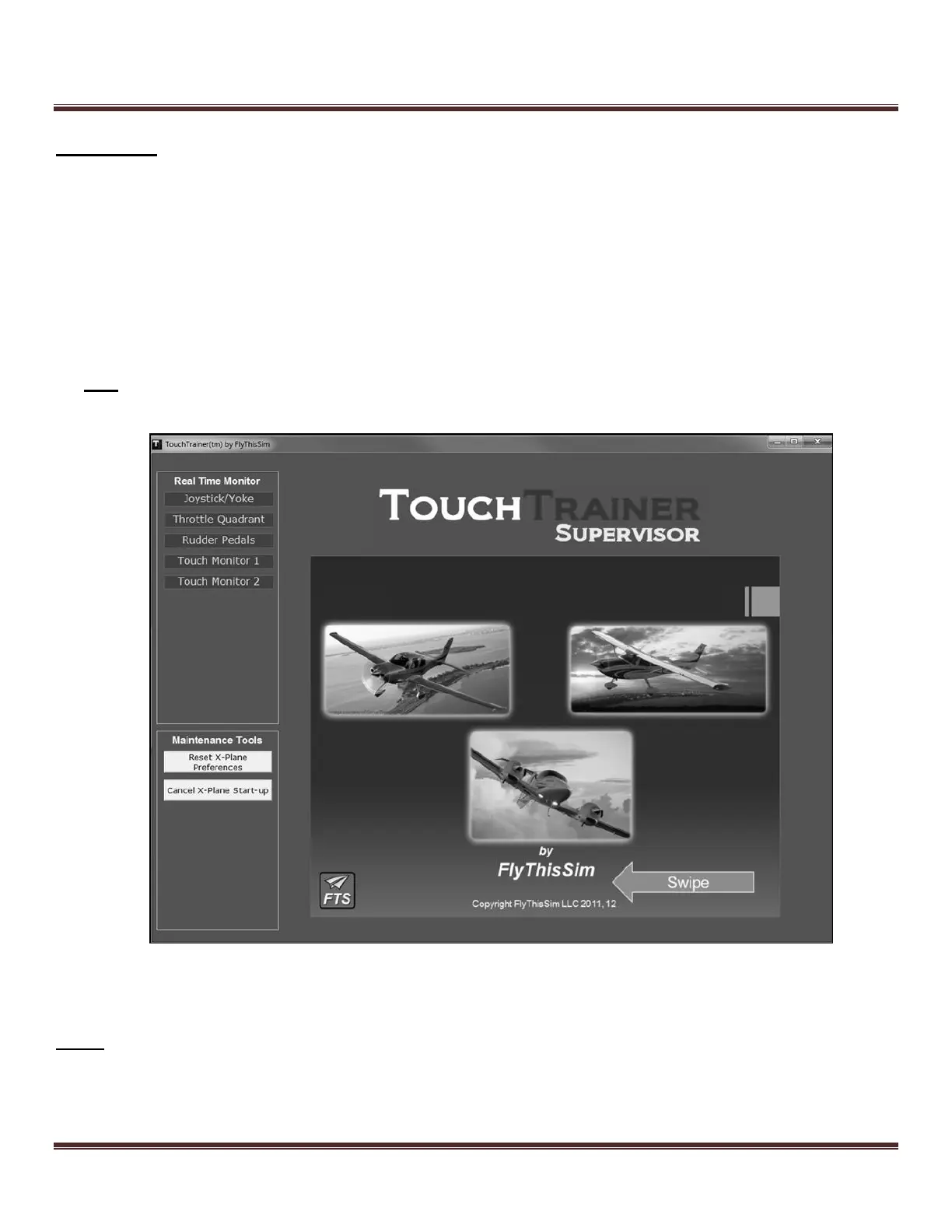
3) The TouchTrainer® Supervisor will confirm connection of your external devices with a green indicator in the
Real Time Monitor (Figure 38, upper left-hand corner).
Note: If any of the indicators are RED, the issue must be addressed before starting the TouchTrainer®. See Chapter
5: Troubleshooting.
Figure 38: TouchTrainer® Supervisor startup screen
4) On the last page, double-tap the screen. X-Plane and SimAVIO will automatically start and you’ll be ready to fly!
NOTE: X-Plane may take an extended period of time to start, especially on first startup. This is normal; your computer is
not frozen.


 To Next Page