Page 62 Copyright FlyThisSim LLC 2013
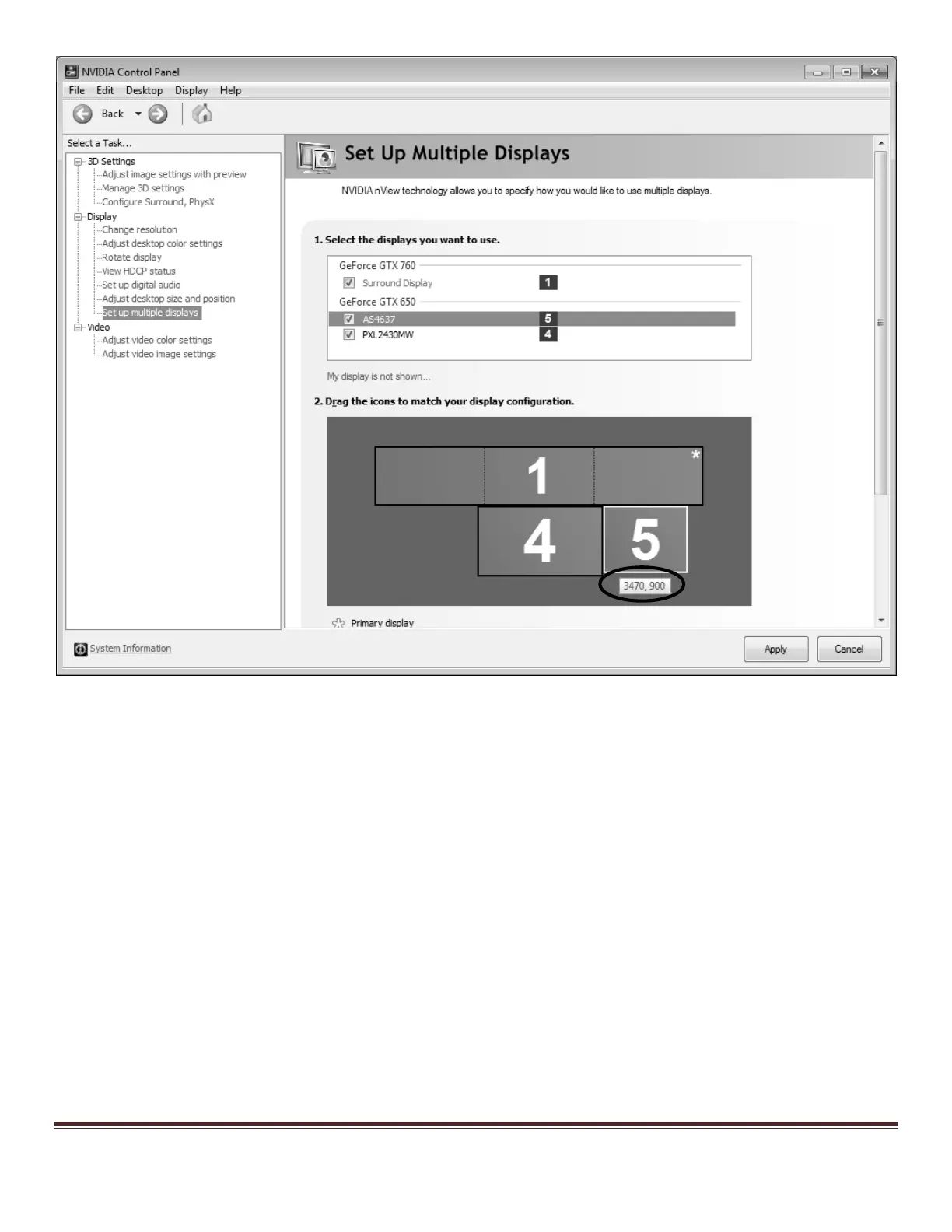
Figure 86: Setting up Multiple Displays - Arranging the Aux Monitor
3. Touch Monitor 2 indicator is RED during SimAVIO startup
a. Right click on your desktop and select Screen Resolution. (Figure 87)
b. If you don’t see two monitors, try the following in order:
i. Check all the connections on your AUX monitor
ii. Press the “Detect” button on the Screen Resolution menu
iii. Press the PC/AV button on the front of the AUX display until source “DVI” is shown
iv. Restart the computer. Windows re-detects attached monitors on startup, so this step
commonly solves monitor issues if all else fails.
c. Click and drag the position of the #2 monitor so it is to the right of the #1 display and the top edge of
monitor 2 is in line with the top edge of monitor 1.
d. Set the Resolution of the #2 display to 1280 x 1024.


 To Next Page