Page 50 Copyright FlyThisSim LLC 2013
Logging time as an FAA approved Basic Aviation Training Device
The TouchTrainer® is approved by the FAA as a Basic Aviation Training Device. TouchTrainer® users may log up to
10 hours toward an instrument rating, and 2.5 hours toward a private pilot with an instructor present. They may also
maintain instrument currency. Currency is allowed by conducting six instrument approaches, holding patterns, two
unusual attitude recoveries while in a Vne dive and Vne ascent, and intercepting and tracking courses, all within the
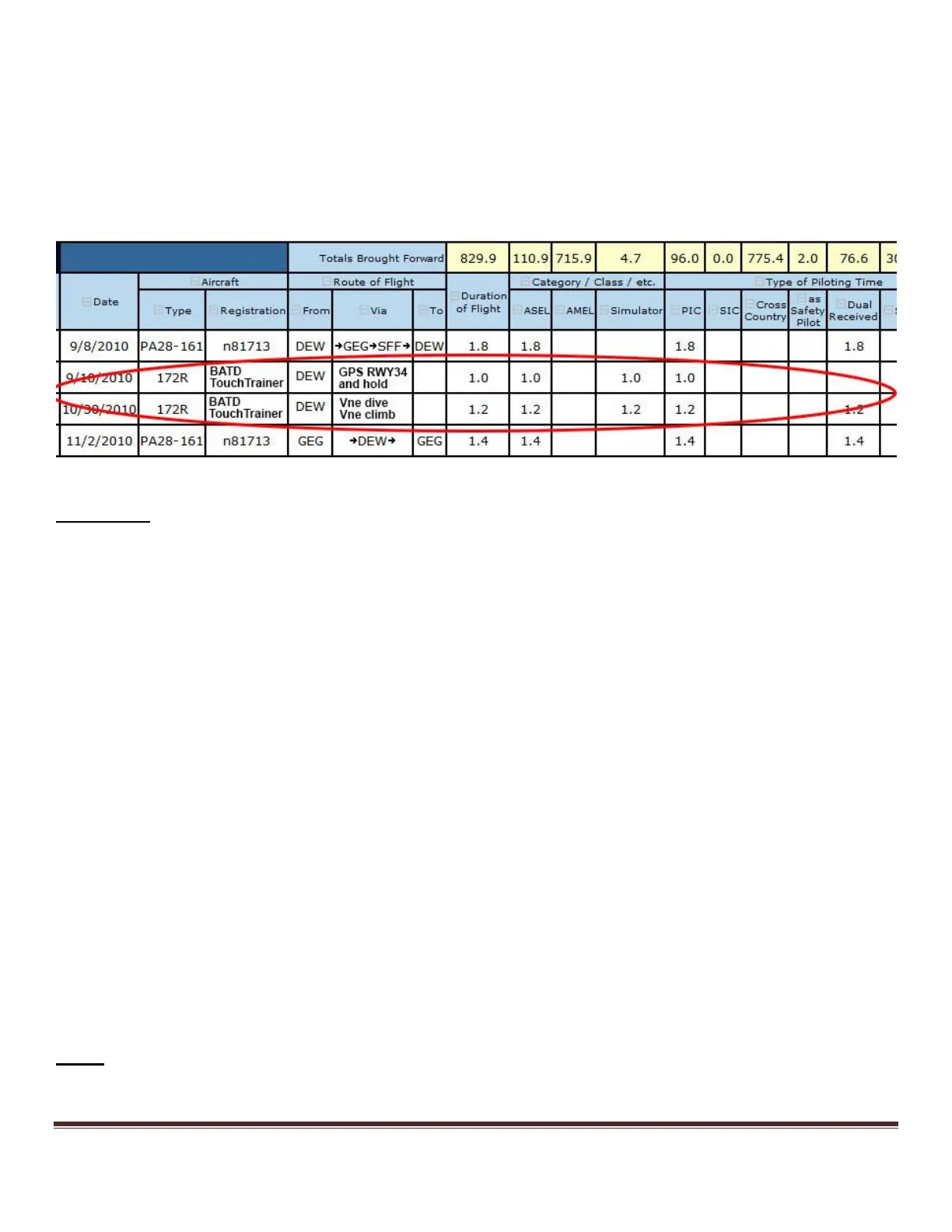
previous two months. Users should log this time as “sim time” in their logbook. See example logbook entry in the figure
below.
Chapter 4: Other Information
This chapter provides additional information specific to your TouchTrainer® computer that you may find important. For
information regarding SimAVIO itself, please consult the SimAVIO Operator’s Manual, located on your computer
desktop.
Configuring X-Plane Settings
Your TouchTrainer® system comes with all settings configured so that you can start flying immediately. However, you
can modify some of the settings within the X-Plane program to increase your TouchTrainer® functionality or improve
performance.
Changing Graphics Settings
You can change X-Plane’s graphics settings in order to make your TouchTrainer® more adapted to your own style of
flying. For example, you may want to see more detailed cloud formations at the expense of less terrain resolution. While
calibrating these graphics settings requires a significant amount of trial-and-error, we recommend you follow these steps
to make your changes as easily as possible:
1. Move your mouse to the top of the X-Plane window so that the menu bar appears. Click on Settings >
Rendering Options.
2. Change only a few (1-3 parameters) at a time. If you are unsure of what a parameter means, hover the mouse over
it to get a description. Changing only small numbers of parameters at once will give you a better feel for how X-
Plane reacts to changes in each setting.
3. Press one of the X’s in either of the upper corners to return to the simulation. Fly around to see how your new
settings change the view.
4. Repeat steps 1-3 until you are happy with your new graphics settings.
NOTE: Increasing graphics settings demands more power and memory from your computer, and runs the risk of
degrading performance. If the simulation becomes choppy or uneven, you will need to lower your graphics settings
accordingly.


 To Next Page