20
2
3
4
5
6
7
8
9
10
11
12
13
14
15
16
17
Quick Reference
D Assigning a Software Key function to a
Software Key
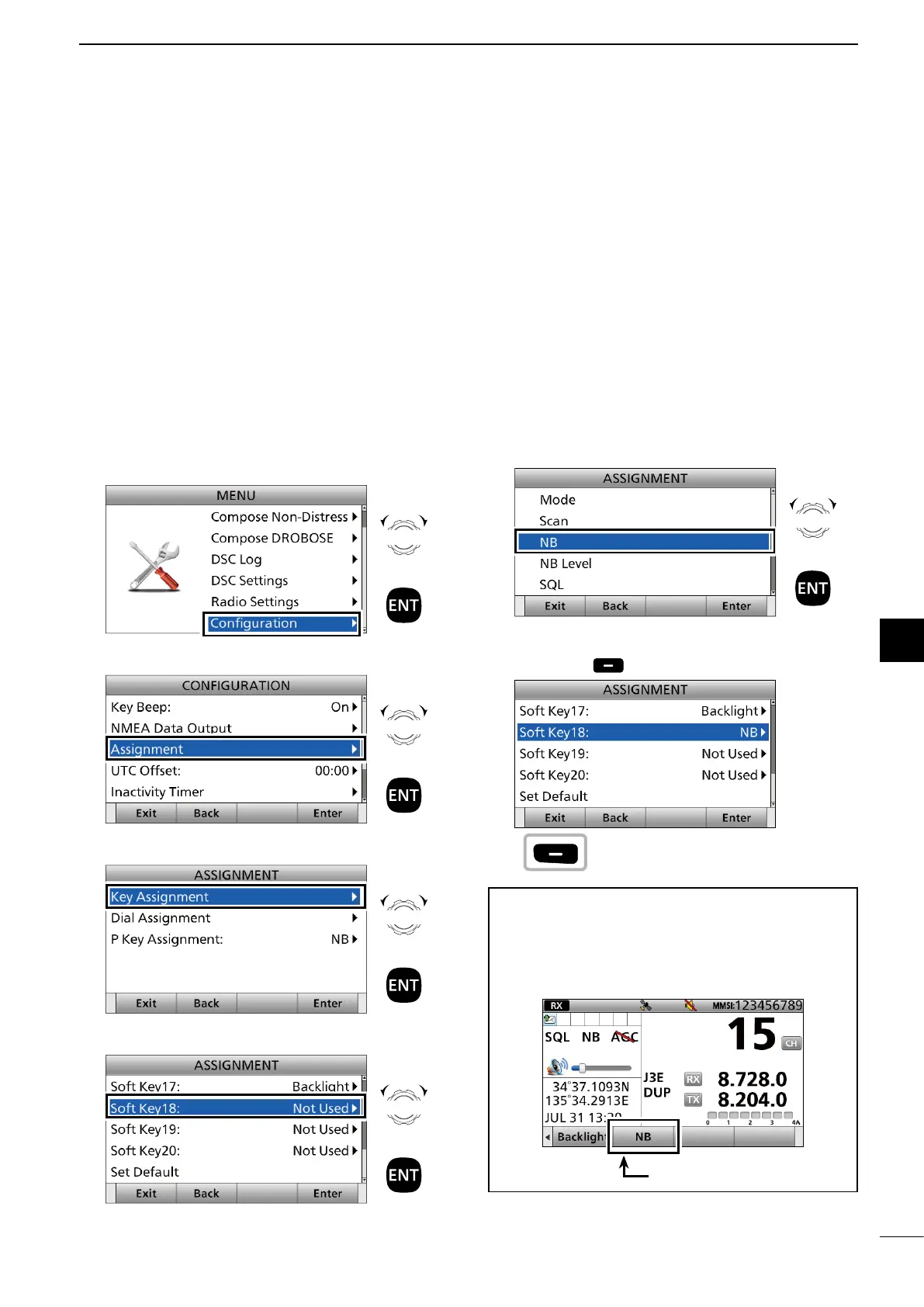
Example: Assigning “NB” to “Soft Key 18.”
1. Push [MENU].
2. Select “Configuration.”
3. Select “Assignment.”
4. Select “Key Assignment.”
5. Select a place. (Example: Soft Key 18)
Rotate
+
Push
Rotate
+
Push
Rotate
+
Push
Rotate
+
Push
1
6
OTHER FUNCTIONS AND OPERATIONS
17
16
15
14
13
12
11
10
9
8
7
6
5
3
4
2
Quick Reference
■ Assigning a function
You can assign some different Software Key functions
to a key between Soft Key 5 and Soft Key 20. (p. 5)
You can also assign some Software Key functions to
[VOL] on the controller and [P] on the optional
HM-214H
6. Select a Software Key function. (Example: NB)
• “NB” is assigned to “Soft Key 18.”
7. Push [Exit] to return to the Main screen.
TIP: You can con rm “NB” is assigned to a Software
Key after returning to the Main screen.
Push [Ω] or [≈] to the Soft Key 18's place.
• “NB” is displayed in the Software Key area.
NB is assigned.
Rotate
+
Push
Push



 To Next Page