48
7
DSC OPERATION
7
1
2
3
4
5
6
Quick Reference
8
9
10
11
12
13
14
15
16
17
7. Select “Category.”
The displayed items may differ depending on the
selected option in “Area.”
8. Select an option.
(Example: Safety)
► Continued on the next page.
Rotate
+
Push
Rotate
+
Push
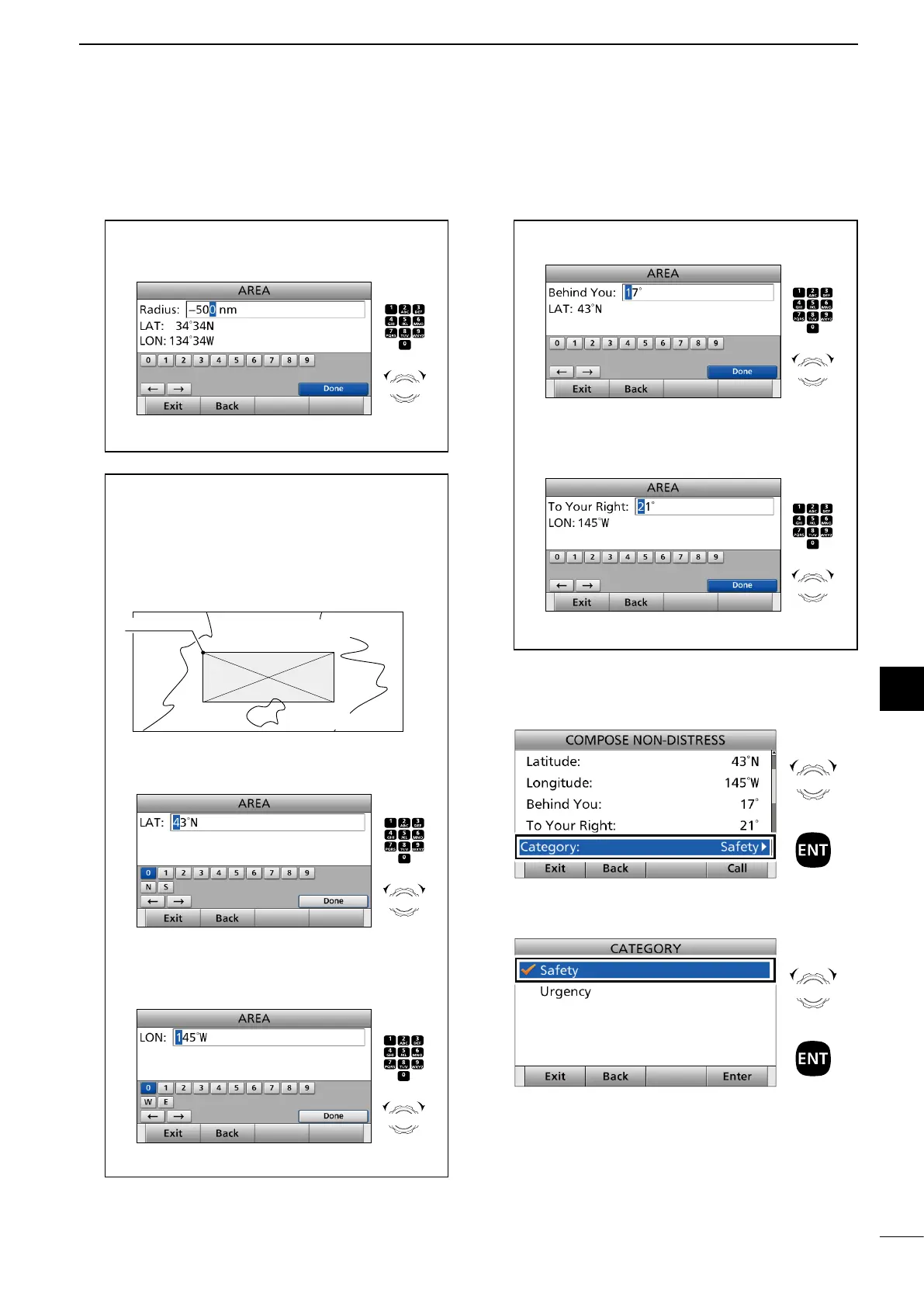
When selecting “Quadrant”:
You can send a Geographical call within the square
area as shown below. Your position is the upper left
corner of the square.
10˚N
100˚W
20˚N/100˚W
10˚N
80˚W
20˚N
80˚W
• Example
Latitude: 20°N Behind You: 10°
Longitude: 100°W To Your Right: 20°
1 Enter the latitude of your position.
After entering, select “Done” and push [ENT].
2 Enter the longitude of your position.
After entering, select “Done” and push [ENT].
Push
+
Rotate
to select
a character
CH/GRP
Push
+
Rotate
to select
a character
CH/GRP
3 Enter the height of the Geographical call area.
After entering, select “Done” and push [ENT].
4 Enter the width of the Geographical call area.
After entering, select “Done” and push [ENT].
Push
+
Rotate
to select
a character
CH/GRP
Push
+
Rotate
to select
a character
CH/GRP
3 Enter the radius of the Geographical call area.
After entering, select “Done” and push [ENT].
(Example: 500 nm)
Push
+
Rotate
to select
a character
CH/GRP


 To Next Page