- 226 - - 227 -
Printing printer information Printing printer information
1
2
3
5
4
1
2
3
5
4
Convenient print
functions
Appendix Index
Checking and
Changing Printer
Settings Using
the Control Panel
Network
Setup
Matching
Colors
Using Utility
Software
Convenient print
functions
Appendix Index
Checking and
Changing Printer
Settings Using
the Control Panel
Network
Setup
Matching
Colors
Using Utility
Software
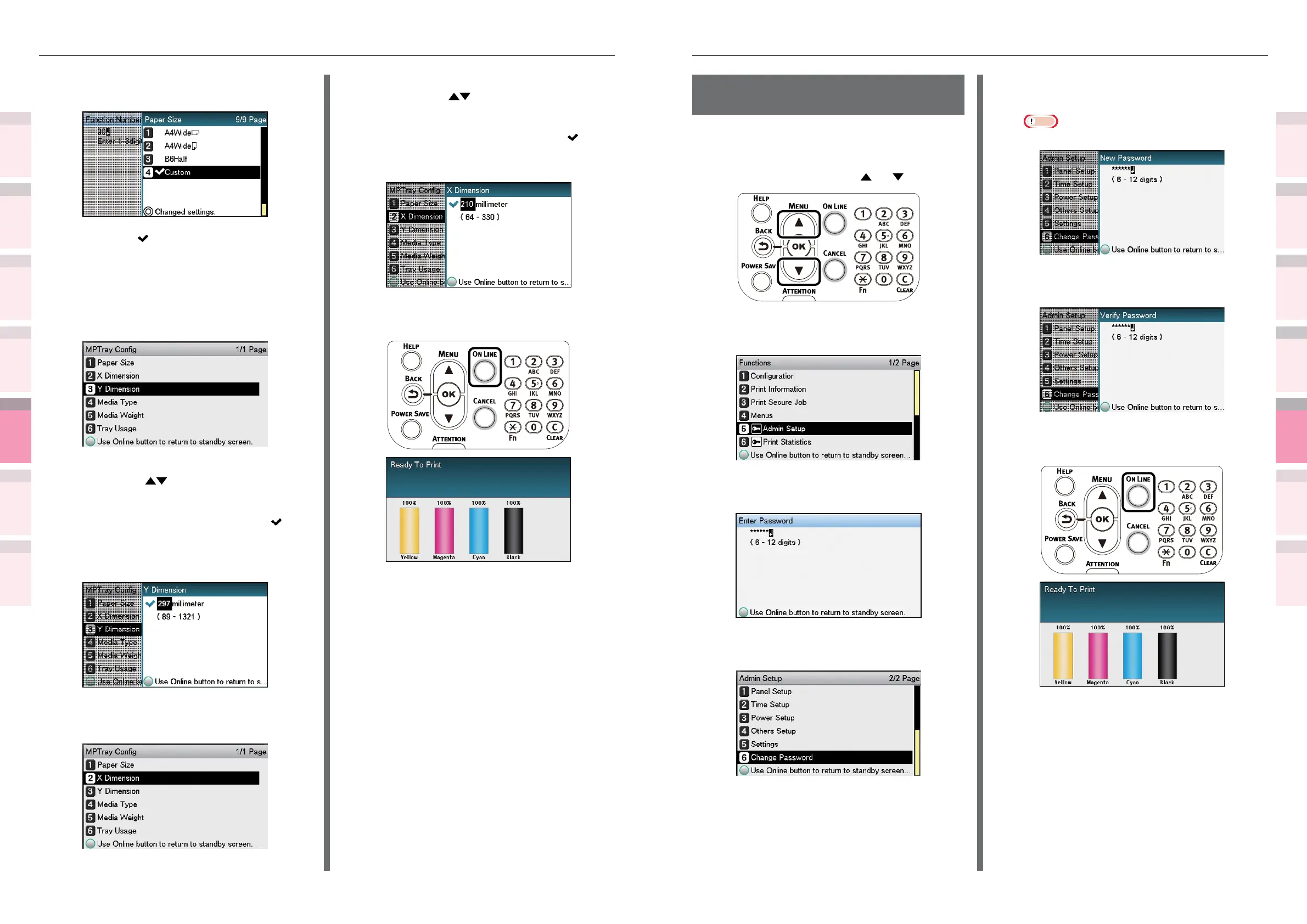
Changing administrator
passwords
Change an administrator password. The default
factory setting is [aaaaaa].
1
Press the scroll button or .
2
Select [Admin Setup], and press the
[OK] button.
3
Enter the administrator password, and
press the [OK] button.
4
Select [Change Password], and press
the [OK] button.
5
Enter the new password, and press the
[OK] button.
Note
z
Set a password with 6 characters min.
6
Re-enter the new password, and press
the [OK] button.
7
Press the [ON LINE] button to return to
the standby screen.
3
Select [Custom], and press the [OK]
button.
4
Check that is displayed to the left of
[Custom], and press the [BACK] button.
5
Set the custom size length and width.
(1)
Select [Y Dimension], and press
the [OK] button.
(2)
Use the 10-key pad or the scroll
buttons
to enter the length.
(3)
After entering the length, press
the [OK] button. Check that
is
displayed to the left of the entered
value, and press the [BACK]
button.
(4)
Select [X Dimension], and press
the [OK] button.
(5)
Use the 10-key pad or the scroll
buttons
to enter the width.
(6)
After entering the width, press
the [OK] button. Check that
is
displayed to the left of the entered
value, and press the [BACK] button.
6
Press the [ON LINE] button to return to
the standby screen.



 To Next Page