- 77 -
Advanced print functions
4
1
2
3
5
Convenient print
functions
Appendix Index
Checking and
Changing Printer
Settings Using
the Control Panel
Network
Setup
Matching
Colors
Using Utility
Software
- 76 -
Advanced print functions
4
1
2
3
5
Convenient print
functions
Appendix Index
Checking and
Changing Printer
Settings Using
the Control Panel
Network
Setup
Matching
Colors
Using Utility
Software
Using Windows PCL printer drivers
1
Open the le to be printed.
2
Select [Print] in the [File] menu.
3
Click [Advanced] (or [Preferences]).
4
Select [Auto] in [Source] in the [Setup]
tab.
5
Printing will be implemented.
Using Mac OS X printer drivers
1
Open the le to be printed.
2
Select [Print] in the [File] menu.
3
Select [Auto Select] in [All Pages From]
in the [Paper Feed] panel.
4
Printing will be implemented.
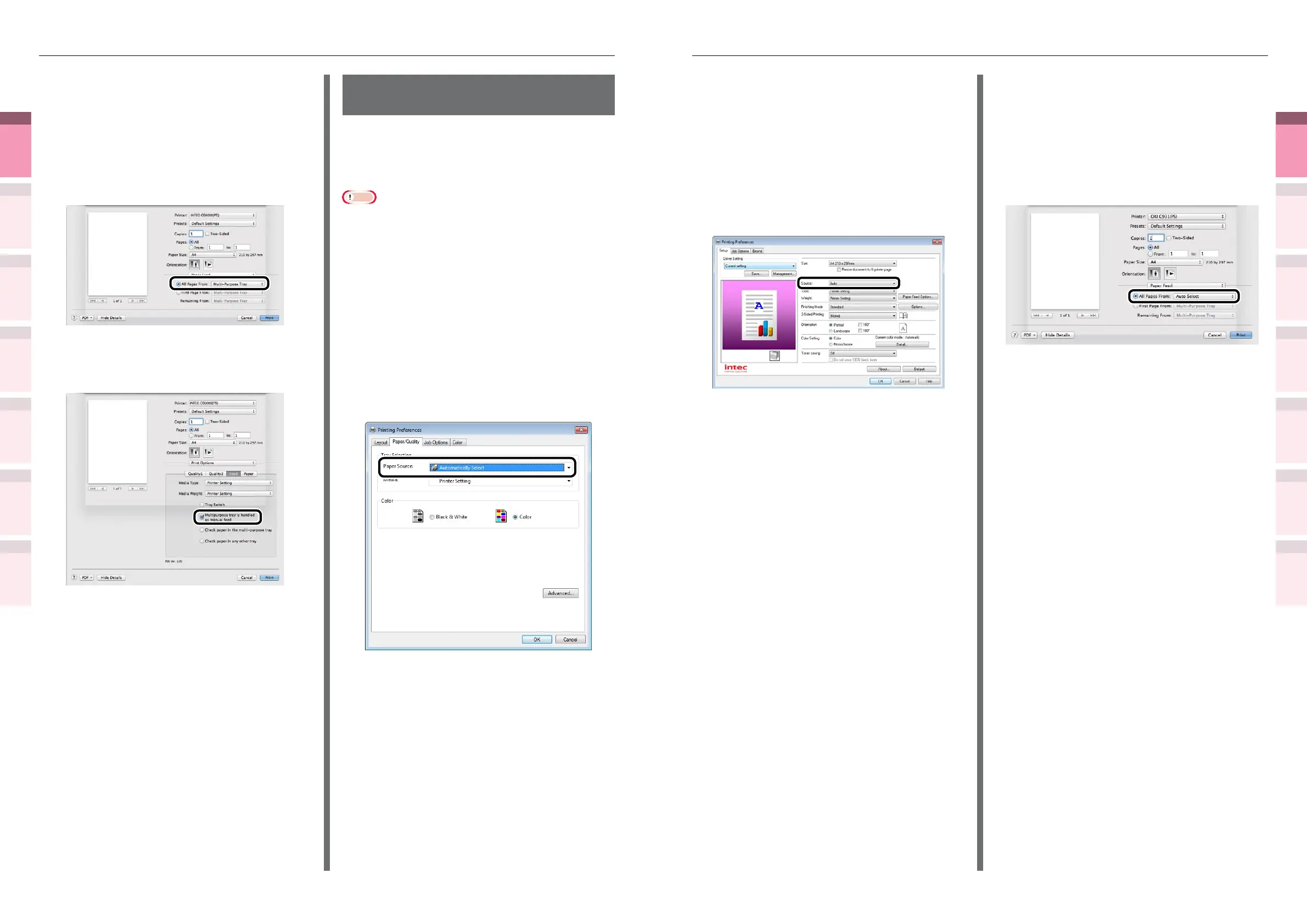
Using Mac OS X printer drivers
1
Open the le to be printed.
2
Select [Print] from the [File] menu.
3
Open the [Paper Feed] panel, and select
[Multi-Purpose Tray] in [All Pages From].
4
Click the [Feed] button in the [Print Options]
panel, and enable [Multipurpose tray is
handled as manual feed].
5
Make other settings as necessary to print.
6
When a message to set the paper in the
Multi-Purpose Tray is displayed in the
control panel LCD, set a single sheet,
and press the [OK] button.
When printing multiple-page
documents, the same message will be
displayed for each page.
Automatically selecting
trays
The tray matching the paper size set using the
printer drivers (tray 1, (optional) trays 2 to 5, or
Multi-Purpose Tray) will be selected automatically
for printing.
Note
z
Set the paper size and paper type for tray 1, (optional)
trays 2 to 5, and the Multi-Purpose Tray using the control
panel. For detailed, see "Setting paper" in "Basic".
Using Windows PS printer drivers
1
Open the le to be printed.
2
Select [Print] in the [File] menu.
3
Click [Advanced] (or [Preferences]).
4
Select [Automatically Select] in [Paper
Source] in the [Paper/Quality] tab.
5
Printing will be implemented.



 To Next Page