- 81 -
Advanced print functions
4
1
2
3
5
Convenient print
functions
Appendix Index
Checking and
Changing Printer
Settings Using
the Control Panel
Network
Setup
Matching
Colors
Using Utility
Software
- 80 -
Advanced print functions
4
1
2
3
5
Convenient print
functions
Appendix Index
Checking and
Changing Printer
Settings Using
the Control Panel
Network
Setup
Matching
Colors
Using Utility
Software
4
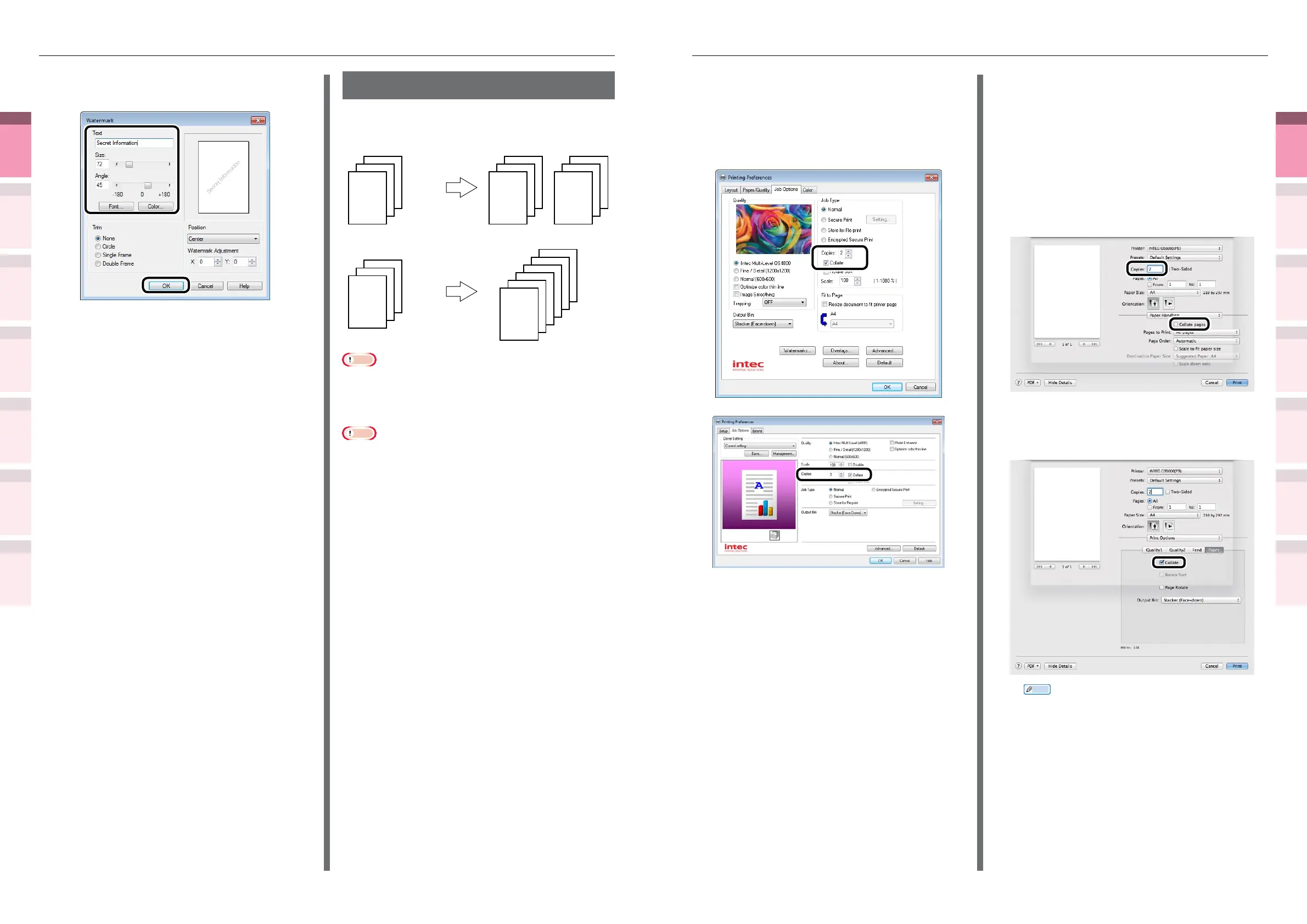
If using PS printer drivers, enter the print
quantity in [Copies] in the [Job Options] tab,
and enable the [Collate] check box.
If using PCL printer drivers, enter the print
quantity in [Copies] in the [Job Options]
tab, and enable the [Collate] check box.
(Windows 7 PS printer driver screen)
(Windows 7 PCL printer driver screen)
5
Printing will be implemented.
Using Mac OS X printer
drivers
1
Open the le to be printed.
2
Select [Print] in the [File] menu.
3
Disable [Collate pages] in the [Paper
Handing] panel or print dialog box, and
enter the print quantity in [Copies].
4
Click the [Paper] button in the [Print
Options] panel, and enable the [Collate]
check box.
Memo
z
If [Collate pages] is enabled in the [Print Handing]
panel, do not use the device memory when printing.
5
Printing will be implemented.
6
Enter [Text] in the "Watermarks"
screen, and set another [Size].
(Windows 7 PS printer driver screen)
7
Click [OK].
8
Printing will be implemented.
Collate (sort printing)
You can store print jobs in the device memory
and collate the printing.
1
2
3
1
2
3
1
2
3
1
2
3
3
2
3
1
1
2
Printing by specifying batches
Printing without specifying batches
x2
x2
Note
z
Not usable with some applications.
Using Windows printer drivers
Note
z
If using PS printer drivers, turn OFF the batch printing
function in the application.
1
Open the le to be printed.
2
Select [Print] in the [File] menu.
3
Click [Advanced] (or [Preferences]).



 To Next Page