- 64 - - 65 -
Clean printing Clean printing
4
1
2
3
5
4
1
2
3
5
Convenient print
functions
Appendix Index
Checking and
Changing Printer
Settings Using
the Control Panel
Network
Setup
Matching
Colors
Using Utility
Software
Convenient print
functions
Appendix Index
Checking and
Changing Printer
Settings Using
the Control Panel
Network
Setup
Matching
Colors
Using Utility
Software
Using Windows PCL printer drivers
1
Open the le to be printed.
2
Select [Print] in the [File] menu.
3
Click [Advanced] (or [Preferences]).
4
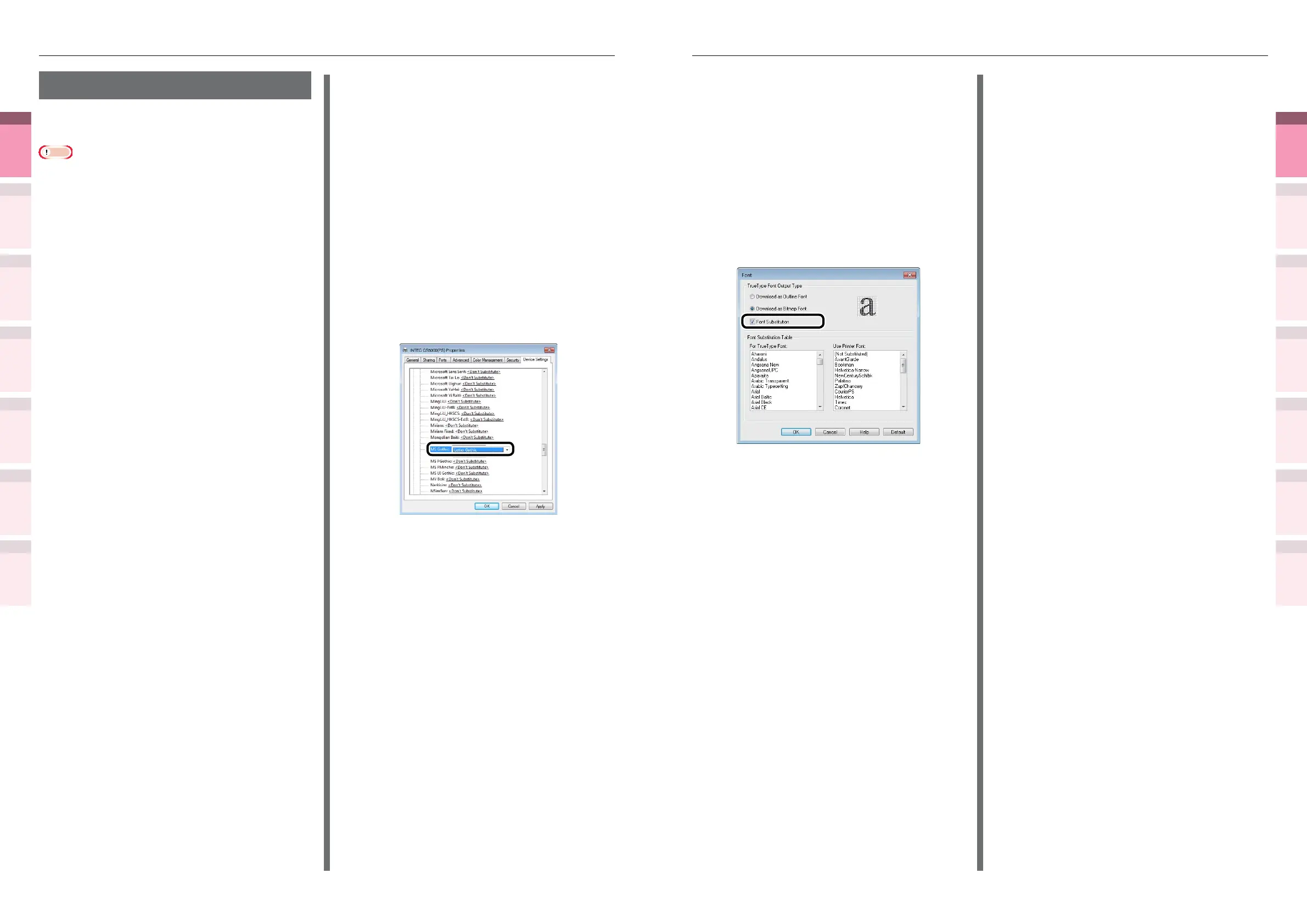
Click [Fonts] in the [Extend] tab.
5
Enable the [Font Substitution] check
box in the [Font] screen.
6
Specify the printer font to replace the
TrueType font in [Font Substitution
Table].
7
Printing will be implemented.
Using printer fonts
You can print by replacing the TrueType fonts
with the fonts stored in the device.
Note
z
The font replacement function stores the document
fonts, but font designs cannot be reproduced. If it is
necessary to print font designs accurately, disable the font
replacement function.
z
Some of the applications that use unique printer drivers
cannot use the font replacement function easily.
z
If using Windows PS printer drivers, PC administrator
privileges are required.
z
Cannot be used with Mac OS X printer drivers.
Using Windows PS printer drivers
1
Click [Start], and then select [Devices
and Printers].
2
Right-click the [Intec (product
name) (PS)] icon, and select [Printer
Properties].
3
Select the [Device Settings] tab.
4
Specify the printer font to be used
instead of TrueType fonts in [Font
Substitution Table].
To specify a font, click the TrueType font,
and select the replacement printer font
from the drop-down list.
5
Click [OK].
6
Select [Print] from the [File] menu.
7
Click [Advanced] (or [Preferences]).
8
Click [Advanced] in the [Layout] tab.
9
Select [Substitute with Device Font] in
[TrueType Font].
10
Printing will be implemented.



 To Next Page