- 130 - - 131 -
Matching Colors Using UtilitiesPS Gamma Adjuster Matching Colors Using UtilitiesPS Gamma Adjuster
4
3
5
1
2
4
3
5
1
2
Convenient print
functions
Appendix Index
Checking and
Changing Printer
Settings Using
the Control Panel
Network
Setup
Matching
Colors
Using Utility
Software
Convenient print
functions
Appendix Index
Checking and
Changing Printer
Settings Using
the Control Panel
Network
Setup
Matching
Colors
Using Utility
Software
Registering gamma
(Macintosh)
1
Start the PS Gamma Adjuster.
2
Click [Dene new halftone adjustment].
3
Adjust the halftone.
You can select the halftone adjustment
method from the graph line operations,
gamma value inputs, and density value
inputs to the text boxes.
4
Enter the settings name in [Halftone
adjustment name], and click [Save].
5
Close the PS Gamma Adjuster.
6
Select [Printers and scanners] in the
[System environment settings], and
then temporarily delete and then re-
register the printer that implemented
the registered adjustments.
(1)
Select the color to be printed from
the printed color samples, and note
down the printed RGB value.
Memo
z
If there are no colors in the color samples that
you want to print, customize the color samples
using the following procedure.
(2)
Click the [Switch] button to switch
to custom color samples.
(3)
Click the [Advanced] button to
display the [Edit Custom Color
Swatch] dialog box.
(4)
z
Color Swatch Utility
Operations environment
The color swatch utility is a utility for using the
device to print RGB color samples. By viewing
the printed color samples, you can check which
RGB values should be specied using the
application to print the desired colors.
Note
– Cannot be used by Macintosh.
– The color swatch utility is installed together with the
printer drivers.
Printing RGB color samples
1
Print sample colors.
(1)
Select [Start]>[All Programs]>
[Intec Printing Solutions]>[Color
Swatch Utility]>[Color Swatch
Utility] to start the color swatch
utility.
(2)
Click the [Print] button.
(3)
Select the device.
(4)
Click [OK] or [Print].
3 pages of color samples will be printed.
(Samples)
Color
block
Color
values
R: 255
G: 203
B: 220
Memo
z
The RGB values displayed below the color block
denote the proportions (0 to 255) of the R (red),
G (green), and B (blue) colors in the color block.
z
Matching Colors Using Utilities
PS Gamma Adjuster
PS Gamma Adjuster
You can adjust the halftone density of the CMYK
colors printed using the device. Use this function
if the photo or graphics colors are too dark.
Note
z
Cannot be used with Windows PCL printer drivers.
z
Using this function may make printing slower. To prioritize
speed, in Windows disable "Use printer halftone", and in
Macintosh select [No settings] in [Halftone adjustment].
z
If using Windows, the [Halftone adjustment] menu or its
contents may not be displayed in the [Color] tab of the
printer drivers. In this case, restart your PC.
z
If the application is used before the halftone adjustment
name has been registered, restart the application before
printing.
z
If multiple printers have been saved to the [Devices and
printers] folder, the registered halftone adjustment names
will be enabled for all printers of the same model.
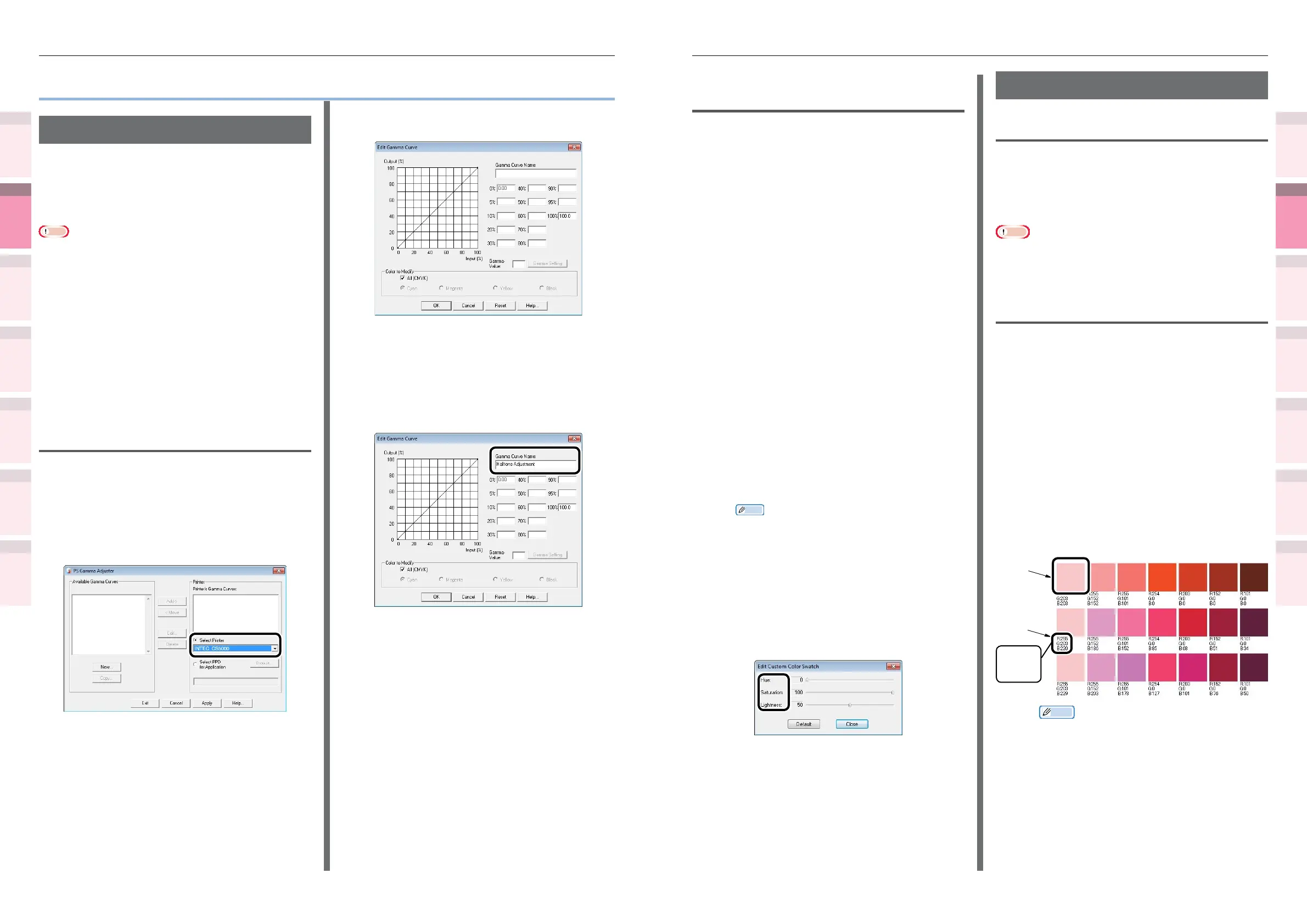
Registering gamma (Windows)
1
Select [Start]>[All Programs]>[Intec
Printing Solutions]>[PS Gamma
Adjuster]>[PS Gamma Adjuster] to
start the PS Gamma Adjuster.
2
Select the device from [Select Printer].
3
Click [New].
4
Adjust the halftone.
You can select the halftone adjustment
method from the graph line operations,
gamma value inputs, and density value
inputs to the text boxes.
5
Enter the settings name in [Gamma
Curve Name], and click [OK].
6
Click [Add].
7
Click [Apply].
The dialog box will be displayed.
8
Click [OK].
9
Click [Finish] to close the PS Gamma
Adjuster.



 To Next Page