- 98 - - 99 -
Deleting or updating printer drivers Deleting or updating printer drivers
4
1
2
3
5
4
1
2
3
5
Convenient print
functions
Appendix Index
Checking and
Changing Printer
Settings Using
the Control Panel
Network
Setup
Matching
Colors
Using Utility
Software
Convenient print
functions
Appendix Index
Checking and
Changing Printer
Settings Using
the Control Panel
Network
Setup
Matching
Colors
Using Utility
Software
Using Mac OS X
1
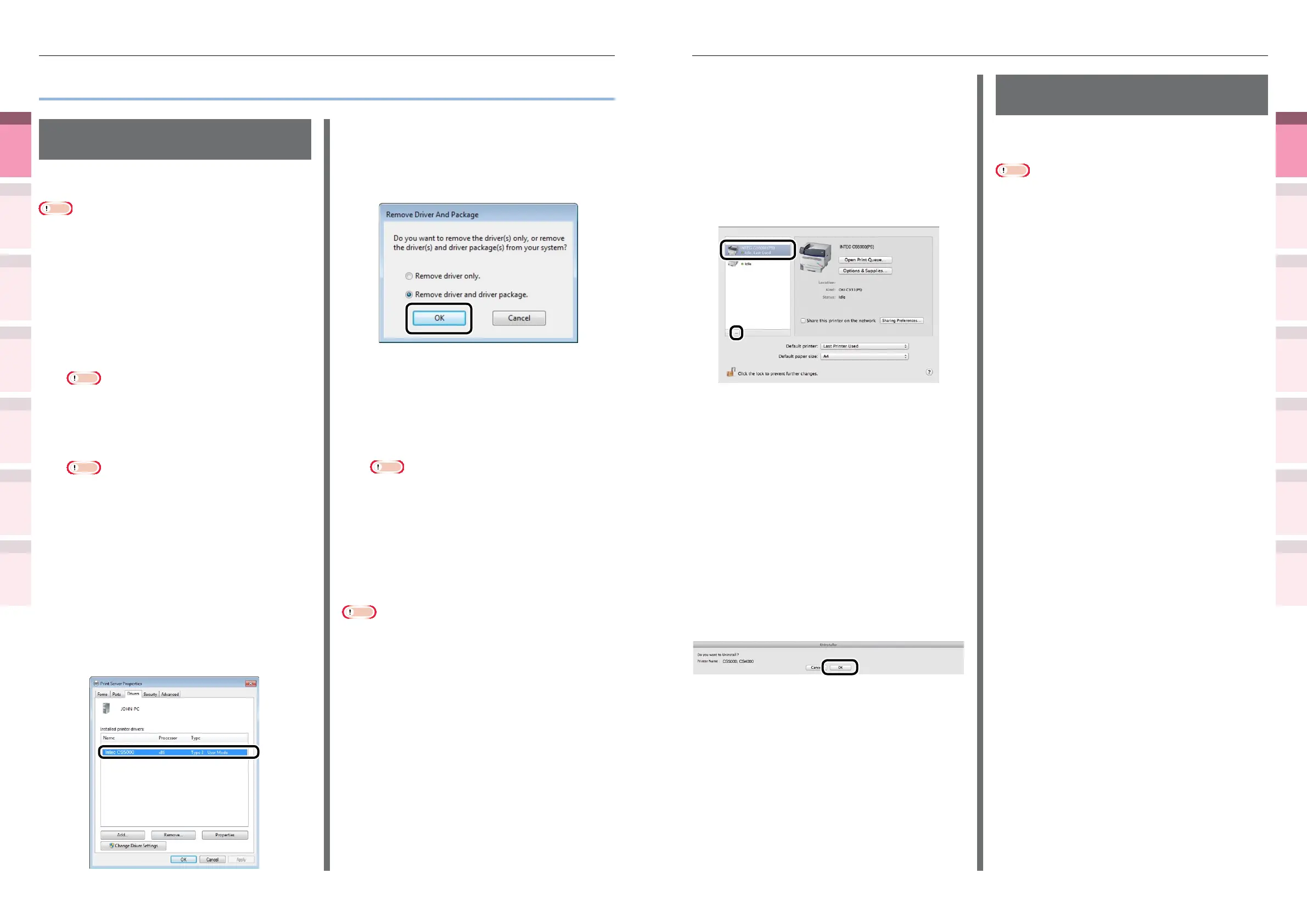
Delete the printer name from the
printer list.
(1)
Select [Apple Menu]>[System
Preferences].
(2)
Click [Print & Scan]. Select the
printer name, and click [-].
(3)
Close [System Preferences].
2
Delete (uninstall) using the installer.
(1)
Set the "Software DVD-ROM" in
your Macintosh.
(2)
Double-click the [Intec] icon.
(3)
Open the [Driver] folder.
(4)
Double-click [Uninstaller].
(5)
Follow the on-screen instructions to
enter the administrator password,
and click [OK] until the uninstaller
closes.
(6)
Click [Finish].
(7)
Remove the "Software DVD-ROM"
from the computer.
Updating the printer
drivers
Using Windows
Note
z
PC administrator privileges are required.
z
When Windows starts, restart the PC.
Network connections
1
Set the "AutoPlay".
2
When the "play automatically" window
is displayed, click [Run Setup.exe].
3
When the "User Account Control"
window is displayed, click the [Yes]
button.
4
Read the "Software License Agreement",
and click the [Agree] button.
5
Read the "Environmental advice for
Users", and click the [Next] button.
6
Select the printer to be used, and then
click the [Next] button.
7
Select [USB connection], and click the
[Next] button.
8
Click [Custom Install].
9
Click [Switch to separate screen.].
10
Click the driver to be installed.
11
Click [Next] in the "Check before install"
screen.
12
If the "Check installation" screen is
displayed, select the printer to be
installed, and click [Next].
z
Deleting or updating printer drivers
Deleting the printer
drivers
Using Windows
Note
z
PC administrator privileges are required.
z
When Windows starts, restart the PC.
1
Click [Start], and then select [Devices
and Printers].
2
Right-click the [Intec (product name)
(**)] icon (** describes the printer
driver type: PS or PCL6), and select
[Delete Device].
Note
z
If any print queues remain, select [Delete Print
Queue]>[Intec (product name) (**)].
3
If a verication message is displayed,
click [Yes].
Note
z
If a message is displayed while the device is in use,
restart the PC, and implement Steps 1 and 2 again.
4
Select one of the icons in [Devices
and Printers], and click [Print Server
Properties] in the top bar.
5
Select the [Drivers] tab.
6
Click if [Change Driver Settings] is
displayed.
7
Select the driver to be deleted, and
click [Remove].
8
If a message asking whether to delete
the drivers only, or the drivers and
packages from the system, select to
delete drivers and packages, and click
[OK].
9
If a verication message is displayed,
click [Yes].
10
If the [Remove driver and driver
package] dialog box is displayed, click
[Cancel]>[OK].
Note
z
To cancel deletion, restart the PC, and implement
Steps 4 and 10 again.
11
Click [Close] in the [Print Server
Properties] dialog box.
12
Restart the PC.
Note
z
The Network Extension installed together with the printer
drivers is not deleted even if the printer drivers are
deleted.
If deleting the Network Extension utility, delete from
[Control Panel]>[Uninstall Program].



 To Next Page