- 2 - - 3 -
z
Manual Conguration
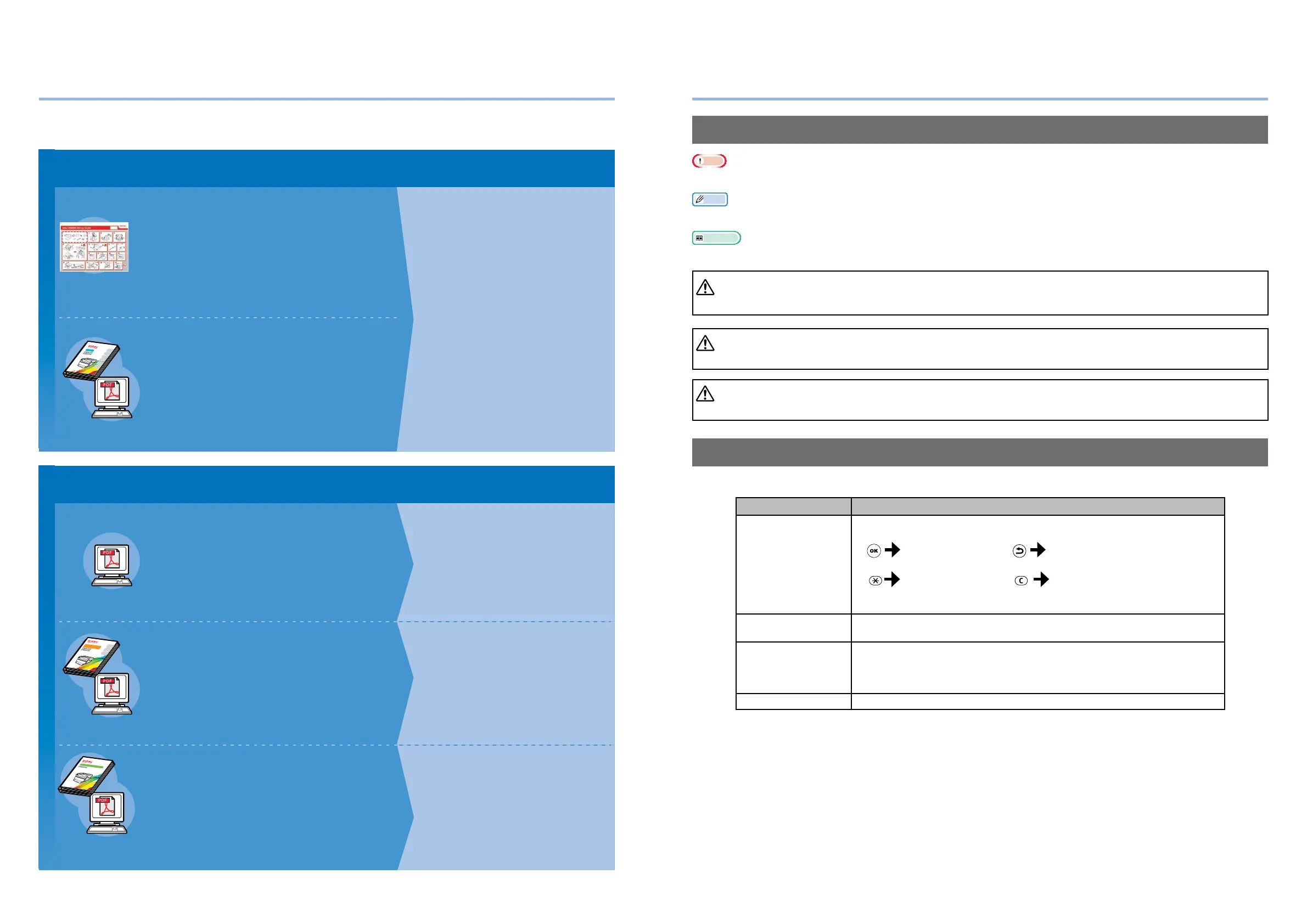
The following user manuals are enclosed with the product.
The e-manual is stored as software on DVD-ROM.
4
Basic Device
Operations
2
Setting Up
Before
use
User's Manual
Basic
○
This manual contains cautions on how to use this product safety.
Before you use this product, please make sure that you read this manual.
○
Carefully store this manual close to hand so.
1
Appendix
Index
3
Printing
Basic
Preparing the printer to print
Try using various functions
Read for any points that are not understood, or for maintenance
Using CS5000
This guide describes the precautions for safe
use of the device. Make sure to read before use.
Further, basic uses from the device installation
methods to initial printing are also explained.
The device functions are described in the
appendix.
Read these guides as necessary
Advanced (This manual)
2
Step
This guide explains the various paper print methods
and how to use useful functions. Read to optimize the
printing environment or to adjust the color, etc., using
the enclosed utility software.
Further, this guide also explains the items that can be
set from the control panel, and the network settings.
Troubleshooting/Daily
Maintenance Manual
This manual explains the procedures for paper jams, and
troubleshooting method if an error message is displayed. This
manual also explains daily maintenance such as now to replace
consumables and maintenance units, and cleaning, etc.
•
Troubleshooting
•
Maintenance
•
Consumables, maintenance products,
options, color management server,
etc.
・
E-format
・
E-format
・
E-format
Read this first
Easy Guide (Set-up Guide)
Opening the box and installing the printer
Step
This guide uses illustrations to explain the
methods from opening the box to installation.
For the advanced setup guide, see the "Basic".
・
Pamphlet
•
Checking the product
•
Parts nomenclature and functions
•
Using the device to its fullest
•
Installing the device
•
Turning ON and OFF the power supply
•
Test printing using the printer only
•
Connecting to a PC
•
Paper
•
Printing
•
Paper ejection
•
Setting Power Save mode
•
Setting auto power OFF
•
Checking the print quantity,
consumables, remaining maintenance
unit quantity, and remaining service life
•
Cancelling a print job
•
Adding printers using LPD protocols
(TCP/IP)
•
Table of control panel menu items
•
Basic Windows procedures
•
Printer specifications
•
Useful print functions
•
Adjusting the color
•
Using utility software
•
Network settings
•
Checking and changing printer settings
using the control panel
Separate Volume Spot Color Guide
This guide explains how to set up the Spot
Color kit and check the printer drivers, and
how to print using Spot Color. Make sure to
read before use.
•
Setting the Spot Color kit
•
Control panel explanation
•
Checking the printer drivers
•
Table of printer driver functions
•
Printing on color paper
•
Printing on transparent film
•
Specifying and printing Spot Color
toner using the applications
•
Fine-tuning white
•
Switching Spot Color kits
・
E-format
1
Index
Read for any points that
are not understood, or
for maintenance
1
Troubleshooting
2
Maintenance
Index
User’s Manual
Troubleshooting/Daily
Maintenance Manual
Store this manual carefully close to hand so it can be viewed at any time.
User's Manual
Separate Volume Spot Color Guide
z
Reading the Manual
Symbols
Note
z
These are cautions and restrictions for the correct operation of the device. Make sure to read to avoid misoperation.
Memo
z
Knowledge of the information before using the device is useful and can act as a reference. Reading is recommended.
Reference
z
This are the reference pages. Read to learn detailed information and relevant information.
DANGER
z
Mishandling due to ignoring this display may cause death or serious injury.
WARNING
z
Mishandling due to ignoring this display may cause death or serious injury.
CAUTION
z
Mishandling due to ignoring this display may cause personal injury.
Keys, Buttons, and Symbols
This chapter described the following keys, buttons, and symbols.
Inscription Explanation
[ ] button/key
z
The control panel buttons and 10-key pad are described below.
E.g.:
[OK] button [BACK] button
[Fn] key [CLEAR] key
z
Indicates your PC keyboard.
[ ]
z
Describes the menu name on the liquid crystal panel.
z
Describes the PC menus, windows, and dialog box names.
" "
z
Describes the messages and input text displayed in the liquid crystal
panel.
z
Describes the le and screen names on the PC.
z
Describes the reference title.
> Describes the menu level of the device or PC.



 To Next Page