- 90 - - 91 -
Advanced print functions Advanced print functions
4
1
2
3
5
4
1
2
3
5
Convenient print
functions
Appendix Index
Checking and
Changing Printer
Settings Using
the Control Panel
Network
Setup
Matching
Colors
Using Utility
Software
Convenient print
functions
Appendix Index
Checking and
Changing Printer
Settings Using
the Control Panel
Network
Setup
Matching
Colors
Using Utility
Software
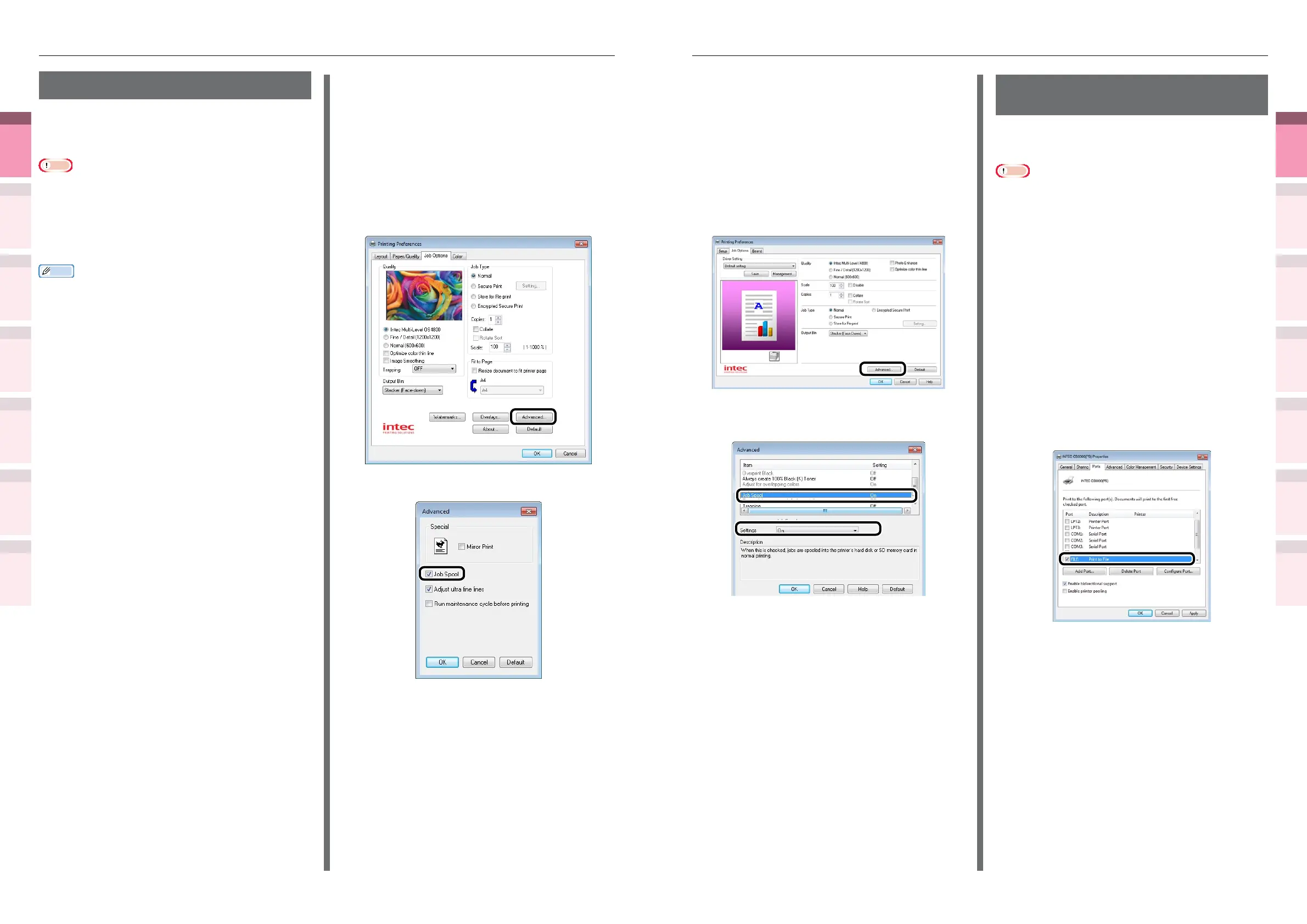
Using Windows PCL printer drivers
1
Open the le to be printed.
2
Select [Print] in the [File] menu.
3
Click [Advanced] (or [Preferences]).
4
Click [Advanced] in the [Job Options]
tab.
5
Select [Job Spool], and then select [On]
to change the settings, and click [OK].
6
Printing will be implemented.
Outputting to le without
printing
You can write and save to a le without printing
the print data.
Note
z
PC administrator privileges are required.
Using Windows printer drivers
1
Click [Start], and then select [Devices
and Printers].
2
Right-click the [Intec (product name)
(**)] icon (** describes the printer
driver type: PS or PCL6), and select
[Printing Preferences]>[Intec (product
name)(**)].
3
Select the [Ports] tab.
4
Select [FILE:] from the port table, and
click [OK].
5
Printing will be implemented.
6
Enter the le name, and click [OK].
Using the printer buffer
You can quickly free the printer from large-
quantity jobs and complex jobs by saving print
jobs to the device HDD.
Note
z
If there is insufcient space on the option built-in
HDD storing the print jobs, "File system is full" will be
displayed, and printing will be disabled.
z
The time to print completion will be slower than if not
spooling.
z
Cannot be used with Mac OS X printer drivers.
Memo
z
If the device is in print standby, print without using the
printer buffer.
Using Windows PS printer drivers
1
Open the le to be printed.
2
Select [Print] in the [File] menu.
3
Click [Advanced] (or [Preferences]).
4
Click [Advanced] in the [Job Options]
tab.
5
Enable the [Job Spool] check box.
6
Printing will be implemented.



 To Next Page