- 214 - - 215 -
Setting the network from the web browser Setting the network from the web browser
5
1
2
4
3
5
1
2
4
3
Convenient print
functions
Appendix Index
Checking and
Changing Printer
Settings Using
the Control Panel
Network
Setup
Matching
Colors
Using Utility
Software
Convenient print
functions
Appendix Index
Checking and
Changing Printer
Settings Using
the Control Panel
Network
Setup
Matching
Colors
Using Utility
Software
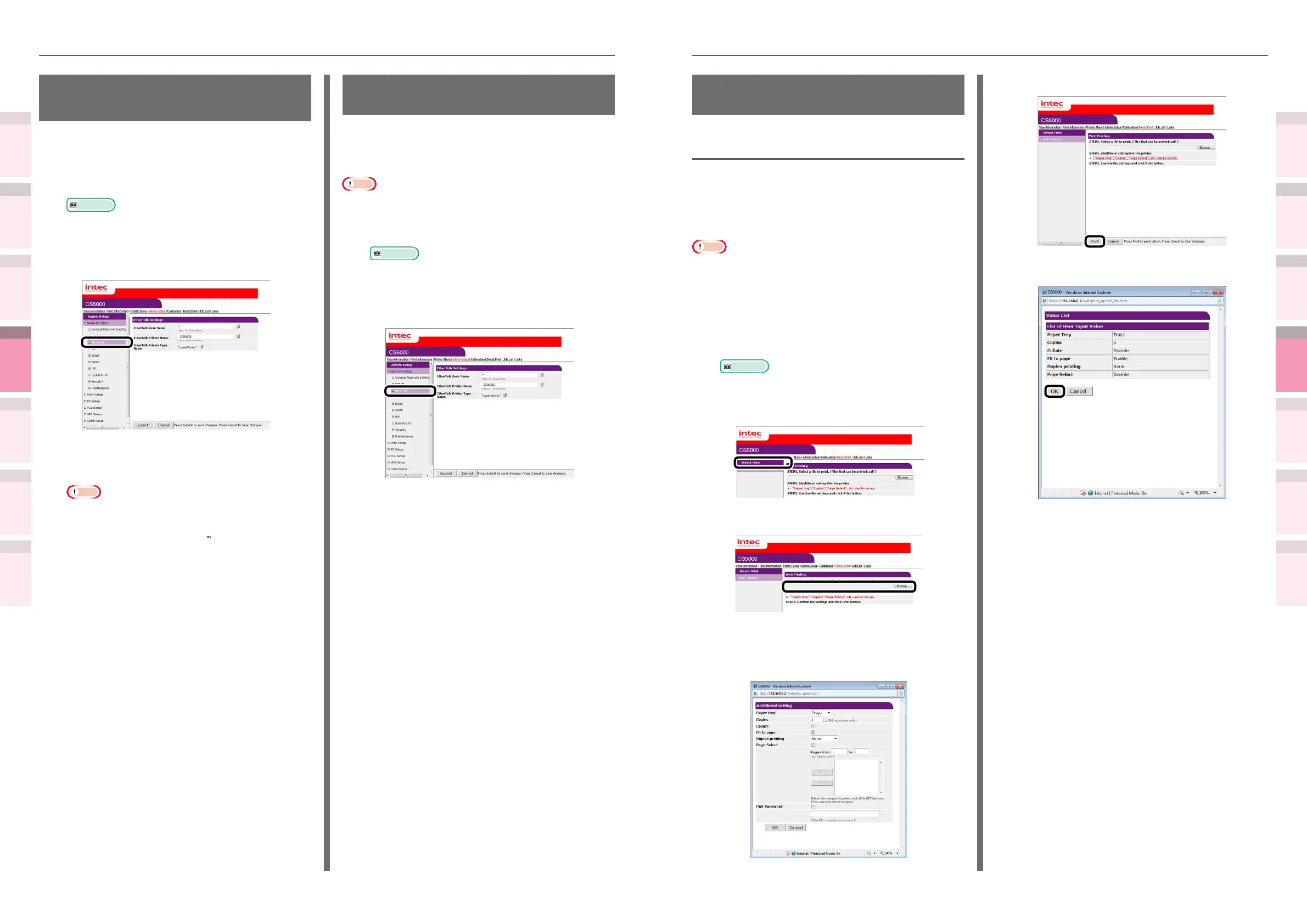
Changing EtherTalk printer
names (Macintosh)
If using EtherTalk, you can add easily identiable
names to the device.
1
Log in as an administrator.
Reference
z
See “Logging in as an administrator” (P.184).
2
Click [Admin Setup]>[Network
Setup]>[EtherTalk] tab.
3
Enter a new name in [EtherTalk Printer
Name], and click [Submit].
Note
z
Settable printer names are 32 single-byte
alphanumeric characters max.
z
Do not use symbols (=:*@~
), etc., in the printer
name.
Changing EtherTalk zones
(Macintosh)
You can change the printer from the current zone
to another zone using EtherTalk delineated using
multiple logical zones.
Note
z
Selectable zones are within the same segments.
1
Log in as an administrator.
Reference
z
See “Logging in as an administrator” (P.184).
2
Click [Admin Setup]>[Network
Setup]>[EtherTalk] tab.
3
Enter a new name in [EtherTalk Zone
Name], and click [Submit].
Printing without printer
drivers (Direct printing)
Printing PDF les
You can print PDF les even if the printer drivers
have not been installed.
Specify the le from the web browser to send to
the device.
Note
z
Some PDF les may not print correctly. If printing is
incorrect, print from an application such as Acrobat
Reader.
z
If printing by specifying the print page, device processing
may take some time.
1
Log in as an administrator.
Reference
z
See “Logging in as an administrator” (P.184).
2
Select the [Direct Print] tab.
3
Specify the le to be printed in [STEP1].
Click [Browse] to select the le using the
le dialog box.
4
Set up printing in [STEP2].
5
Click [Print] in [STEP3].
6
Check the print setup, and click [OK].



 To Next Page