- 114 - - 115 -
Matching Colors Using the Printer Drivers Matching Colors Using the Printer Drivers
4
3
5
1
2
4
3
5
1
2
Convenient print
functions
Appendix Index
Checking and
Changing Printer
Settings Using
the Control Panel
Network
Setup
Matching
Colors
Using Utility
Software
Convenient print
functions
Appendix Index
Checking and
Changing Printer
Settings Using
the Control Panel
Network
Setup
Matching
Colors
Using Utility
Software
Using Windows PS printer drivers
1
Open the le to be printed.
2
Select [Print] in the [File] menu.
3
Click [Advanced] (or [Preferences]).
4
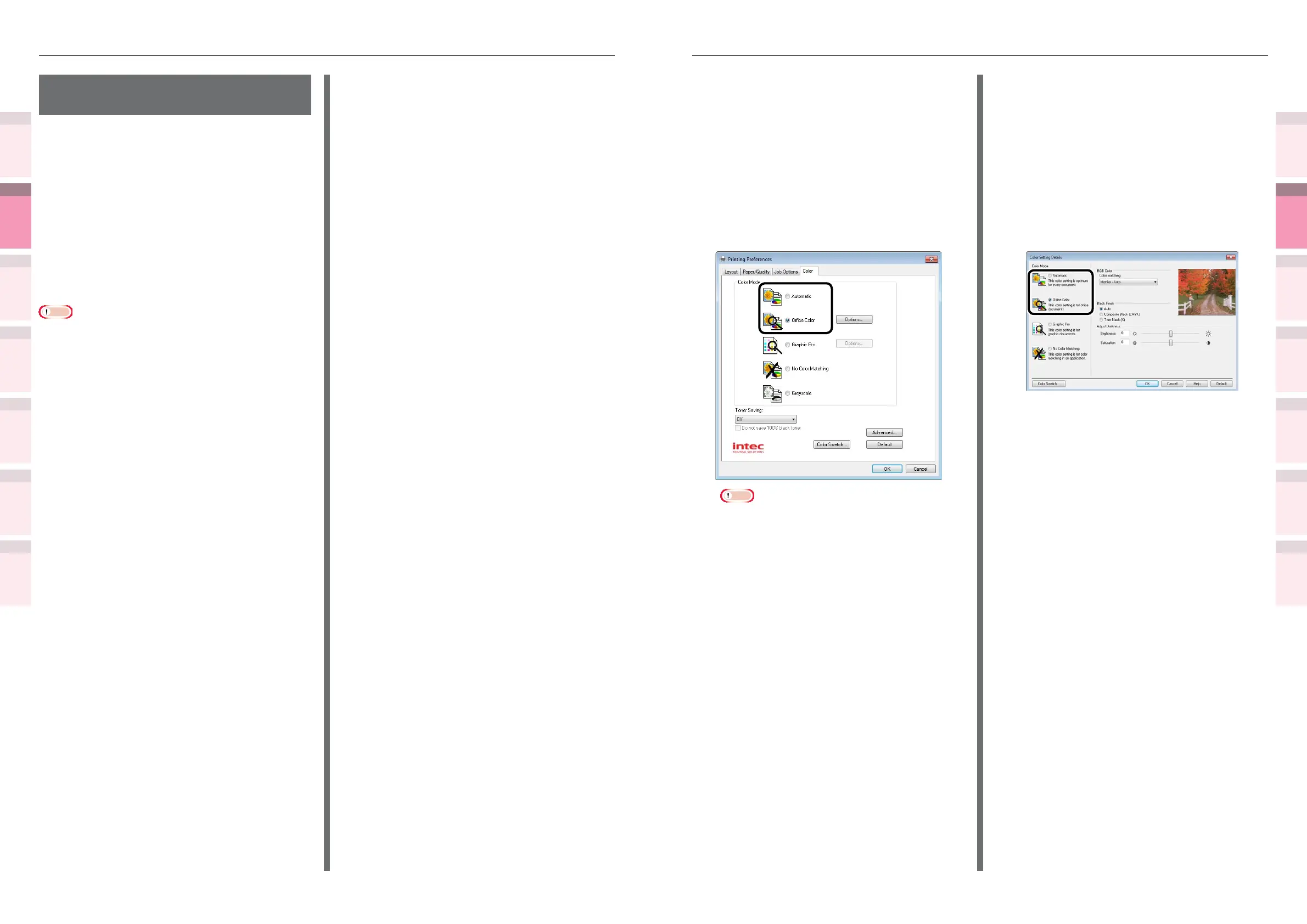
Select [Automatic] or [Ofce Color] in
[Color Mode] in the [Color] tab, and
then click [OK].
Note
z
If installing an ICC prole, click [Advanced] in the
[Layout] tab, and then select [Disable ICM] in [ICM
Methods].
5
Printing will be implemented.
Using Windows PCL printer drivers
1
Open the le to be printed.
2
Select [Print] in the [File] menu.
3
Click [Advanced] (or [Preferences]).
4
Click [Detail] in the [Setup] tab, and
select [Automatic] or [Ofce Color] and
click [OK].
5
Printing will be implemented.
Easy color matching
(Ofce colors)
Color matching is the optimum method supplied
for users who frequently use business documents
such as word processing software, spreadsheet
software, and presentation software. Color
matching is implemented for printers using the
colors expressed using RGB colors, which are
used with these software applications.
Color matching is implemented using a special
accelerator (ASIC) that is built into the printer.
When converting the RGB color space print data
to the printer CMYK color space, color matching
processing is applied.
Note
z
This is enabled for RGB color space print data only.
z
If using Windows PCL printer drivers, color matching is not
applied even if [Automatic] or [Ofce Color] is selected
for the CMYK color space print data. In this case, select
"Graphic Pro".
z
If installing ICC prole in Windows, click [Advanced Setup]
in the [Layout] tab, and then select [Disable ICM] in [ICM
Methods].
Setup Items
z
[Color matching options]
Species the method for expressing the colors
processed using color matching.
z
Monitor - Auto
During color matching, represents
the color by the most ideal method
suiting the document to be printed,
emphasizing compatibility with the
monitor (color temperature 6500K). In
general, use this setting.
z
Monitor - Perceptual
During color matching, represents the
color by the method emphasizing the
gradation suiting the natural image of
photograph and compatibility with the
monitor (color temperature 6500K).
z
Monitor - Vivid
During color matching, represents the
color by the method emphasizing the
vividness suiting the images and text,
and compatibility with the monitor
(color temperature 6500K).
z
Monitor - light
During color matching, represents the
color by the method emphasizing the
gradation suiting the natural image of
photograph and compatibility with the
monitor (color temperature 9300K).
z
Adobe RGB
Indicates while using the input device
with AdobeRGB color characteristics.
z
sRGB
The sRGB colors within the printer's
color gamut are printed without any
modication. Only colors that fall
outside the printer's color gamut are
matched with the outer shell. Suitable
for matching specic colors.
z
[CMYK Ink Simulation]
Select to simulate standard offset print
colors such as Japan Color, SWOP, and JMPA
on the device.
Select the target printer ink.
z
[Black Finish]
Sets the black nish when printing in color.
Normally use Auto as is.



 To Next Page