- 48 - - 49 -
Economy printing Economy printing
4
1
2
3
5
4
1
2
3
5
Convenient print
functions
Appendix Index
Checking and
Changing Printer
Settings Using
the Control Panel
Network
Setup
Matching
Colors
Using Utility
Software
Convenient print
functions
Appendix Index
Checking and
Changing Printer
Settings Using
the Control Panel
Network
Setup
Matching
Colors
Using Utility
Software
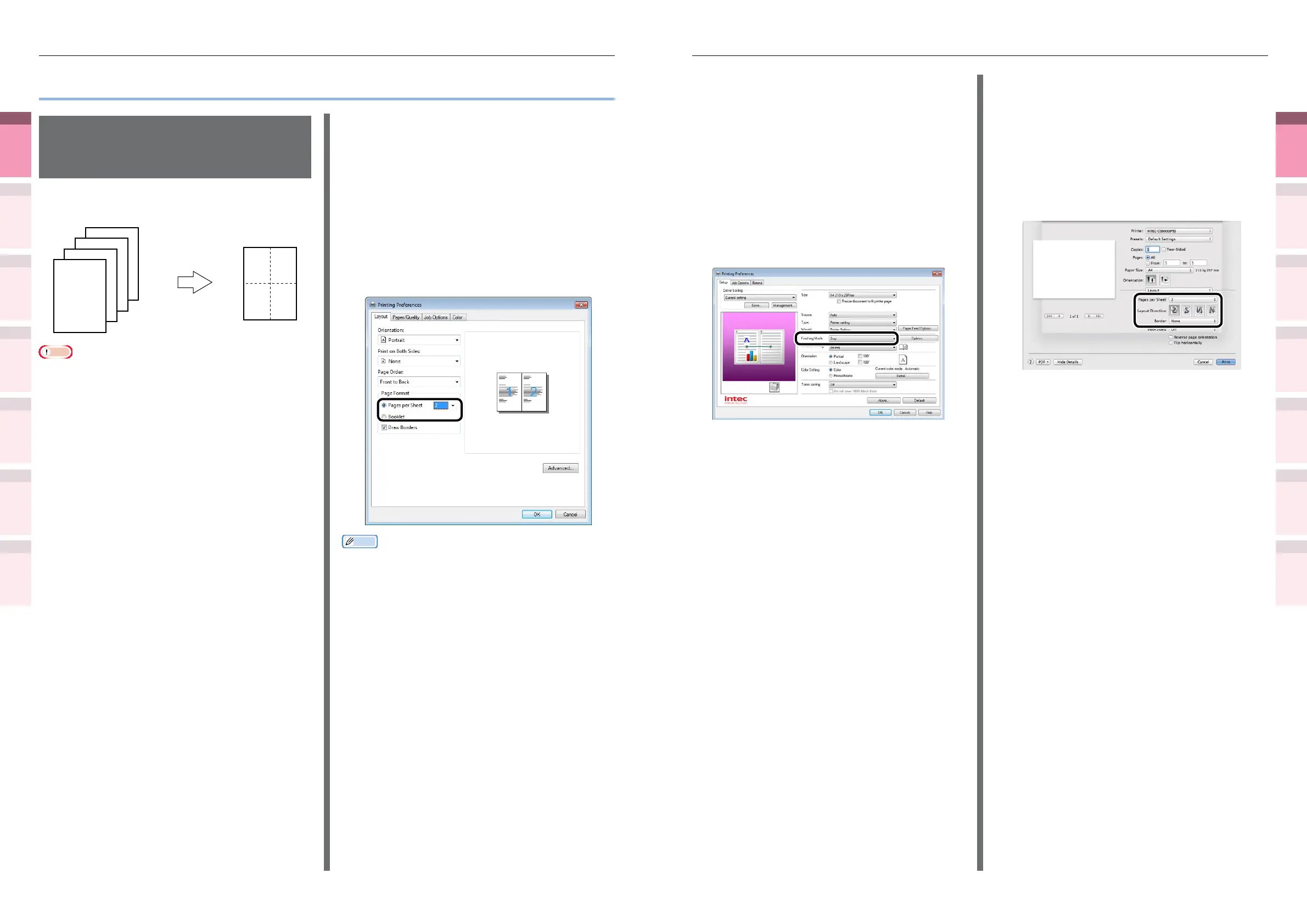
Using Windows PCL printer
drivers
1
Open the le to be printed.
2
Select [Print] in the [File] menu.
3
Click [Advanced] (or [Preferences]).
4
Select [n-up] (where n is the number
of pages to be printed on 1 sheet) in
[Finishing Mode] in the [Setup] tab.
5
Click [Options], and set [Page Borders],
[Page layout], and [Bind Margin] as
necessary. The bind width can be set
from 0 to 30mm left and right.
6
Printing will be implemented.
Using Mac OS X printer drivers
1
Open the le to be printed.
2
Select [Print] in the [File] menu.
3
Select [Pages per Sheet], [Layout
Direction], and [Border] in the [Layout]
panel.
4
Printing will be implemented.
z
Economy printing
Printing multiple pages
on a single sheet (multi-
page printing)
You can print by reducing data for multiple pages
on a single sheet.
1
1 2
3 4
2
3
4
Note
z
This function reduces the data to print, so the center of
the paper may not be accurately aligned.
z
Bind width can also be set using Windows PCL printer
drivers.
z
Not usable with some applications.
Using Windows PS printer drivers
1
Open the le to be printed.
2
Select [Print] in the [File] menu.
3
Click [Advanced] (or [Preferences]).
4
Select the number of pages to pr
printed on a single page from [Pages
per Sheet] in the [Layout] tab.
Memo
z
If using Windows 8/Windows 7/Windows Vista/Windows
Server 2012/Windows Server 2008 R2/Windows Server
2008, make sure to set [Draw Borders] as necessary.
Further, you can also change the page distribution using
[Advanced]>[Page Layout per Sheet].
5
Printing will be implemented.



 To Next Page