- 128 - - 129 -
Matching Colors Using the Printer Drivers Matching Colors Using the Printer Drivers
4
3
5
1
2
4
3
5
1
2
Convenient print
functions
Appendix Index
Checking and
Changing Printer
Settings Using
the Control Panel
Network
Setup
Matching
Colors
Using Utility
Software
Convenient print
functions
Appendix Index
Checking and
Changing Printer
Settings Using
the Control Panel
Network
Setup
Matching
Colors
Using Utility
Software
Printing using color
analysis (classication
printing)
You can implement color separation printing
of the four colors cyan, magenta, yellow, and
black even if the application does not have a
separation print function.
Note
z
Cannot be used with Windows PCL printer drivers.
z
If using Adobe Illustrator, use the application's separation
print function. Set the printer driver settings to No Color
Matching.
Memo
z
The Separations function is for creating under the print.
Use black toner to print each specied primary color.
There is no function for printing each primary color ink
separately.
Using Windows PS printer drivers
1
Open the le to be printed.
2
Select [Print] in the [File] menu.
3
Click [Advanced] (or [Preferences]).
4
Click the [Advanced] button in the
[Color] tab.
5
Select the colors to be printed
separately using [Print color
separations], and then click [OK].
6
Printing will be implemented.
Using Mac OS X printer drivers
1
Open the le to be printed.
2
Select [Print] in the [File] menu.
3
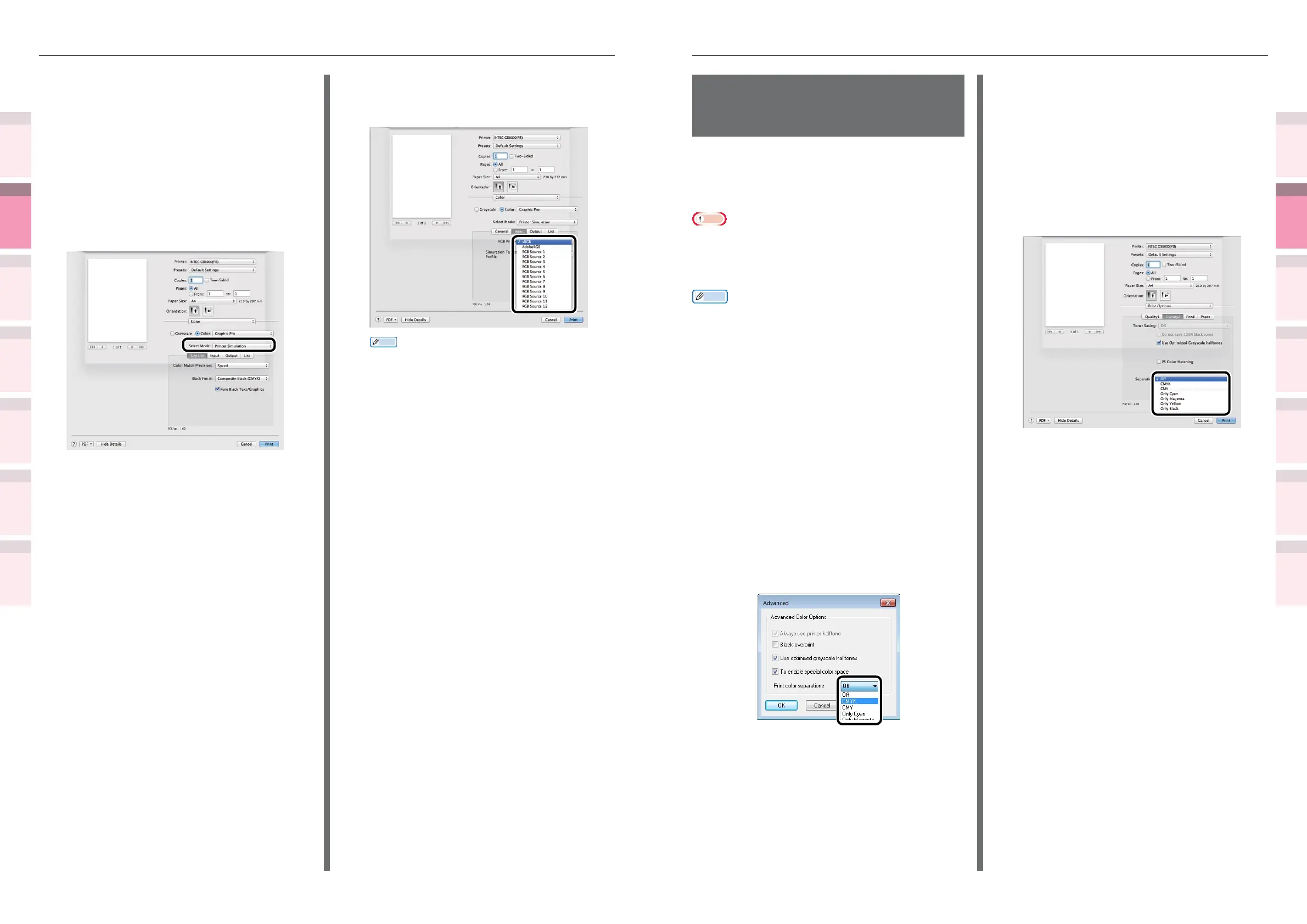
Click the [Quality 2] button in the
[Print Options] panel, and select the
colors to be printed separately using
[Separations].
4
Printing will be implemented.
Using Mac OS X printer drivers
1
Open the le to be printed.
2
Select [Print] in the [File] menu.
3
Select [Graphic Pro] in the [Color]
panel.
4
Select [Printer Simulation] in [Select
Mode].
5
Click the [Input] button, and select the
ink characteristics to be simulated using
[Simulation Target Prole].
Memo
z
For business documents, etc., you can select
[Ofce Color] in [Color Mode] when setting the
[Color Options] function in Steps 3, 4 and 5, and
then select the ink characteristics to be simulated
using [CMYK Ink Simulation] in the [Ofce Color]
functions settings.
6
Printing will be implemented.



 To Next Page