- 179 -
Using DHCP
5
1
2
4
3
Convenient print
functions
Appendix Index
Checking and
Changing Printer
Settings Using
the Control Panel
Network
Setup
Matching
Colors
Using Utility
Software
- 178 -
Using DHCP
5
1
2
4
3
Convenient print
functions
Appendix Index
Checking and
Changing Printer
Settings Using
the Control Panel
Network
Setup
Matching
Colors
Using Utility
Software
Setting the printer
To use the device on a DHCP environment, set
the IP address setup method to automatic.
Further, the default factory setting is to set the
IP address automatically, so implementing this
procedure is unnecessary.
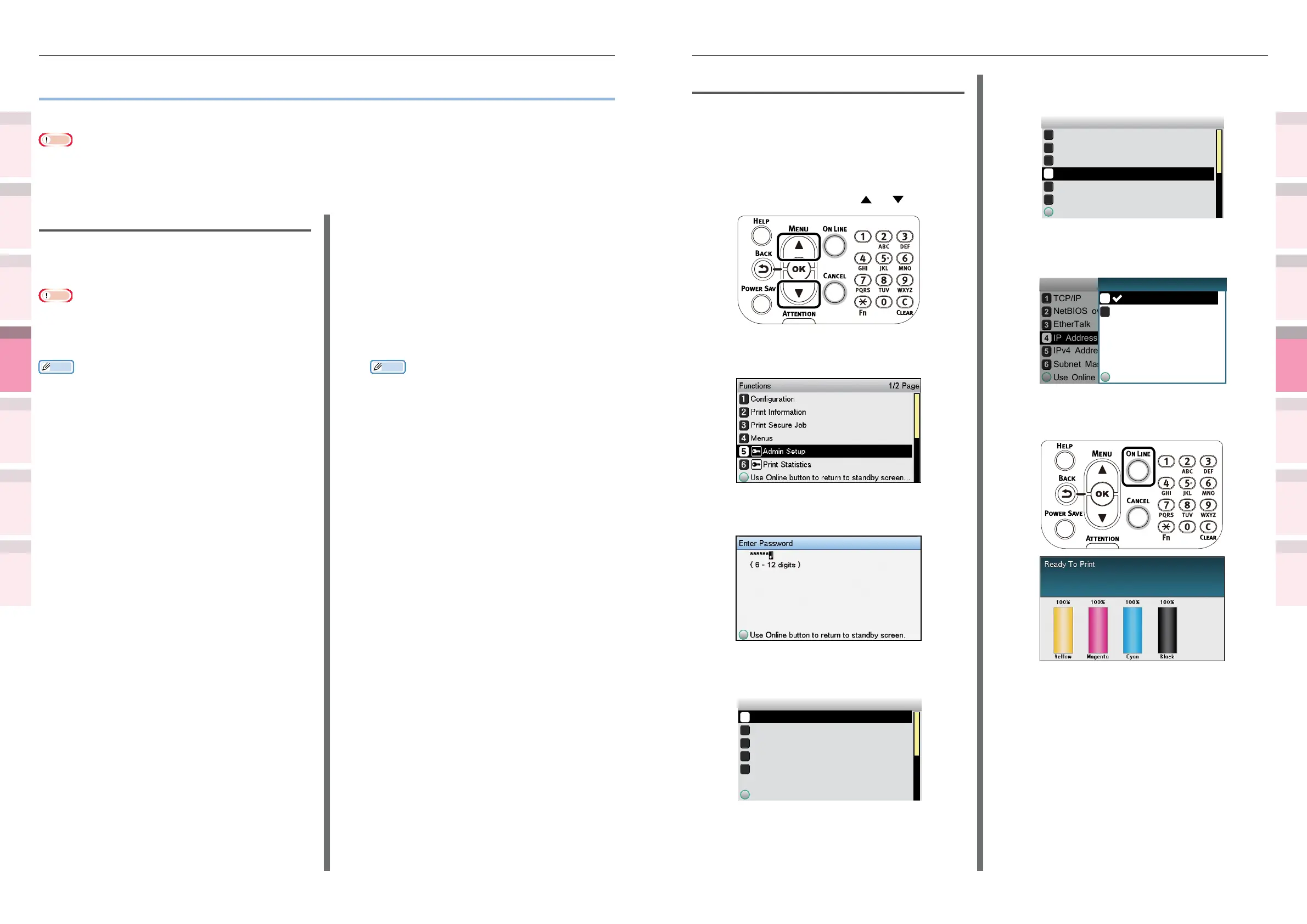
1
Press the scroll button or .
2
Select [Admin Setup], and press the
[OK] button.
3
Enter the administrator password, and
press the [OK] button.
4
Select [Network Setup], and press the
[OK] button.
Admin Setup 1/3 Page
Network Setup
Print Setup
PS Setup
PCL Setup
USB Setup
5
Select [IP Address Set], and press the
[OK] button.
Network Setup 1/3 Page
TCP/IP
EtherTalk
IP Address Set
IPv4 Address
Subnet Mask
Use Online button to return to standby screen
NetBIOS over TCP
6
Select [Auto], and press the [OK]
button.
TCP/IP
NetBIOS over TCP
EtherTalk
IP Address Set
IPv4 Address
Subnet Mask
Use Online button to return to standby scr
Network Setup
Use Online button to return
Manual
Auto
1/1 PageIP Address Set
7
Press the [ON LINE] button to return to
the standby screen.
z
Using DHCP
The IP address can be acquired from the DHCP server.
Note
z
PC administrator privileges are required for the setup.
z
Incorrectly allocating the IP address may cause major malfunctions such as crashing the network. Thoroughly consult the
network administrator before making the settings.
Setting the DHCP server
DHCP is the protocol that allocates IP addresses
automatically to each TCP/IP network. You can
set a subnet mask in addition to the IP address.
Note
z
Set the DHCP server so that a xed IP address is allocated
to the device. Allocating IP addresses randomly may
disable printing via the network. See the DHCP server
manuals for how to allocate xed IP addresses.
Memo
z
Compatible with the following OS.
– Windows Server 2008 R2/Windows Server 2008/
Windows Server 2003
z
The following procedure uses Windows Server 2008 R2
as an example. Depending on the OS, descriptions may
differ.
1
Click [Start], and select [Admin
tools]>[Server manager].
If [DHCP] is already displayed in [Admin
tools], go to Step 8.
2
Select [Add role] in [Role summary].
3
In the [Add role wizard], click [Next].
4
Enable the [DHCP server] check box,
and click [Next].
5
Make settings as necessary following
the on-screen instructions.
6
Check the settings using the [Check
installation options], and click [Install].
7
When the installation has nished, click
the [Exit] button.
8
Click [Start], and select [Admin
tools]>[DHCP] to start the [DHCP]
wizard.
9
Select the server to be used from the
DHCP list.
10
Select [New scope] from the
[Operations] menu.
11
Use the [New scope wizard] to make
the settings as necessary by following
the on-screen instructions.
Memo
z
Make sure to set the default gateway.
z
Select [Activate immediately] in the [Activate
scope] screen.
12
Click [Finish].
13
Select the new scope from the DHCP
list, and select [Reserve].
14
Select [New reservation] from the
[Operations] menu.
15
Make the settings.
16
Click [Add].
17
Click [Exit].
18
Select [Finish] from the [File] menu.



 To Next Page