- 105 -
Matching colors using the control panel
4
3
5
1
2
Convenient print
functions
Appendix Index
Checking and
Changing Printer
Settings Using
the Control Panel
Network
Setup
Matching
Colors
Using Utility
Software
- 104 -
Matching colors using the control panel
4
3
5
1
2
Convenient print
functions
Appendix Index
Checking and
Changing Printer
Settings Using
the Control Panel
Network
Setup
Matching
Colors
Using Utility
Software
4
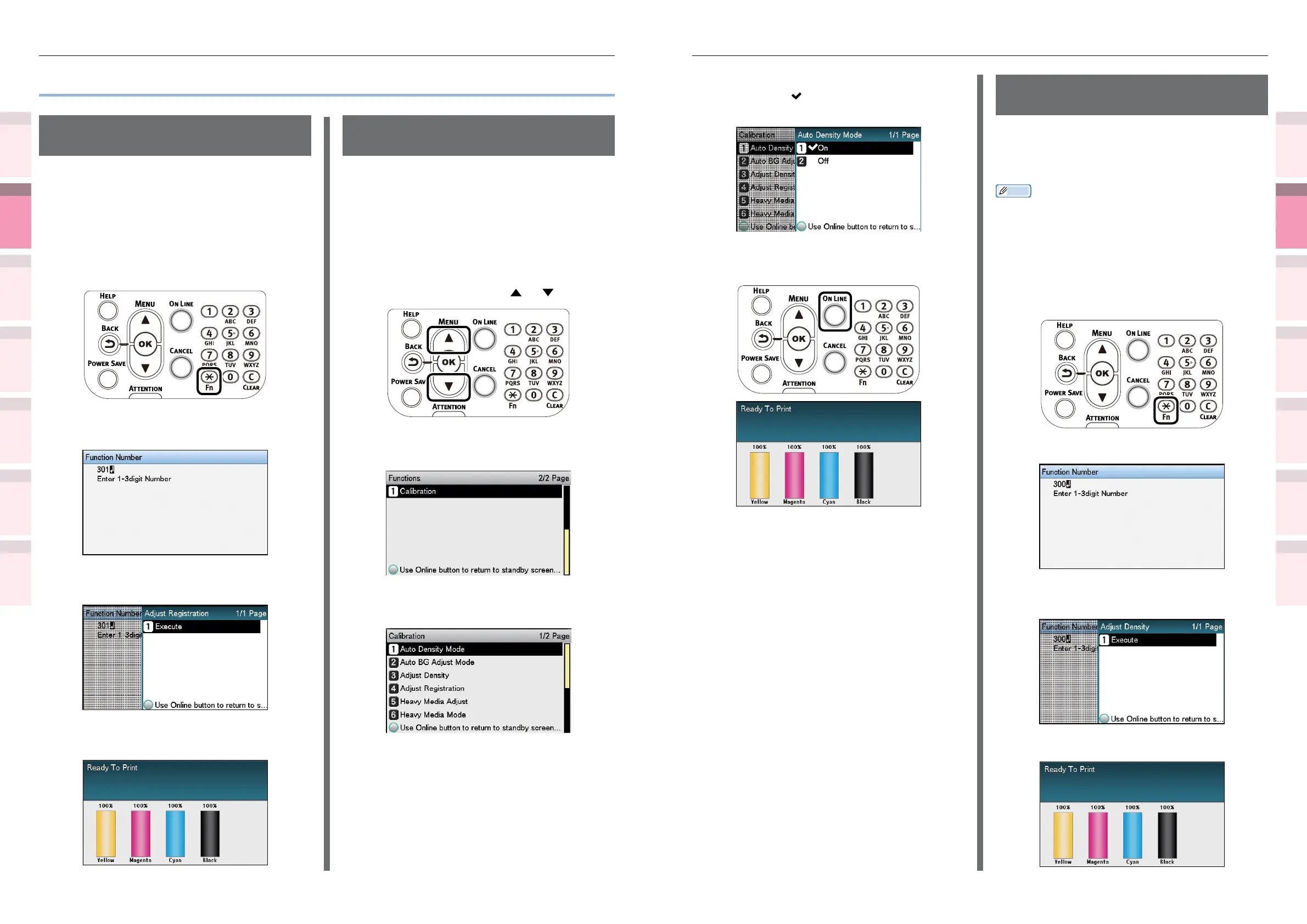
Select [On], and press the [OK] button.
Check that
is displayed to the left of
[On].
5
Press the [ON LINE] button to return to
the standby screen.
Manually compensating
density
The printer can implement compensation
periodically using auto density compensation
mode, but if the print density is a nuisance, it
can also be compensated manually.
Memo
z
The density compensation adjustment values are set using [Cyan
density], [Magenta density], [Yellow density], [Black density],
[White density]*, and [Clear density]* on the control panel.
*: CS5000 items only.
1
Press the [Fn] key.
The numerical values input screen will
be displayed.
2
Press [3], [0], [0], and press the [OK] button.
3
Check that [Execute] has been selected,
and press the [OK] button.
4
The display will return to the standby screen.
z
Matching colors using the control panel
Manually compensating
color drift
The printer compensates color drift automatically
according to the conditions of use. If the color
drift is a nuisance, you can also implement
compensation manually.
1
Press the [Fn] key.
The numerical values input screen will
be displayed.
2
Press [3], [0], [1], and then press the
[OK] button.
3
Check that [Execute] has been selected,
and press the [OK] button.
4
The display will return to the standby
screen.
Automatically compensating density
and gradation
The printer compensates density automatically
according to the conditions of use. To
compensate automatically, turn [On] the density
compensating matching setting.
In the default factory settings, density
compensating matching is implemented
automatically.
1
Press the scroll button or .
2
Select [Calibration], and press the [OK]
button.
3
Select [Auto Density Mode], and press
the [OK] button.



 To Next Page