- 58 - - 59 -
Changing sizes to print Clean printing
4
1
2
3
5
4
1
2
3
5
Convenient print
functions
Appendix Index
Checking and
Changing Printer
Settings Using
the Control Panel
Network
Setup
Matching
Colors
Using Utility
Software
Convenient print
functions
Appendix Index
Checking and
Changing Printer
Settings Using
the Control Panel
Network
Setup
Matching
Colors
Using Utility
Software
z
Clean printing
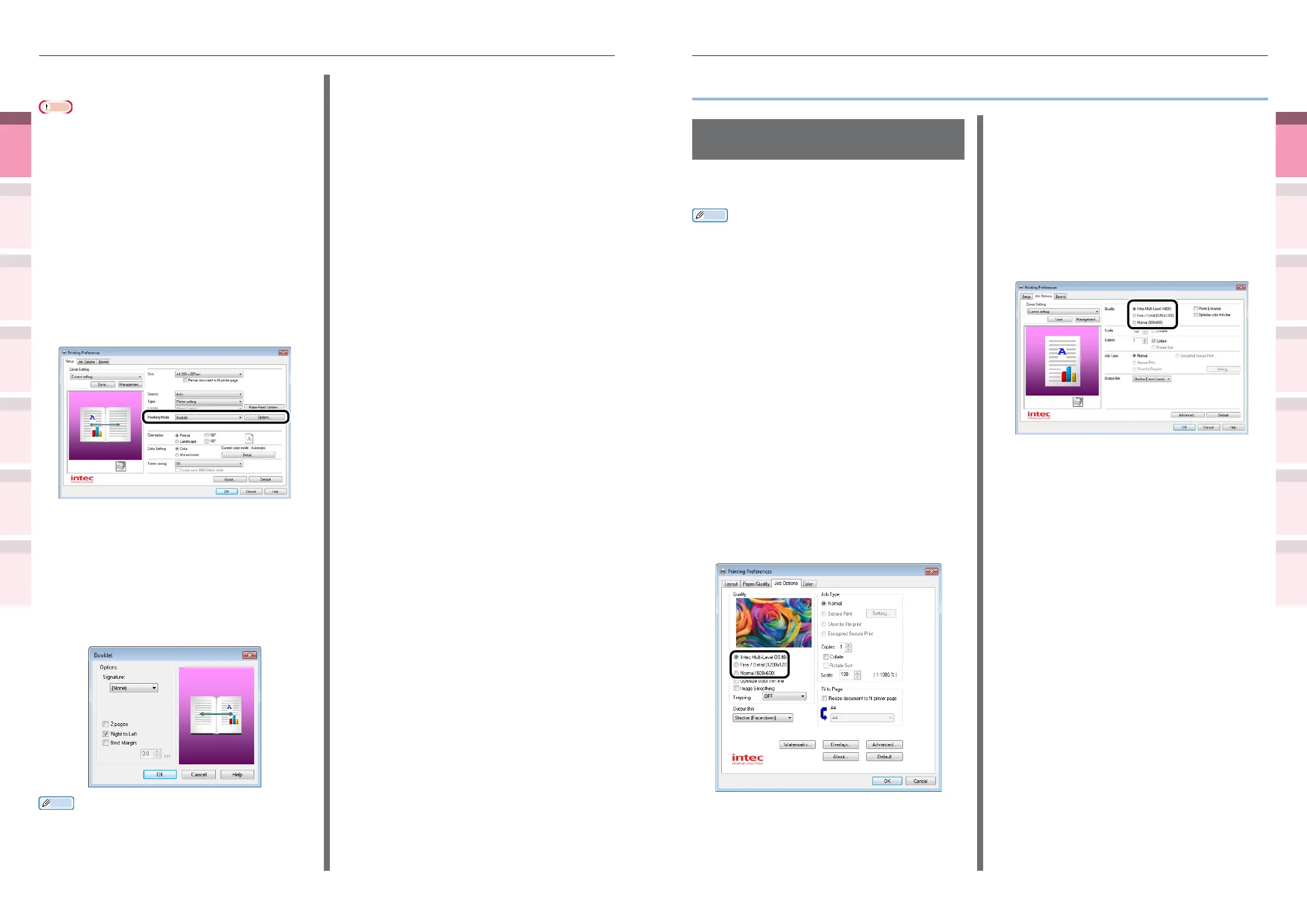
Changing print quality
(resolution)
Set [Quality] by aligning to the environment
used.
Memo
z
If printing is incorrect using large size paper from the PS
printer drivers, you can correct the printing by setting
"
Normal
"
in [Quality].
z
Select [Intec Multi-Level OS4800] to print using the
highest printer quality.
– Select [Normal (600x600 dpi)] to print at low resolution.
This mode prioritizes print speed.
– [Fine/Detail(1200x1200 dpi)] is an intermediate mode
between [Intec Multi Level OS4800)] and [Normal (600x600
dpi)].
z
By selecting [Optimize color thin line], characters and/or
lines with color will be printed sharply.
Using Windows PS printer drivers
1
Open the le to be printed.
2
Select [Print] in the [File] menu.
3
Click [Advanced] (or [Preferences]).
4
Change [Quality] in the [Job Options]
tab.
5
Printing will be implemented.
Using Windows PCL printer drivers
1
Open the le to be printed.
2
Select [Print] in the [File] menu.
3
Click [Advanced] (or [Preferences]).
4
Change [Quality] in the [Job Options]
tab.
5
Printing will be implemented.
Using Windows PCL printer drivers
Note
z
Pamphlets cannot be printed if printing using encrypted
secure print functions from the client after creating the
printer drivers using a shared network.
z
If [Booklet] cannot be printed, right-click the [Intec
(printer name) (PCL6)] in the [Devices and Printers]
folder, and select [Preferences]>[Advanced]>[Print
Processor]>[ITX04ZPP].
1
Open the le to be printed.
2
Select [Print] in the [File] menu.
3
Click [Advanced] (or [Preferences]).
4
Select [Booklet] in [Finishing Mode] in the
[Setup] tab, and click [Options].
5
Set [Signature], [2 pages], [Right to
Left], and [Bind Margin] as necessary in
"Booklet".
z
Signature
This is the page unit for booklets.
z
Right to Left
Prints so that the pamphlet opens on the right.
Memo
z
E.g.: If creating A5 size booklets using A4 size paper,
select [A4] in [Paper Size] in the [Setup] tab.
6
Printing will be implemented.



 To Next Page