- 184 - - 185 -
Setting the network from the web browser Setting the network from the web browser
5
1
2
4
3
5
1
2
4
3
Convenient print
functions
Appendix Index
Checking and
Changing Printer
Settings Using
the Control Panel
Network
Setup
Matching
Colors
Using Utility
Software
Convenient print
functions
Appendix Index
Checking and
Changing Printer
Settings Using
the Control Panel
Network
Setup
Matching
Colors
Using Utility
Software
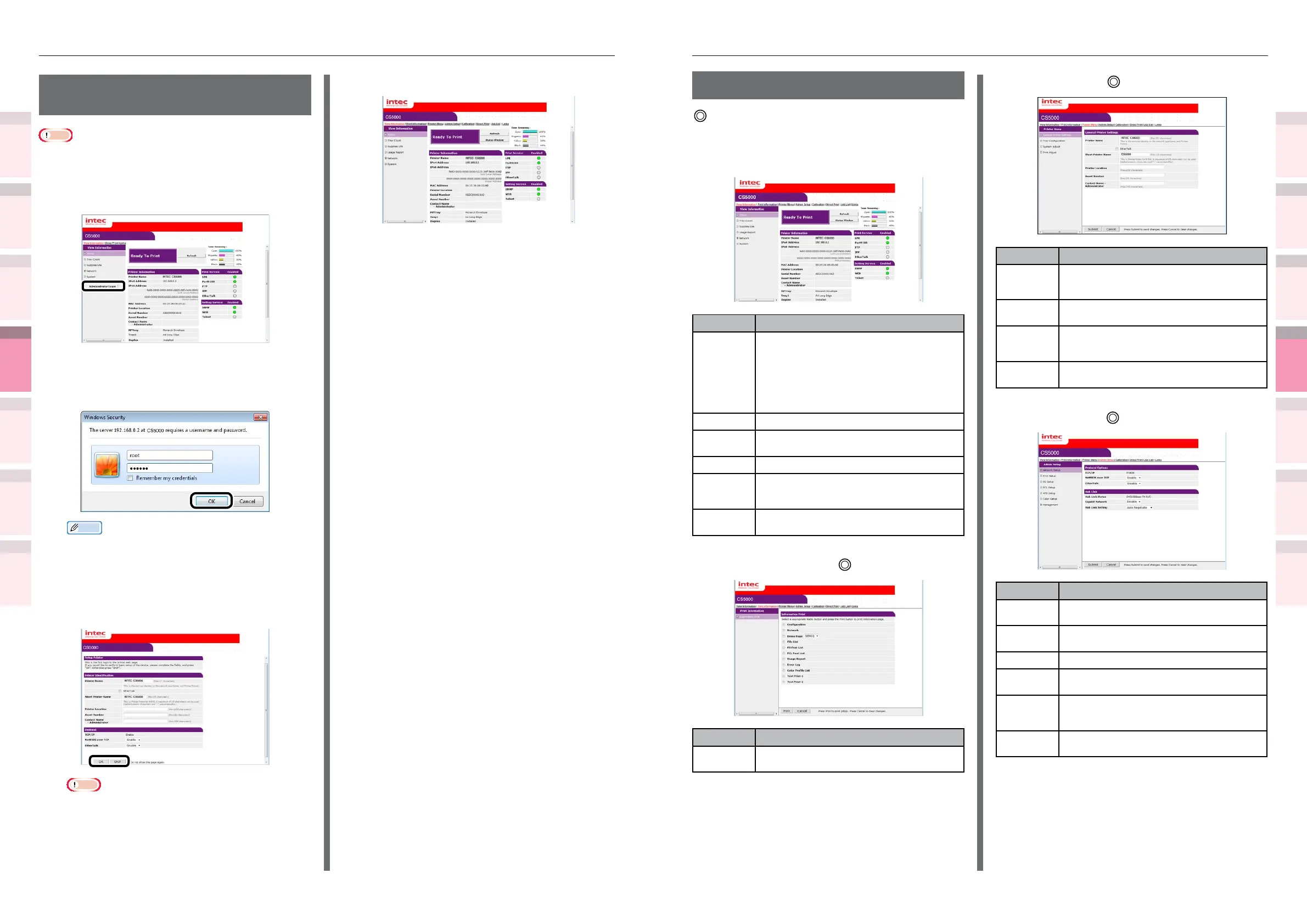
Items table
: Displayed if logged in as a printer
administrator.
View Information
Item Explanation
Status Displays the current printer status. Displays all
warnings and errors that occurred in the printer
as "malfunction information". Further, you can
also check the operations status of the network
services, printer information tables, and IP
addresses set in the printer. For the status window,
see the “Checking the “Status Window”” (P.188)
page.
Tray Count Displays the print quantity for each tray.
Supplies Life Displays the remaining consumables quantity and
service life.
Usage Report Displays the total print results.
Network You can check the network settings information
such as general information, TCP/IP status,
maintenance information, etc.
System Displays the versions, available memory, available
ash memory, and system information.
Print Information
Item Explanation
Information
Print
You can print and check the information set in the
printer, such as the networks and want lists, etc.
Printer Menu
Item Explanation
General
Printer
Settings
You can set the printer name, printer management
number, and installation location, etc.
Tray
Conguration
You can set paper information such as the paper
size per tray and automatic tray switching, etc.
System
Adjust
You can set printer operations per status, such as
power save ON time, alarm cancellations, timeout
printing, etc.
Print Adjust You can set the print position compensation and
print quality, etc.
Admin Setup
Item Explanation
Network
Setup
You can set the protocols such as TCP/IP and
EtherTalk, etc.
Print Setup You can set print information such as 2-sided
printing and toner save, etc.
PS Setup You can set the PS communications protocol mode.
PCL Setup You can set PCL information such as PCL fonts and
blank page output, etc.
Color Setup You can set the color information, such as the
CMYK data conversion process using PostScript
printing.
Management You can set printer information such as power
settings and job cancel settings, etc.
Logging in as an
administrator
Note
z
To change the device settings using the web browser, it is
necessary to log in as a device administrator.
1
Click [Administrator Login].
2
Enter "root" in [Username], and the
current password in [Password], and
click [OK].
Memo
z
The password is the same as for the "Administrator
password" in the control panel.
3
Set the printer information that can be
checked using the network, and click
either [OK] or [SKIP].
Note
z
Click [SKIP] to omit the setup.
z
Enable the [Do not show this page again] check
box, and click either [OK] or [SKIP] to disable this
display for subsequent logins.
4
The following screen will be displayed.



 To Next Page