- 124 - - 125 -
Matching Colors Using the Printer Drivers Matching Colors Using the Printer Drivers
4
3
5
1
2
4
3
5
1
2
Convenient print
functions
Appendix Index
Checking and
Changing Printer
Settings Using
the Control Panel
Network
Setup
Matching
Colors
Using Utility
Software
Convenient print
functions
Appendix Index
Checking and
Changing Printer
Settings Using
the Control Panel
Network
Setup
Matching
Colors
Using Utility
Software
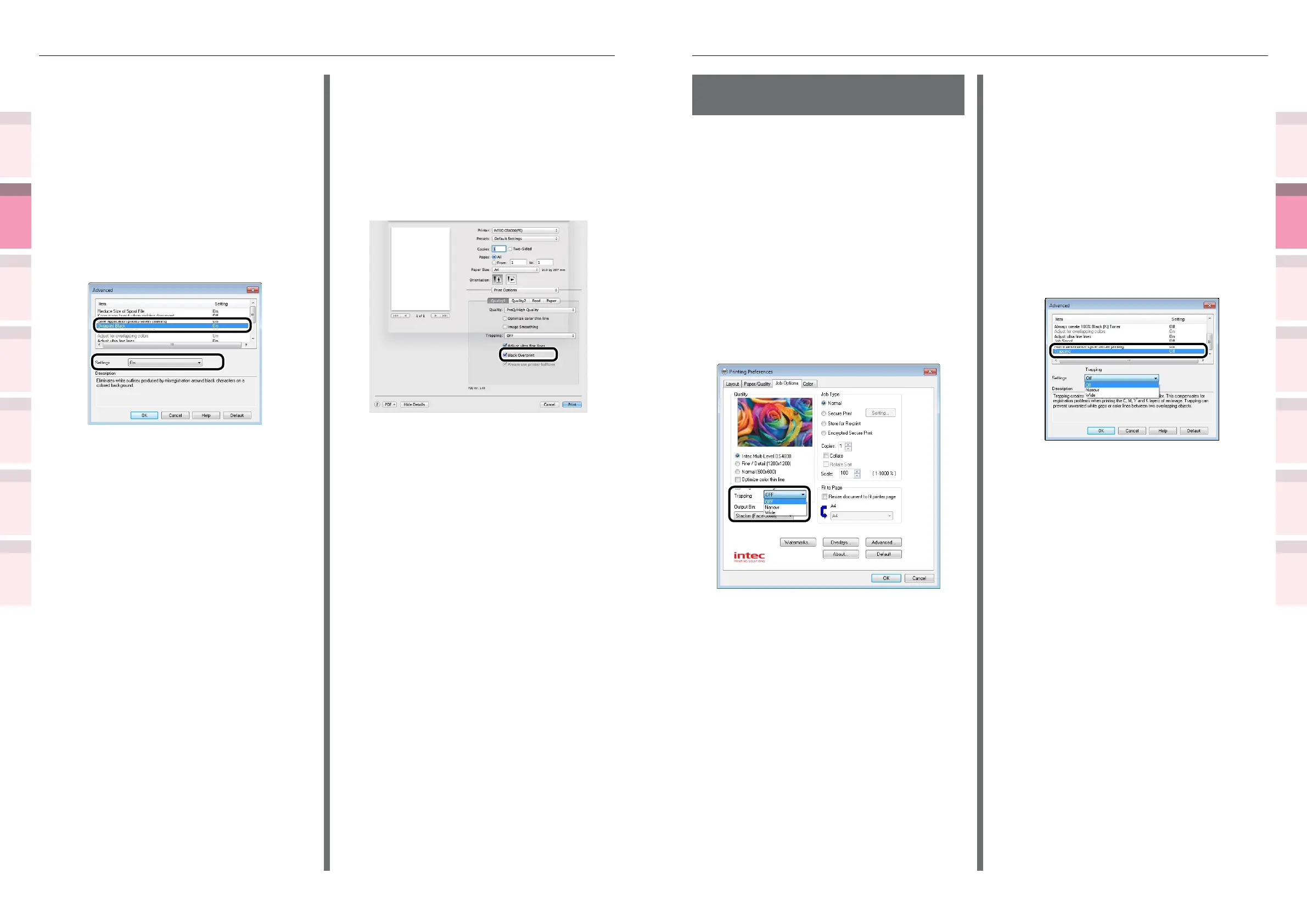
Calibrating plate
misalignment (trapping)
Use if there are white or colored lines
between two overlapping objects due to print
misalignment.
Using Windows PS printer drivers
1
Open the le to be printed.
2
Select [Print] in the [File] menu.
3
Click [Advanced] (or [Preferences]).
4
Select the print misalignment calibration
method using [Trapping] in the [Job
Options] tab, and click [OK].
5
Printing will be implemented.
Using Windows PCL printer drivers
1
Open the le to be printed.
2
Select [Print] in the [File] menu.
3
Click [Advanced] (or [Preferences]).
4
Click [Advanced] in the [Job Options]
tab.
5
Select [Trapping], and then select the
print misalignment calibration method
using [Settings], and click [OK].
6
Printing will be implemented.
Using Windows PCL printer drivers
1
Open the le to be printed.
2
Select [Print] in the [File] menu.
3
Click [Advanced] (or [Preferences]).
4
Click [Advanced] in the [Job Options]
tab.
5
Select [Overprint Black], and then
select [On] in [Settings], and click [OK].
6
Printing will be implemented.
Using Mac OS X printer drivers
1
Open the le to be printed.
2
Select [Print] in the [File] menu.
3
Click [Quality 1] in the [Print Options]
panel, and enable the [Black Overprint]
check box.
4
Printing will be implemented.



 To Next Page